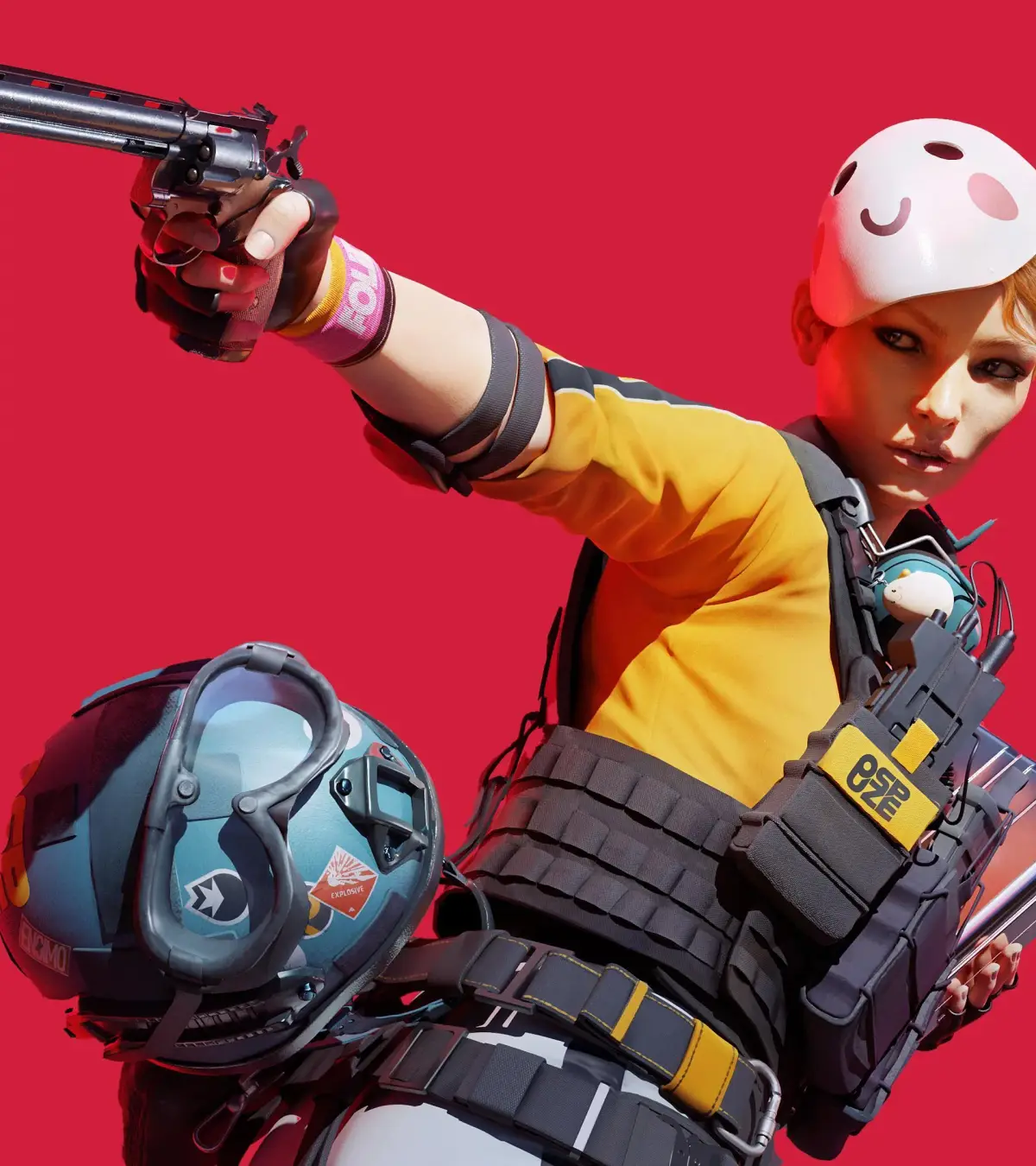
Optimize your play in THE FINALS with custom controller layouts. Learn about optimal button mapping and gamepad configuration for better aiming and movement.
For players who prefer the tactile feel of a controller, THE FINALS offers robust support for various gamepad layouts. While keyboard and mouse offer precision, a well-configured controller can provide comfort and intuitive control, especially for movement and aiming. Here are common controller layouts and considerations for optimizing your experience.
Default Controller Layout (Example - may vary by platform):
This layout is designed for general usability, but players are encouraged to explore customization options within the game's settings.
| Button/Stick | Action | Notes |
|---|---|---|
Left Stick |
Movement (Forward/Backward/Left/Right) | Standard movement control. Clicking the stick often enables Sprint. |
Right Stick |
Aiming / Camera Control | Primary aiming input. Clicking the stick may activate Melee or Crouch. |
A (Xbox) / X (PlayStation) |
Jump | Tap to jump, double-tap for vaulting. |
B (Xbox) / Circle (PlayStation) |
Crouch / Slide | Tap to crouch, hold to slide. |
X (Xbox) / Square (PlayStation) |
Interact / Reload | Used for picking up objectives, reviving teammates, and reloading weapons. |
Y (Xbox) / Triangle (PlayStation) |
Melee Attack | Quick close-quarters attack. |
Left Bumper (LB / L1) |
Ability 1 | Use your first active ability. |
Right Bumper (RB / R1) |
Ability 2 | Use your second active ability. |
Left Trigger (LT / L2) |
Aim Down Sights (ADS) | Hold to aim your weapon. |
Right Trigger (RT / R2) |
Fire Weapon | Primary fire. |
D-Pad Up |
Select Weapon/Gadget 1 | Cycle through your loadout. |
D-Pad Down |
Select Weapon/Gadget 2 | Cycle through your loadout. |
D-Pad Left |
Ping System | Mark locations or enemies. |
D-Pad Right |
Voice Chat Toggle | Toggle microphone on/off. |
View/Select Button |
Scoreboard / Map | Toggle between scoreboard and map view. |
Menu/Options Button |
Pause Menu | Access game menus. |
Controller Customization:
Within THE FINALS' settings menu, you'll find options to:
- Button Mapping: Reass any button to a different action. This is crucial for creating a layout that suits your playstyle. For example, some players prefer to move Jump or Crouch to a bumper for easier access while keeping their thumbs on the sticks.
- Sensitivity: Adjust the sensitivity for both look (right stick) and aiming (ADS). Finding the right balance allows for quick turns while maintaining accuracy.
- Dead Zones: The dead zone is the area around the center of the analog stick where input is ored. Adjusting this can help with stick drift or fine-tune responsiveness.
- Vibration: Toggle controller vibration on or off. Some players find it immersive, while others find it distracting.
Experiment with different layouts and sensitivity settings. Many professional controller players use "claw grip" or controllers with back paddles to access more buttons without taking their thumbs off the analog sticks. While this requires practice, it can offer a significant advantage in a game as demanding as THE FINALS.
100% Human-Written. AI Fact-Checked. Community Verified. Learn how AntMag verifies content