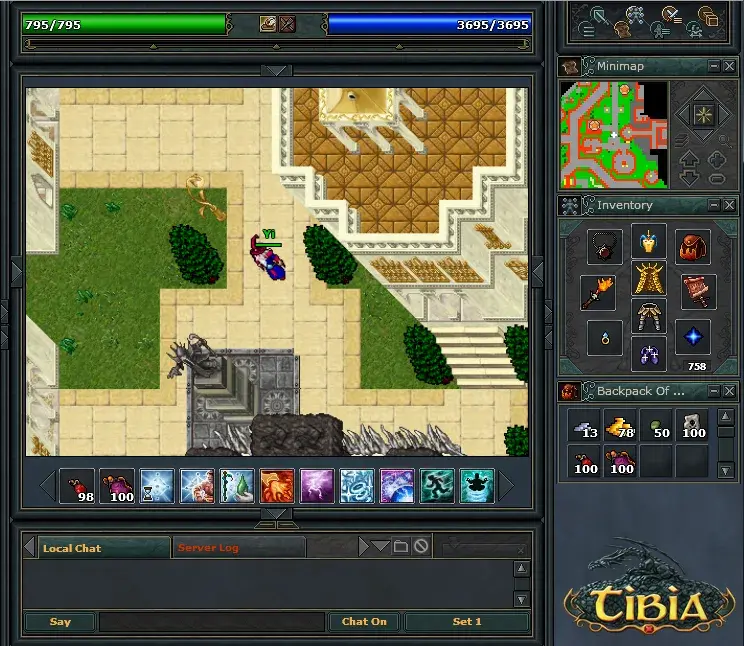
Learn the essential Tibia controls for Rookgaard! This guide covers walking, using items, examining, talking, checking equipment, skills, battle, map, looting, and picking up items.
Hey there! Welcome to Tibia. Before you even think about leaving Rookgaard, let's get you comfortable with the basics. Think of this as your quick-start guide to not bumping into walls or accidentally attacking your friends. We'll cover all the essential controls you'll need to get around and interact with the world.
IMPORTANT NOTE: When you first start, Tibia uses 'Classic Controls' by default. If you find yourself confused by right-clicking to get menus, you can turn this off. If you do keep Classic Controls on, remember that holding CTRL while right-clicking will bring up that same menu. For most of this guide, I'll assume you're using the default, easier-to-understand right-click menu.
WALKING
This one's pretty straightforward. To move your character, just LEFT click on the spot you want them to go. Want to go across the whole map? You can even LEFT click on the MAP screen itself, and your character will start walking there. If you want to zoom in or out on the map, that's a simple RIGHT click on the map.
USING ITEMS
Got a potion, a rope, or maybe a fishing rod? To use any item, just RIGHT click on it. If you see a little white cross appear after clicking, it means you need to use that item *on* something else. For things like ladders, don't click the ladder itself or the top rung; instead, RIGHT click the 'square' or tile the ladder is standing on. Stairs are even simpler – just walk up to them!
EXAMINING
Curious about that weapon's stats or how much that item weighs? You can find out by LEFT clicking AND RIGHT clicking on an object, character, or even the landscape. This is super handy for checking defenses, attack power, and item weights.
TALKING
To chat with NPCs (Non-Playable Characters), type "Hi" or "Hello" into the text box at the bottom of your screen and press ENTER. Most NPCs will start a conversation. Sometimes, you'll need to be a bit more specific, like typing "Hello, [NPC Name]".
CHECKING EQUIPMENT, SKILLS, BATTLE SCREEN and MAP
- Equipment: Your gear shows up on the right side of your screen. You can drag and drop items into slots for your HEAD, NECK, BACK (backpack), LEFTHAND, RIGHTHAND, FINGER (ring), LEGS, FEET (boots), and an EXTRA SLOT for things like ammo.
- Skills: Click the 'SKILLS' button to open a window showing your experience points and skill levels. Skills like weapon proficiency or shielding increase as you use them or take damage (though nowadays, you often need to deal damage too). Fishing skill goes up by using a fishing rod (RIGHT click the rod, then LEFT click the water).
- Battle Screen: Hit the 'BATTLE' button to see nearby players and monsters. LEFT click a target here to attack. If you prefer not to use the Battle Window, you can always RIGHT click your target directly.
- Map: The map is in the top-right corner, with you as a white cross. Use the magnifying glass buttons to zoom in/out. The arrows let you view floors above or below. The star lets you move the map view around, and clicking its center resets it to your current location. The map will automatically update if you move.
BAG/BACKPACK
To open your backpack (if you have one), RIGHT click it on your equipment screen. It'll pop open just below your gear. If you open other containers, like a chest or another bag on the ground, they'll open relative to where you clicked. You can close any open window by RIGHT clicking the item again, walking away from it, or clicking the 'X' on the window.
LOOTING
After you defeat a monster, its body will stick around for a bit before decaying. While the corpse is in its first or second stage of decay, you can RIGHT click it to open it up and see what loot it dropped.
PICKING UP ITEMS
Once you've opened a bag or a monster's corpse, you can grab items. To pick something up, LEFT click it, hold the mouse button down, and DRAG it to an empty slot in your inventory or backpack. It'll usually go into the top-left slot first. Be aware that you can't pick up everything – some items are too heavy! If you can't pick something up, you might see a message like "Object is too heavy." This means your 'Capacity' is full, and you'll need to drop some items to make space.
DRAGGING/MOVING OBJECTS
This works just like picking up items. LEFT click an object, hold the button, and DRAG it to a new spot. Your character will move to it and push it. Lighter items like bags or weapons can be moved almost anywhere you can see (as long as there isn't a wall in the way). Heavier things, like big monster corpses or tables, can only be moved one tile at a time. Moving other players or monsters takes a moment, but moving items is instant.
SIDESTEPPING
Sidestepping lets you move diagonally (like / or \). You do this by LEFT clicking, holding, and dragging your character in the desired diagonal direction (northeast, northwest, southeast, or southwest). If you hold it for a moment, your character will move there. This is useful for squeezing through tight spots between objects or other players.
100% Human-Written. AI Fact-Checked. Community Verified. Learn how AntMag verifies content