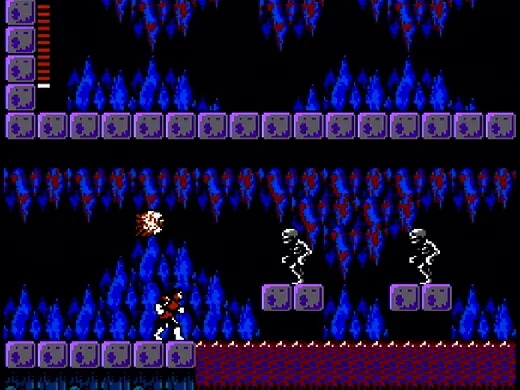
Master the controls for Castlevania II: Simon's Quest on NES and Virtual Console. Learn button functions for D-Pad, A, B, Start, and Select.
Controls are based on the original NES Instruction Manual.
NES Controls:
- D-Pad: Press Up or Down to ascend or descend stairs. Press Left or Right to move horizontally. Press Up when in front of a door to enter. Press Down to squat and avoid enemy projectiles.
- Select Button: Press to pause the game.
- Start Button: Press to begin the game. During gameplay, press to display the "Multi Screen", where you can select weapons and magical items. Press again after selection to return to the game.
- A Button: Press to jump.
- B Button: Press to lash with your whip. Pressing A and B simultaneously allows you to jump and whip. Press B to talk with Transylvanian villagers and merchants.
How to Use Certain Weapons:
Press Up on the D-Pad while pressing the B Button to throw Holy Water or Dagger, drive in the Oak Stake, use the Flame, or place Garlic.
Virtual Console Controls (3DS/Wii/Wii U):
Castlevania II: Simon's Quest was originally on the Famicom Disk System (FDS) and NES, and is available on the 3DS/Wii U Virtual Console. The 3DS and Wii U are recommended for beginners due to their save state system. These versions are exact emulations of the NES original. The Wii/Wii U Virtual Console versions support multiple control inputs: Wiimote, Classic Controller, GameCube Controller, or Wii U GamePad.
Button Key for Virtual Console:
The following buttons on the 3DS, Wiimote, Classic Controller, GameCube Controller, and Wii U GamePad correspond to their NES counterparts:
- 3DS Circle Pad = NES D-Pad
- Wiimote D-Pad = NES D-Pad
- Wii Classic Controller D-Pad = NES D-Pad
- GameCube Analog Stick = NES D-Pad
- Wii U GamePad Left Analog Stick = NES D-Pad
- 3DS D-Pad = NES Select (Note: This mapping appears to be an error in the source, as the D-Pad is typically mapped to movement. Assuming standard mapping for movement.)
- Wiimote Left Analog Stick = NES D-Pad (Note: This mapping appears to be an error in the source, as the Left Analog Stick is typically mapped to movement. Assuming standard mapping for movement.)
- 3DS B Button = NES B Button
- Wiimote 1 Button = NES B Button
- Wii Classic Controller B Button = NES B Button
- GameCube B Button = NES B Button
- Wii U GamePad B Button = NES B Button
- 3DS A Button = NES A Button
- Wiimote 2 Button = NES A Button
- Wii Classic Controller A Button = NES A Button
- GameCube A Button = NES A Button
- Wii U GamePad A Button = NES A Button
- 3DS Start Button = NES Start Button
- Wiimote + Button = NES Start Button
- Wii Classic Controller + Button = NES Start Button
- GameCube Start Button = NES Start Button
- Wii U GamePad + Button = NES Start Button
- 3DS Y Button = NES Select Button
- Wiimote - Button = NES Select Button
- Wii Classic Controller - Button = NES Select Button
- GameCube Z Button = NES Select Button
- Wii U GamePad - Button = NES Select Button
Other Controls (3DS):
- L + R + Y: Switch between first and second controllers (second controller is not used).
- Touch Screen: Access the Virtual Console Menu to Resume Game, Reset, or Create/Load Restore Points.
- Home Button: Bring up the Home Menu while pausing the game; press again to hide it and resume play.
Other Controls (Wiimote & Wii Classic Controller):
- Home Button: Bring up the Home Menu while pausing the game; press again to hide it and resume play.
Other Controls (Wii U GamePad):
- Touch Screen: Access the Virtual Console Menu to Reset, change Controller Settings, or Create/Load Restore Points.
- Home Button: Bring up the Home Menu while pausing the game; press again to hide it and resume play.
100% Human-Written. AI Fact-Checked. Community Verified. Learn how AntMag verifies content