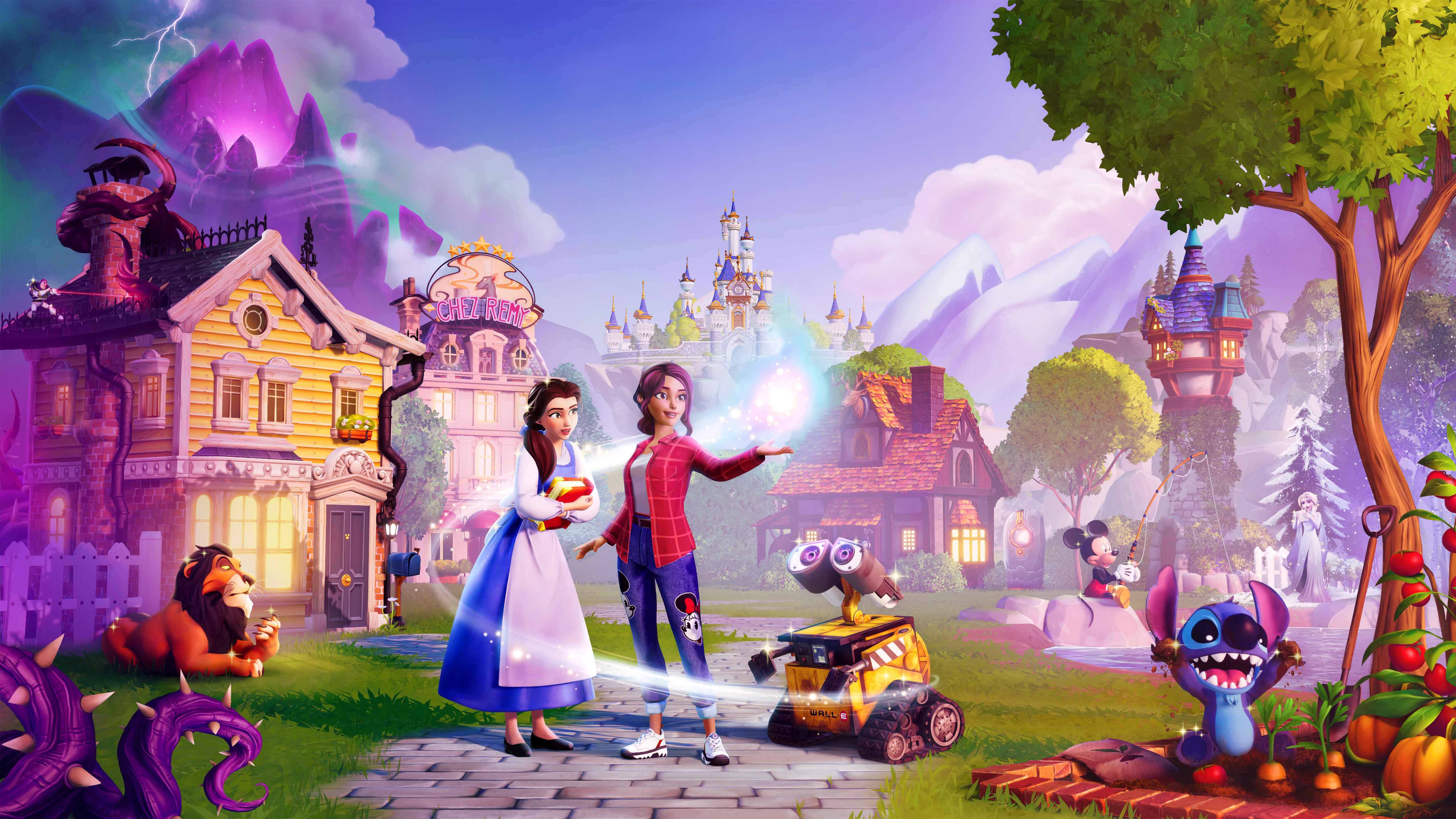
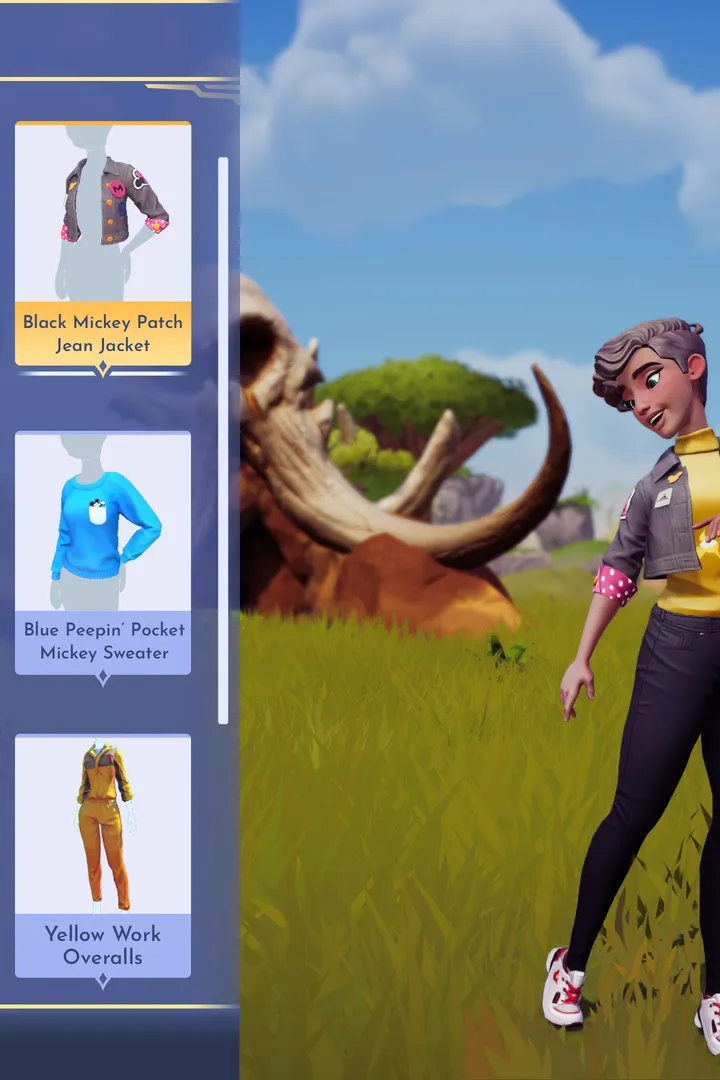
Install Disney Dreamlight Valley: 2026 Expansion on your console. Follow simple steps for Xbox, PlayStation, and Nintendo Switch.
Installing the Disney Dreamlight Valley: 2026 Expansion on consoles is designed to be an intuitive process, ensuring you can quickly dive into the magical world of Wishblossom Ranch. For players on Xbox One, Xbox Series S/X, PlayStation 4, and PlayStation 5, the expansion is acquired through their respective digital storefronts. After purchasing the expansion, navigate to your game library within the console's interface. Locate Disney Dreamlight Valley and select the option to manage or view add-on content. The expansion should appear here, prompting you to download and install it. It is essential to ensure your console's system software and the base game of Disney Dreamlight Valley are updated to their latest versions before proceeding with the expansion installation to guarantee compatibility and access to all new features, including those involving characters like Snow White.
For Nintendo Switch users, the installation process is similar, utilizing the Nintendo eShop. Once the expansion is purchased, access the Nintendo eShop and navigate to your account's "Redownload" section or search for Disney Dreamlight Valley directly. The expansion will be listed as available content to download. Ensure your Nintendo Switch console is connected to the internet and has sufficient storage space. Updates for both the base game and the expansion are crucial for ongoing content delivery and bug fixes. The game will typically prompt you to download available updates upon launching, or you can manually check for updates by selecting the game icon, pressing the '+' button, and choosing "Software Update."
After the expansion has been successfully installed on your console, launching Disney Dreamlight Valley will integrate the new content. You may be greeted with an introductory sequence or a quest that guides you towards the Wishblossom Ranch. If you encounter any issues, such as the expansion not appearing in-game after installation, try fully closing the game application and restarting your console. Performing a power cycle (turning the console off and then back on) can also resolve temporary glitches. For persistent problems, such as missing quests involving Tinker Bell or Tigger, or if the new biomes are not loading correctly, check for any pending game updates or to uninstall and then reinstall the base game and the expansion. Always refer to the official Disney Dreamlight Valley support website or your console manufacturer's support pages for further troubleshooting steps.
100% Human-Written. AI Fact-Checked. Community Verified. Learn how AntMag verifies content