
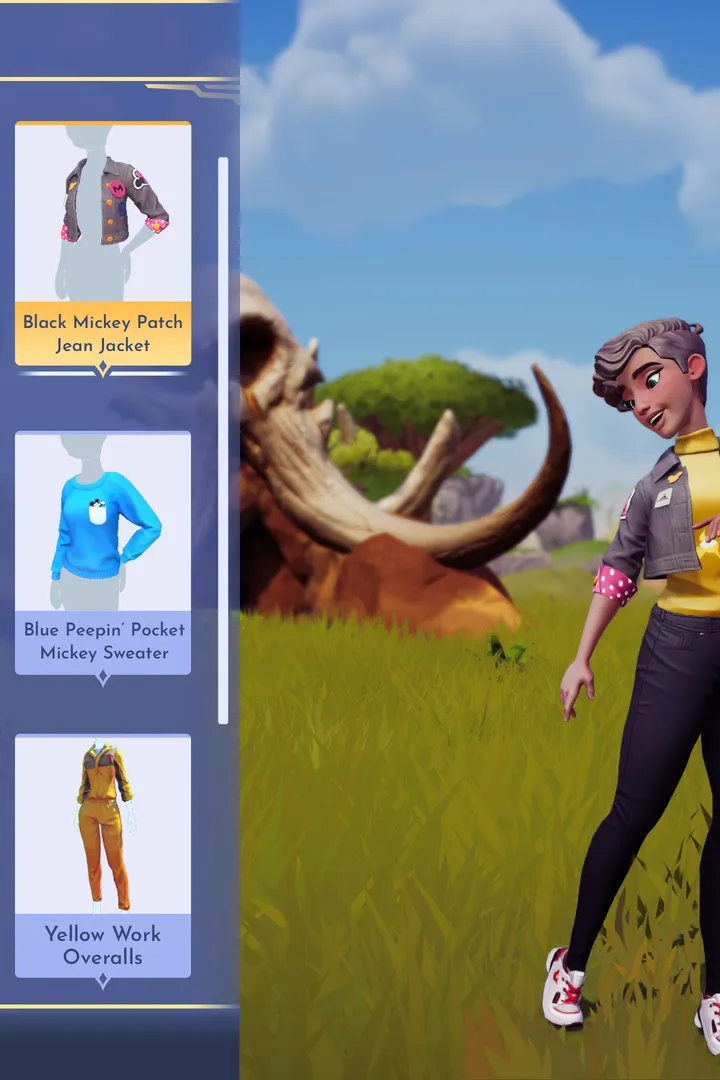
Navigate Disney Dreamlight Valley: 2026 Expansion with ease! This guide details all mobile touch controls, helping you master gameplay on your device for a seamless adventure.
This section provides a reference for the mobile touch controls used in Disney Dreamlight Valley: 2026 Expansion. Understanding these controls will help you navigate the game and interact with the world efficiently.
| Action | Touch Input |
|---|---|
| Movement | Use the virtual joystick on the left side of the screen. Drag it in the direction you want to move. |
| Camera Control | Swipe anywhere on the right side of the screen to look around. |
| Interaction / Action | Tap on objects or characters to interact with them. This includes picking up items, talking to NPCs, and using tools. |
| Inventory | Tap the inventory icon (usually located in the bottom right corner) to open your inventory screen. |
| Map | Tap the map icon (usually located in the top right corner) to open the world map. |
| Menu / Settings | Tap the pause or menu icon (usually located in the top left corner) to access game menus and settings. |
| Fishing | Tap the 'Cast' button when prompted, then tap and hold to reel in the fish. Release when the bobber is within the highlighted area. |
| Gardening | Tap on a plot of land to select it for planting, watering, or harvesting. |
| Crafting | Tap on a crafting station, then select the desired item to craft. |
| Journal / Quests | Tap the journal icon to view active quests and their objectives. |
| Emotes | Tap the emote icon to open the emote wheel and select an emote to perform. |
| Zoom | Pinch to zoom in or out on the screen. |
Mastering these touch controls will enhance your gameplay experience in Disney Dreamlight Valley: 2026 Expansion, allowing for smooth and intuitive interaction with the game world.
100% Human-Written. AI Fact-Checked. Community Verified. Learn how AntMag verifies content