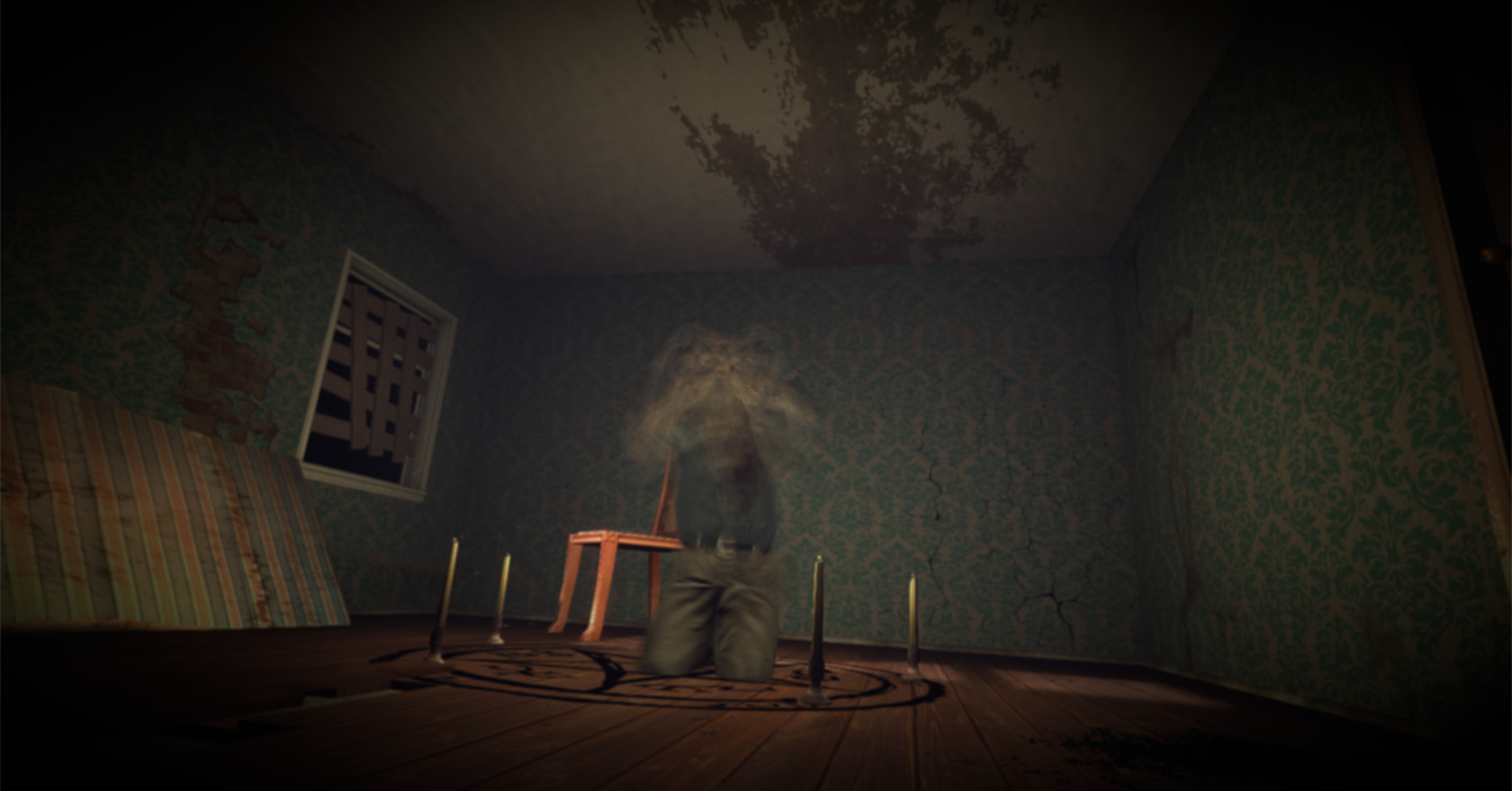
Optimize your graphics settings for Judas. Tweak visual options to maximize frame rates and ensure a responsive, smooth gameplay experience.
Optimizing your graphics settings in Judas is key to balancing visual fidelity with smooth performance. This section will guide you through the various graphical options available in the game's menu, explaining what each setting does and how it impacts your frame rate and visual quality. By carefully adjusting these parameters, you can tailor the game's appearance to your PC's capabilities, ensuring a more enjoyable and responsive gameplay experience. Whether you're aiming for stunning visuals or maximum performance, this guide will help you find the sweet spot.
Judas features a range of graphical settings designed to cater to a wide spectrum of PC hardware. From texture quality and anti-aliasing to shadow detail and post-processing effects, each option plays a role in shaping the game's aesthetic. Understanding the trade-offs between visual enhancements and performance is crucial. We'll provide actionable advice on which settings have the most significant impact and how to adjust them to achieve your desired balance. This proactive approach to optimization can prevent common issues like stuttering, input lag, and visual artifacts, allowing you to fully immerse yourself in the game's atmosphere.
Key Graphics Options Explained
Here's a breakdown of some of the most impactful graphics settings you'll encounter in Judas:
- Resolution: Determines the number of pixels displayed on your screen. Higher resolutions offer sharper images but demand more processing power.
- Texture Quality: Affects the detail and clarity of surfaces in the game world. Higher settings make environments look more realistic but consume more VRAM.
- Shadow Quality: Controls the detail and softness of shadows. Lowering this can significantly boost performance with minimal visual loss in some cases.
- Anti-Aliasing (AA): Smooths out jagged edges on objects. Different AA methods offer varying levels of performance impact and visual improvement.
- Ambient Occlusion (AO): Adds depth and realism to lighting by simulating how light is blocked by objects. Can be performance-intensive.
- Post-Processing Effects: Includes options like bloom, motion blur, and depth of field. These can enhance immersion but may also impact performance.
100% Human-Written. AI Fact-Checked. Community Verified. Learn how AntMag verifies content