Learn basic controls and menu navigation for Just Dance 2024 Edition. Master the fundamentals to spend more time grooving and less time fumbling.
Welcome to the dance floor, superstar! Getting started in Just Dance 2024 Edition is a breeze, whether you're a seasoned dancer or just finding your rhythm. This section will guide you through the fundamental controls and how to navigate the game's vibrant menus, ensuring you spend less time fumbling and more time grooving.
Choosing Your Controller
Before you even hit play, you'll need a way to track your moves. Just Dance 2024 Edition offers several options depending on your console:
- Smartphone (Recommended): The most common and versatile option. Download the free Just Dance Controller app on your iOS or Android device. Ensure your phone is connected to the same Wi-Fi network as your console. The app will automatically detect your game. Hold your phone securely in your right hand, facing the screen, throughout your dance session.
- Nintendo Switch Joy-Cons: If playing on Nintendo Switch, Joy-Cons are your go-to. Hold the right Joy-Con firmly in your right hand. The game is optimized for this, so ensure it's charged and connected.
- PlayStation Camera/Xbox Kinect (Older Consoles/Compatibility): For players on older console generations (PS4 with PlayStation Camera, Xbox One with Kinect), these peripherals can track your full body. While Just Dance 2024 Edition primarily focuses on handheld controllers, some legacy support might exist depending on your specific setup. Consult your console's manual for connection details.
Navigating the Main Menu
Once your controller is ready and the game loads, you'll land on the main menu. This is your central hub for all things Just Dance. Navigation is intuitive:
- Smartphone/Joy-Con: Use the motion controls to point at menu items. A slight flick or tilt will move the cursor. To select an item, press the primary action button on your Joy-Con (usually 'A' on Switch) or tap the screen on your smartphone.
- Console Controller (e.g., PlayStation DualSense, Xbox Wireless Controller): While not used for dancing, your console's standard controller can also navigate menus. Use the D-pad or left analog stick to highlight options and the 'X' (PlayStation) or 'A' (Xbox) button to confirm.
Key Main Menu Sections:
- Home: This is your default landing page, often featuring recommended songs, new releases, and quick access to your favorite playlists.
- Songs: Dive into the full catalog of songs available. You can filter by genre, difficulty, artist, and more. This is where you'll spend most of your time picking your next dance challenge.
- Playlists: Access curated song lists for specific moods, workout routines, or party themes. You can also create your own custom playlists here.
- Progression: Track your dance journey! See your high scores, unlockables, and overall progress. This section is great for setting personal goals and seeing how far you've come.
- Just Dance+ (Subscription Service): If you have a Just Dance+ subscription, this section provides access to an expanded library of songs and exclusive content.
- Settings: Adjust game options like volume, controller calibration, visual preferences, and privacy settings. It's always a good idea to check controller calibration if your moves aren't being tracked accurately.
In-Game Controls During a Song
During a song, your primary focus should be on mirroring the on-screen coach. However, there are a few essential in-game controls to be aware of:
- Pause Menu: To pause the song at any time, press the 'Plus' button on your Nintendo Switch Joy-Con, the 'Options' button on a PlayStation controller, or the 'Menu' button on an Xbox controller. If using a smartphone, a subtle shake or a tap on the top of the screen (depending on your app version) might bring up the pause menu. From here, you can restart the song, exit to the main menu, or adjust volume.
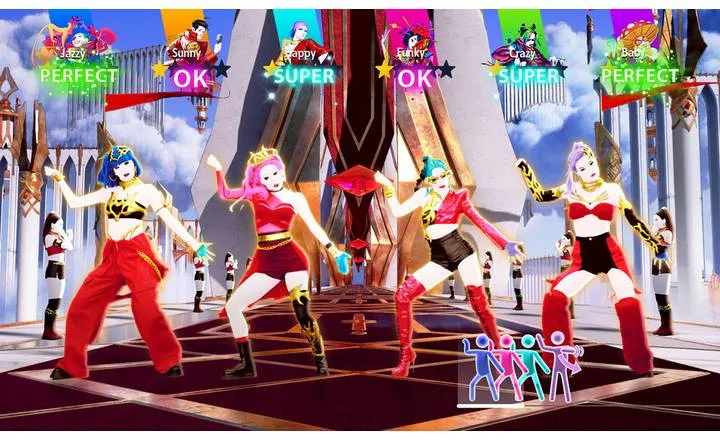
- Scoring Display: Keep an eye on the top of the screen for your score and performance feedback (e.g., "Perfect," "Good," "OK," "X"). This helps you understand how well you're matching the coach's moves.
- Pictograms: These small icons at the bottom of the screen give you a heads-up on upcoming moves. Pay attention to them to prepare for the next sequence!
With these basic controls and navigation tips, you're all set to jump into the vibrant world of Just Dance 2024 Edition. Get ready to move, groove, and have a fantastic time!
100% Human-Written. AI Fact-Checked. Community Verified. Learn how AntMag verifies content