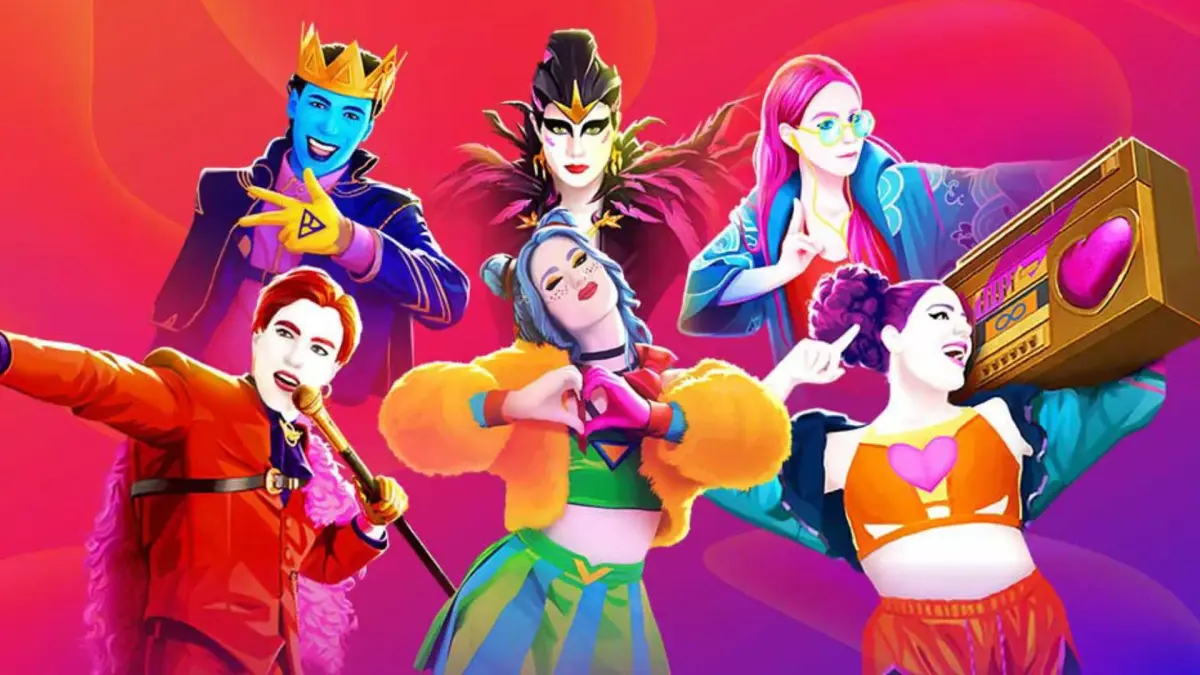
Master Just Dance 2024 Edition controls and interface elements. Learn how to connect your controller and navigate the menus for smooth gameplay.
Welcome to the dance floor! Navigating Just Dance 2024 Edition is designed to be intuitive, whether you're a seasoned dancer or just starting out. This section will guide you through the essential controls and interface elements, ensuring you spend less time fumbling and more time grooving.
Connecting Your Controller
Before you can bust a move, you need to connect your controller. Just Dance 2024 Edition primarily uses your smartphone as a motion controller, but some platforms may support console-specific controllers. For the best experience, ensure your phone is fully charged and connected to the same Wi-Fi network as your gaming console.
- Download the Just Dance Controller App: Search for "Just Dance Controller" on your device's app store (available for iOS and Android).
- Launch the App: Open the app on your smartphone.
- Launch Just Dance 2024 Edition: Start the game on your console (PlayStation 5, Xbox Series, Nintendo Switch, etc.).
- Connect to Console: The app will automatically search for nearby consoles running Just Dance 2024 Edition. Select your console from the list displayed on your phone screen.
- Hold Your Phone Securely: Once connected, hold your phone in your right hand, ensuring a firm grip. The game tracks your right hand's movements to score your performance.
Navigating the Main Menu
The Main Menu is your central hub for all things Just Dance 2024 Edition. Here's a breakdown of the key sections and how to access them:
- Song Selection: This is the default landing page. Use your controller (or console gamepad) to swipe left/right or use the directional inputs to browse the extensive song catalog. Press the "Select" button (usually 'A' on Switch, 'X' on PlayStation, 'A' on Xbox) to choose a song.
- Playlists: Located within the Song Selection screen, often accessible via a tab or filter option. Here you can find curated playlists for different moods, genres, or workout routines.
- Profile: Access your dancer profile, track your progress, view your statistics, and customize your dancer card. Typically found in the top-right corner of the screen or via a dedicated icon.
- Shop: Visit the in-game shop to unlock new songs, avatars, and customization options using in-game currency or real money. Look for the shopping cart icon.
- Settings: Adjust game options such as volume, language, controller sensitivity, and accessibility features. Usually represented by a gear or cog icon.
- Just Dance+ (Subscription Service): Access the premium subscription content, offering an expanded library of songs and exclusive features. This is often highlighted prominently on the main menu.
- Multiplayer/Online: Dive into online multiplayer modes, challenge friends, or join global dance parties. Look for an icon depicting multiple dancers or a globe.
In-Game Interface During a Song
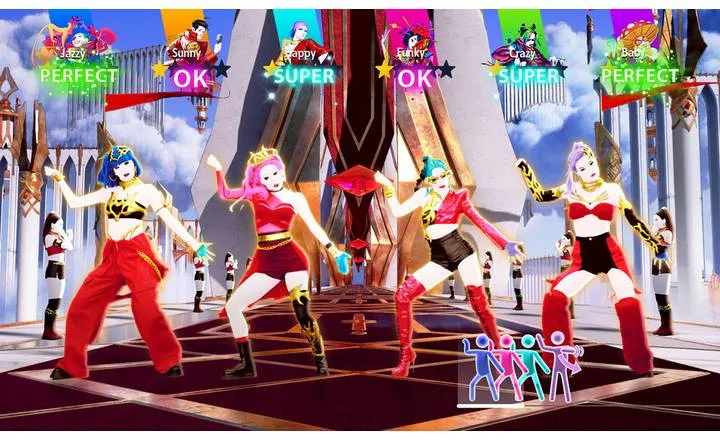
Once you've selected a song and started dancing, the in-game interface provides crucial information to help you maximize your score and enjoy the experience:
- Pictograms: These are the iconic stick figures that appear on the right side of the screen, indicating upcoming dance moves. Pay close attention to their timing and direction.
- Score Feedback: As you perform moves, you'll receive instant feedback:
- X: Missed the move entirely.
- OK: Performed the move, but could be better.
- Good: Solid performance.
- Perfect: Flawless execution!
- Super: Achieved by performing a move with exceptional accuracy and flair.
- Yeah!: Awarded for specific, often more challenging, "Gold Moves."
- Score Multiplier: Located near your score, this indicates how many consecutive "Good," "Perfect," or "Super" moves you've landed. A higher multiplier significantly boosts your score.
- Score Bar/Progress Bar: Typically at the top or bottom of the screen, this bar fills up as you accumulate points, showing your overall progress towards a high score.
- Gold Moves: These are highlighted pictograms that require a specific, often more exaggerated, movement. Successfully landing a Gold Move grants a significant score bonus and a "Yeah!" feedback.
- Player Avatars/Scores: In multiplayer, you'll see the avatars and real-time scores of all active players, encouraging friendly competition.
- Pause Menu: During a song, you can usually press the "Pause" button (e.g., 'Start' on Xbox, 'Options' on PlayStation, '+' on Switch) to bring up options like restarting the song, quitting, or adjusting settings.
General Navigation Tips
- Intuitive Swiping: On most screens, especially with the smartphone controller, you can swipe left, right, up, or down to navigate menus and browse content.
- Confirmation/Selection: Use the primary action button on your console controller or tap the center of your phone screen to confirm selections.
- Back/Cancel: The "Back" button (e.g., 'B' on Switch, 'Circle' on PlayStation, 'B' on Xbox) or a dedicated "Back" icon on your phone will typically return you to the previous screen.
Mastering these controls and understanding the interface will empower you to fully immerse yourself in the vibrant world of Just Dance 2024 Edition. Now go forth and dance!
100% Human-Written. AI Fact-Checked. Community Verified. Learn how AntMag verifies content