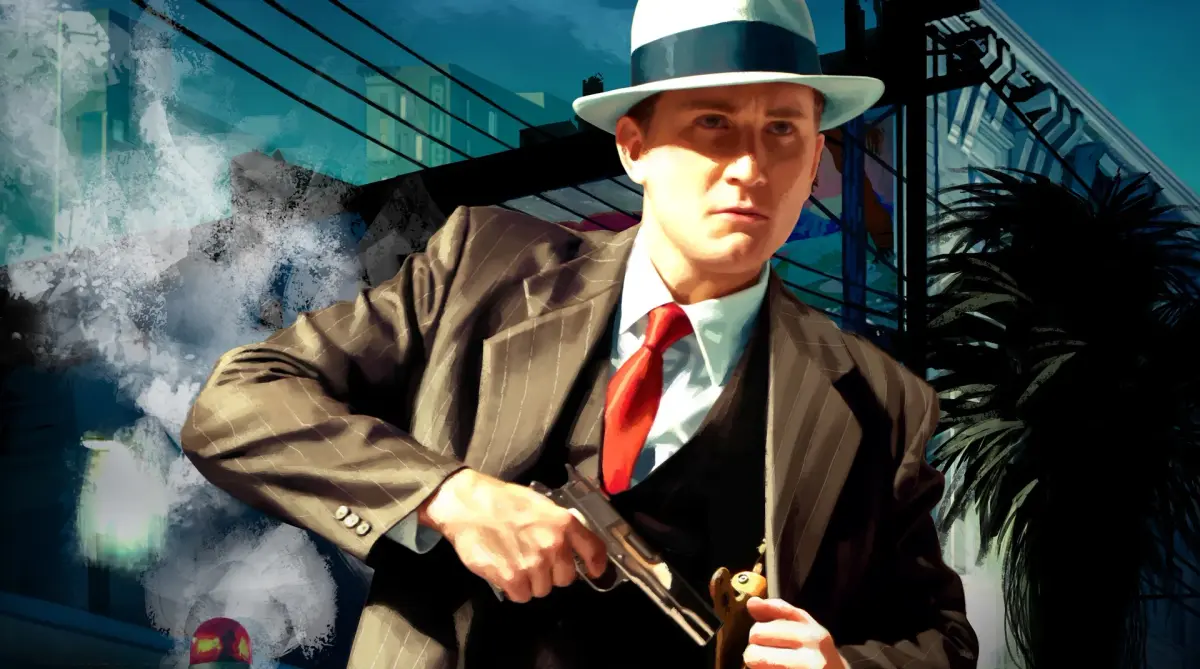
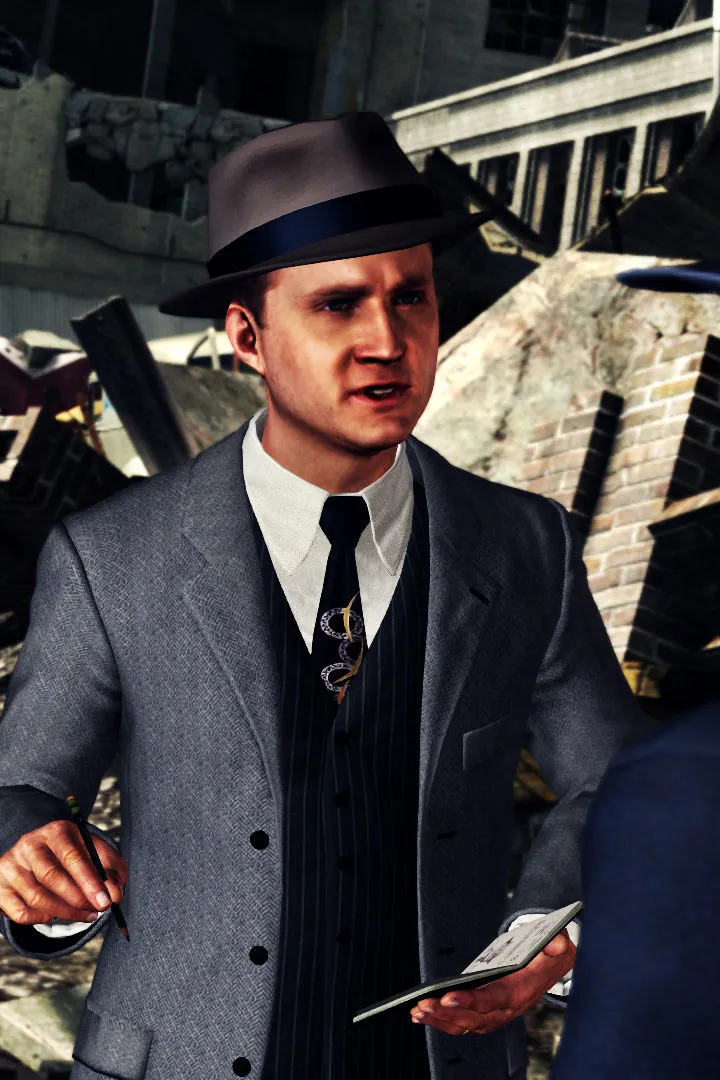
Adjust L.A. Noire settings for optimal immersive cinematic visuals or a competitive edge during interrogations. Learn how to configure controls and filters for.
Optimizing your game settings in L.A. Noire can significantly enhance your experience, whether you're looking for a more immersive cinematic feel or a competitive edge during investigations and interrogations. This section details the various options available and provides recommendations for different playstyles.
Accessing the Settings Menu
To access the game settings, follow these steps:
- From the main menu, select "Options."
- Alternatively, during gameplay, pause the game and select "Options."
The Options menu is divided into several sub-categories, each controlling different aspects of the game.
Display Settings
These settings control the visual presentation of L.A. Noire. Adjusting these can impact performance and visual fidelity.
- Brightness: Controls the overall luminance of the game world.
- Recommendation: Adjust until the Rockstar Games logo is clearly visible but the surrounding dark areas blend. A well-calibrated brightness ensures you don't miss crucial visual clues in dimly lit crime scenes or during night-time pursuits.
- Contrast: Affects the difference between the lightest and darkest areas of the screen.
- Recommendation: A slightly higher contrast can make details pop, especially important for examining evidence. Be careful not to overdo it, as it can crush blacks or blow out whites.
- Resolution: Determines the number of pixels displayed on your screen. Higher resolutions offer sharper images but demand more from your system.
- Recommendation: Always aim for your monitor's native resolution for the crispest image. If performance suffers, incrementally lower it.
- Aspect Ratio: Sets the proportional relationship between the width and height of the screen.
- Recommendation: Match this to your display's native aspect ratio (e.g., 16:9 for widescreen monitors) to avoid stretched or squashed visuals.
- Subtitles: Toggles on-screen text for dialogue.
- Recommendation: Strongly recommended to keep ON. Given the nuanced dialogue and subtle facial expressions during interrogations, subtitles are invaluable for catching every word and understanding the context of a suspect's statement. This is crucial for making accurate "Truth," "Doubt," or "Lie" judgments.
Audio Settings
Control the various sound elements within the game. Proper audio balancing can enhance immersion and aid in gameplay.
- Master Volume: Adjusts the overall game volume.
- Recommendation: Set to a comfortable level.
- Music Volume: Controls the volume of the game's soundtrack and ambient music.
- Recommendation: Lowering this slightly can help you focus on dialogue and environmental sounds, which sometimes contain subtle clues.
- Dialogue Volume: Adjusts the volume of character voices.
- Recommendation: Keep this high. Dialogue is paramount in L.A. Noire, especially during interrogations where vocal inflections and pauses can be as telling as facial expressions.
- Sound Effects Volume: Controls the volume of environmental sounds, gunshots, car engines, etc.
- Recommendation: A balanced level is good. Too low, and you might miss important audio cues during chases or gunfights.
Gameplay Settings
These options directly impact how you interact with the game world and its mechanics.
- Intuition Points: Toggles the availability of Intuition Points.
- Recommendation:
- For a challenge: Turn OFF. This forces you to rely purely on your detective skills for interrogations and evidence finding.
- For assistance: Keep ON. Intuition Points can be spent to reveal all clues at a crime scene, remove incorrect answers during interrogations, or ask the community for help. Highly useful if you're stuck on a case like "The Red Lipstick Murder" or "The Fallen Idol."
- Recommendation:
- Driving Controls: Switches between "Normal" and "Casual" driving modes.
- Recommendation:
- Normal: Offers a more realistic driving experience, requiring precise control.
- Casual: Provides assisted steering and braking, making car chases and general navigation easier. If you find yourself struggling with the pursuit sections of cases like "Armed and Dangerous" or "The Studio Secretary Murder," switch to Casual.
- Recommendation:
- Aiming Sensitivity: Adjusts how quickly your reticle moves when aiming.
- Recommendation: Experiment to find what feels comfortable. A lower sensitivity can offer more precision during shootouts, while higher sensitivity allows for quicker target acquisition.
- Invert Y-Axis (Look): Reverses vertical camera controls.
- Recommendation: A personal preference. If you're used to flight simulators or certain FPS games, you might prefer this ON.
Camera Settings
Customize your in-game camera experience.
- Camera Control: Switches between "Standard" and "Inverted" camera movement.
- Recommendation: Similar to Y-axis inversion, this is a personal preference.
- Driving Camera: Toggles between different camera perspectives while driving (e.g., bumper cam, third-person).
- Recommendation: The default third-person camera usually offers the best view for navigating the streets of 1947 Los Angeles and during car chases.
Controller/Keyboard & Mouse Settings
These options allow you to remap controls or adjust sensitivity for your chosen input device.
- Button Mapping/Key Bindings: Allows you to customize which actions are assigned to specific buttons or keys.
- Recommendation: If you find the default layout awkward for actions like examining clues or drawing your weapon, take the time to reconfigure these. For instance, some players prefer to have the "Examine" action closer to their movement keys for quicker interaction at crime scenes.
- Mouse Sensitivity (PC): Adjusts the responsiveness of your mouse.
- Recommendation: Find a comfortable balance for both general movement and precise aiming during investigations and combat.
100% Human-Written. AI Fact-Checked. Community Verified. Learn how AntMag verifies content