
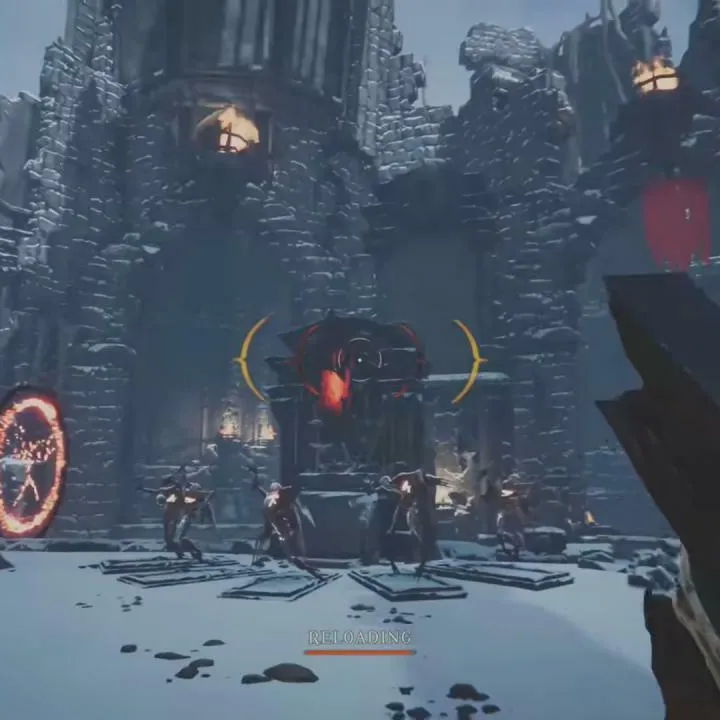
Optimize Metal: Hellsinger's display settings for PC and consoles. Adjust resolution, V-Sync, and graphics for smooth rhythmic gameplay.
Optimizing your display and graphics settings in Metal: Hellsinger is crucial for achieving both visual clarity and a stable frame rate, which directly impacts your ability to hit the beat. On PC, accessing these settings is typically done through the in-game options menu. Look for a "Graphics" or "Display" tab. Here, you'll find a range of options to tweak. Resolution is a primary setting; setting it to your monitor's native resolution (e.g., 1920x1080, 2560x1440) will provide the sharpest image. However, if you're struggling with performance, lowering the resolution can significantly boost your frame rate. V-Sync is another important setting; enabling it can prevent screen tearing but may introduce input lag, which is detrimental in a rhythm game. Disabling V-Sync and potentially using an in-game frame rate limiter can offer a more responsive experience, provided your system can maintain a stable frame rate without tearing.
Other graphical options to consider include texture quality, shadow quality, anti-aliasing, and post-processing effects. Higher settings for these will make the game look more visually appealing but will demand more from your GPU. For Metal: Hellsinger, where precise timing is key, it's often better to sacrifice some visual fidelity for a consistent and high frame rate. Start by setting most options to medium or high and then gradually lower them if you experience stuttering or drops in performance. Pay close attention to how these changes affect your gameplay. For instance, overly complex shadows can sometimes obscure enemy movements, making them harder to react to. Anti-aliasing, while smoothing jagged edges, can sometimes blur distant objects, so experiment to find a balance that works for you. The game's visual style is distinct, and even at lower settings, it retains its infernal charm.
For console players, the optimization options are more limited, as the game is designed to run at specific performance targets. However, on newer consoles like the PlayStation 5 and Xbox Series S/X, you may have options to choose between a "Performance Mode" and a "Quality Mode." Performance Mode typically prioritizes a higher frame rate (often targeting 60 FPS or more) at the expense of some graphical detail or resolution. Quality Mode, conversely, aims for higher visual fidelity, potentially at a lower, more stable frame rate (often 30 FPS). For Metal: Hellsinger, the Performance Mode is almost always the recommended choice due to the critical importance of a smooth and responsive experience for rhythmic gameplay. Ensure your console is set to output the highest possible resolution your display supports, and check the game's specific settings for any available performance/quality toggles.
100% Human-Written. AI Fact-Checked. Community Verified. Learn how AntMag verifies content