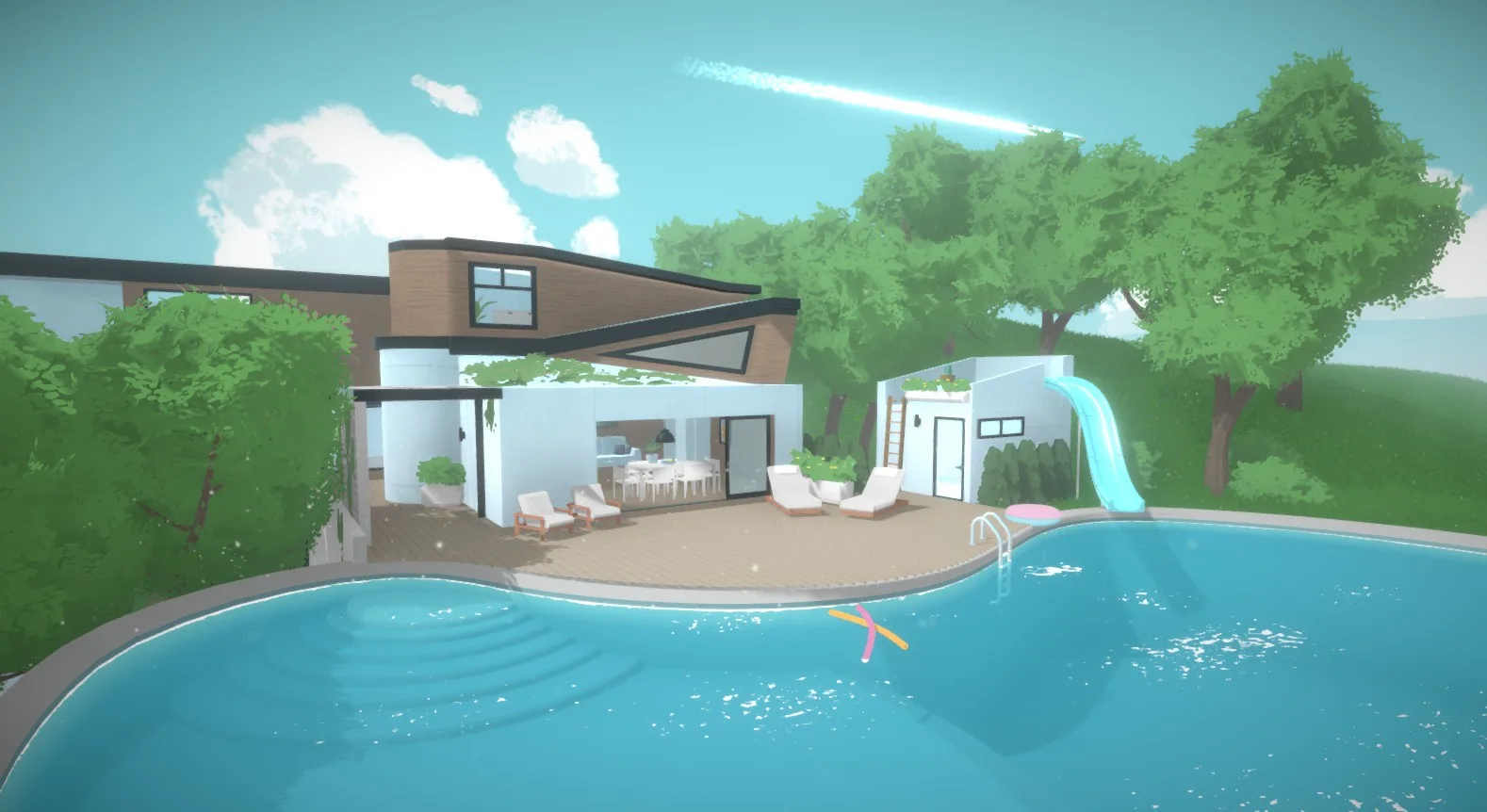
Navigate Paralives' Build Mode controls. Learn to draw walls, place furniture, and utilize the color tool to create custom homes for your Parafolk.
Paralives' Build Mode is a powerful and flexible toolset designed to empower players to construct their dream homes with ease and precision. The interface is streamlined, offering intuitive controls for placing walls, floors, roofs, and a vast array of furniture and decorative items. At its core, Build Mode revolves around a grid system, which aids in precise placement and alment of objects. You can freely draw walls to create rooms of any shape or size, with options to adjust wall height and thickness. Flooring can be applied to individual rooms or entire levels, with a wide selection of textures and patterns available. Roof construction is equally versatile, allowing for various styles from simple gables to complex hip roofs, with options to customize pitch and overhangs. The ability to rotate, resize, and recolor most objects provides an unparalleled level of creative freedom. Understanding these fundamental controls is the first step to bringing any architectural vision to life within the game.
Beyond the basic structural elements, Build Mode offers a comprehensive catalog of furniture and decorative items, categorized for easy access. The "Items" tab in the Control Panel is your gateway to furnishing your creations, from essential appliances and seating to intricate decor that adds personality to your homes. Each item can be manipulated in various ways: rotated on multiple axes, moved freely within the grid or with fine-tuned precision, and often resized to fit specific spaces. The color customization tool is particularly noteworthy, allowing players to change the color of individual components of an item or apply entirely new material swatches. This granular control over aesthetics ensures that every piece of furniture and every decorative element can be perfectly integrated into your des. Experimenting with these controls is key to mastering the building system and creating truly unique and personalized living spaces for your Parafolk.
Wall and Room Creation
The creation of walls and rooms forms the fundamental structure of any build in Paralives. You can initiate wall placement by clicking and dragging their mouse to draw straight lines, which automatically form walls. Holding down a modifier key, such as Shift, can enable the drawing of perfectly straight horizontal or vertical walls, crucial for creating symmetrical rooms. Rooms are automatically detected by the game when enclosed by walls, and this detection allows for the application of flooring and the placement of specific room-based objects. Players have the ability to adjust the height of walls, offering options for standard ceiling heights or more dramatic, vaulted ceilings. Furthermore, the game provides tools for creating curved walls, adding organic shapes and unique architectural features to your dess. When a room is completed, it will be highlighted, and you can then select it to apply flooring, wallpaper, or to access room-specific functions. Mistakes are easily rectified; walls can be deleted by selecting them and pressing the delete key, or by using the wall-cutting tool to break a wall into segments.
Object Placement and Manipulation
Once the basic structure of your home is in place, the next step is populating it with furniture and decorative items. The "Items" tab in the Control Panel is organized into various categories, such as "Living Room," "Kitchen," "Bedroom," and "Decorations," making it easy to find what you need. To place an item, simply select it from the catalog and click on the desired location within your build. Items can be rotated using keyboard shortcuts or by using the on-screen rotation tools. The ability to resize objects is also a key feature, allowing you to adapt furniture to fit unusual spaces or to create custom-sized pieces. For example, a standard sofa might be resized to fit a small nook or stretched to create a more expansive seating arrangement. Color customization is extensive; most items allow for individual color swatches to be applied to different parts of the object, or for entire recolors using a palette of pre-defined colors or a custom color picker. This level of detail ensures that every item can be tailored to match your specific des aesthetic.
100% Human-Written. AI Fact-Checked. Community Verified. Learn how AntMag verifies content