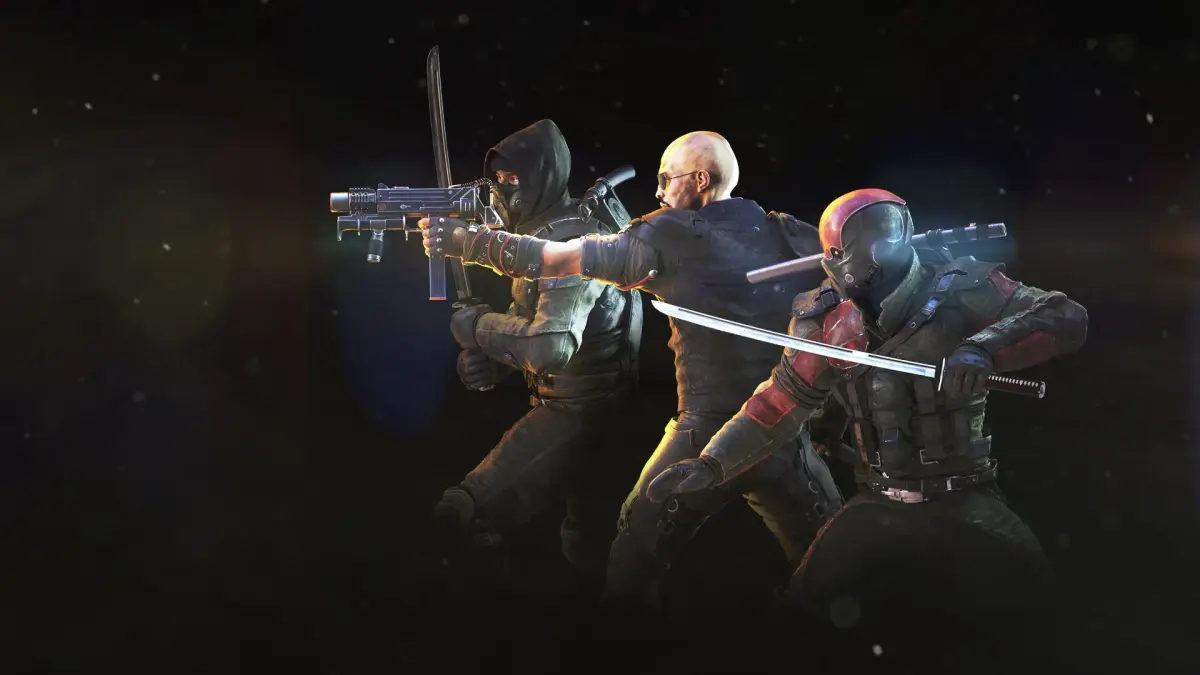
Configure your Shadow Warrior 2 experience with the Options Menu, including screen, mouse, and sound settings.
Walkthrough
- 1Access the Options Menu to find several sub-menus for configuration.
- 2Use the Screen Menu to set up the size of your screen.
- 3Configure mouse sensitivity in the Mouse Menu.
- 4Adjust the volume of sound and music in the Sound Menu.
- 5Toggle Kid Mode to change the game to Teen-rated. A password is required to switch back to Mature.
- 6Toggle screen messages on or off using the Messages option.
- 7Turn shadows on or off with the Shadows setting.
- 8Enable or disable Auto-Run.
- 9Toggle the Crosshair to make aiming easier.
- 10Enable or disable Auto-Aiming to make it easier to target enemies.
- 11Switch some game sprites from 2D to 3D using the 3D Sprites option.
- 12View on-screen statistics for secrets found and enemies killed via the Level Stats option.
Tips
- Experiment with mouse sensitivity to find what feels most comfortable for your aiming style.
- Consider enabling the Crosshair and Auto-Aiming options if you are new to first-person shooters or prefer a more assisted aiming experience.
- Remember that switching to Kid Mode requires a password to revert to the Mature rating.
100% Human-Written. AI Fact-Checked. Community Verified. Learn how AntMag verifies content