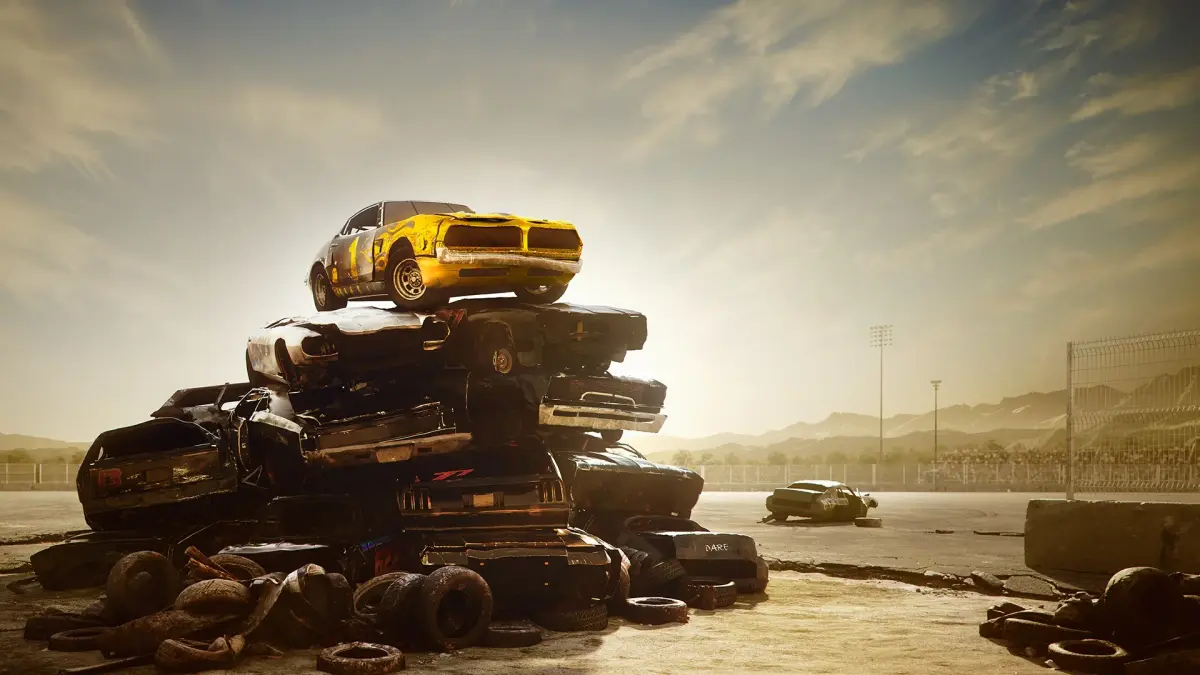
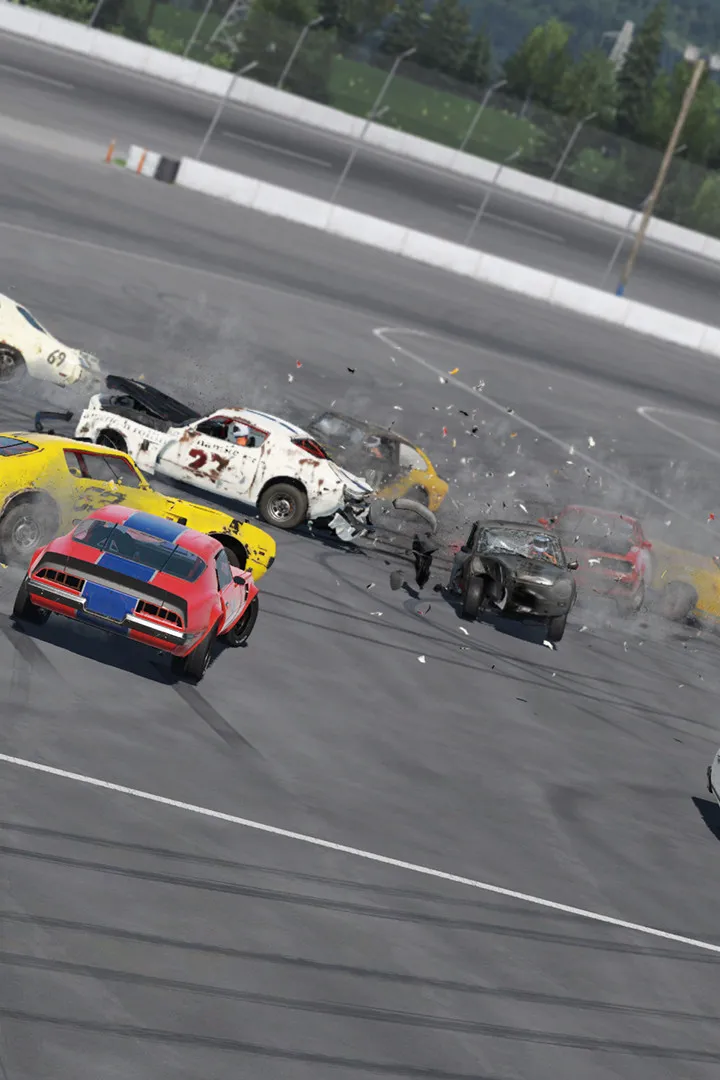
Get started with Wreckfest by following our guide for smooth installation and first launch. Optimize settings for an optimal demolition derby experience.
Welcome to the exhilarating world of Wreckfest! Before you dive headfirst into the chaos of demolition derby and high-speed racing, a smooth installation and initial setup are paramount for the best possible experience. This section will guide you through getting the game up and running, optimizing your settings, and ensuring your first moments are spent wrecking, not wrestling with configurations.
1. Game Installation & Initial Boot
Whether you're on PC, PlayStation (PS4/PS5), or Xbox (One/Series X), the installation process is straightforward. Follow your platform's standard procedure for downloading and installing games. Once installed, launch Wreckfest.
- PC (Steam/Epic Games Store): Locate Wreckfest in your library and click "Play."
- PlayStation/Xbox: Select the Wreckfest icon from your dashboard and press "X" (PlayStation) or "A" (Xbox).
Upon your very first launch, the game may perform an initial shader compilation or present you with an End User License Agreement (EULA). Accept the EULA to proceed. You'll then be greeted by the iconic Wreckfest main menu.
2. Essential First-Launch Configurations
Before jumping into a quick race, taking a few moments to fine-tune your settings will significantly enhance your gameplay. We'll focus on graphics, controller setup, and keybinds.
2.1. Graphics Settings Optimization (PC Specific, but principles apply)
Wreckfest is a visually impressive game, but its physics engine and detailed damage models can be demanding. Finding the right balance between visual fidelity and a stable frame rate is crucial for competitive play and overall enjoyment. A choppy frame rate can lead to missed turns, mistimed crashes, and frustration.
Navigate to Options > Graphics from the main menu.
General Recommendations:
- Start with a Preset: Begin with a preset like "Medium" or "High" and then adjust individual settings. Avoid "Ultra" initially unless you have a high-end system.
- Target Frame Rate: Aim for a consistent 60 FPS (frames per second) or higher. If you have a high refresh rate monitor (120Hz, 144Hz, etc.), aim for that target.
- Monitor Your Performance: Many graphics cards have overlay tools (e.g., NVIDIA GeForce Experience, AMD Radeon Software) that can display your current FPS. Use these to gauge the impact of your changes.
Specific Wreckfest Settings & Their Impact:
| Setting | Impact on Performance | Visual Impact | Recommendation |
|---|---|---|---|
| Resolution | VERY HIGH | VERY HIGH | Match your monitor's native resolution. Lower only if absolutely necessary for FPS. |
| Anti-Aliasing (AA) | HIGH | Medium (reduces jagged edges) | FXAA is less demanding than MSAA. Try FXAA first, or disable if struggling. |
| Shadow Quality | HIGH | Medium | One of the biggest performance hogs. Lowering to "Medium" or "Low" can yield significant FPS gains with minimal visual loss during fast gameplay. |
| Post-processing Quality | HIGH | Medium (bloom, depth of field, motion blur) | Another major performance hit. Consider lowering this first if you need more FPS. Disabling "Motion Blur" can also improve clarity and performance. |
| Texture Quality | Medium (VRAM dependent) | HIGH | Set to "High" or "Ultra" if your GPU has sufficient VRAM (4GB+). Low impact on FPS if VRAM is adequate. |
| Global Illumination | Medium | High (realistic lighting) | Can be demanding. Try "Medium" or "Low" if FPS is an issue. |
| Ambient Occlusion | Medium | Medium (adds depth to shadows) | Try "Medium" or "Low." |
| Particle Quality | Medium (during crashes) | Medium (dust, sparks) | Can impact FPS during heavy collisions. "Medium" is a good balance. |
| View Distance | Medium | Medium | "High" is generally fine, but lowering can help on very large tracks. |
Optimization Strategy:
- Start with a "Medium" preset.
- Disable "Motion Blur" and "Depth of Field" in Post-processing for clarity and performance.
- Test in a quick race (e.g., a demolition derby with many AI cars).
- If FPS is too low, first reduce Shadow Quality and Post-processing Quality.
- If still struggling, lower Anti-Aliasing or even your overall Resolution Scale (not ideal, but effective).
- If FPS is consistently high, gradually increase Texture Quality, then other settings like Global Illumination or Ambient Occlusion, testing after each change.
2.2. Controller Calibration & Keybinds
Whether you're using a gamepad, steering wheel, or keyboard, ensuring your controls are responsive and comfortable is vital. Wreckfest offers excellent support for various input devices.
Navigate to Options > Controls from the main menu.
- Gamepad Users (Recommended):
- Controller Calibration: Go to "Advanced" settings within the controller options. Check your dead zones and linearity. If your analog sticks have drift, slightly increase the "Dead Zone" for steering and throttle/brake. Experiment with "Linearity" to find a feel that suits you – lower linearity makes steering more sensitive around the center, higher makes it less so.
- Vibration: Adjust "Vibration Intensity" to your preference. Stronger vibration can provide better feedback but might be distracting for some.
- Steering Wheel Users:
- Wheel Calibration: Wreckfest typically auto-detects popular wheels. Go to "Advanced" settings to calibrate your wheel's rotation range (e.g., 900 degrees for simulation, less for arcade). Adjust force feedback strength and effects to your liking.
- Pedals: Ensure your accelerator and brake pedals are registering correctly and calibrate their range if necessary.
- Keyboard Users (PC):
- Keybinds: Review the default keybinds. While functional, you might prefer to reassign certain actions (e.g., handbrake, camera view, repair) to more accessible keys. Ensure your primary movement keys (WASD or arrow keys) are comfortable.
- Steering Sensitivity: Adjust "Steering Sensitivity" and "Steering Rate" in the keyboard settings to make turning feel more natural.
Actionable Tip: After adjusting controls, jump into a "Custom Event" with a single AI opponent on a familiar track. This allows you to test your settings without the pressure of a full race or demolition derby, letting you fine-tune your inputs until they feel just right.
3. Audio Settings (Optional but Recommended)
While not critical for performance, adjusting audio settings can significantly enhance immersion and even provide tactical advantages (e.g., hearing approaching opponents).
Navigate to Options > Audio.
- Master Volume: Set to a comfortable level.
- Music Volume: Adjust to your preference. Some players prefer lower music volume to better hear engine sounds and collisions.
- SFX Volume: Keep this high! Engine roars, tire squeals, and the crunch of metal are core to the Wreckfest experience and can give you cues about your car's condition or nearby threats.
- Dynamic Range: "Full" is generally good for headphones or good speaker systems. "Compressed" can be better for smaller speakers or if you need to hear quiet sounds more clearly without loud sounds blasting.
4. Saving Your Settings
Wreckfest typically saves your settings automatically upon exiting the options menu or the game. However, it's always a good practice to ensure your changes are applied before you quit the game entirely. Once you're satisfied with your initial setup, you're ready to hit the track and experience the glorious destruction that Wreckfest has to offer!
100% Human-Written. AI Fact-Checked. Community Verified. Learn how AntMag verifies content