Optimize Wreckfest's sound and graphics for smooth performance and visual fidelity. Learn how to tune settings for maximum immersion during crashes and drifts,.
Maximizing your Wreckfest experience means finding the sweet spot between visual fidelity and smooth performance. This guide will walk you through optimizing your sound and graphics settings to ensure you're getting the most out of every crash, every drift, and every glorious pile-up, whether you're aiming for competitive edge or immersive destruction.
Graphics Settings: Visuals vs. Performance
Accessing these settings is straightforward. From the Main Menu, navigate to Options, then select Graphics. Here, you'll find a comprehensive suite of adjustments.
- Resolution: This is your primary performance lever.
- For high-end PCs, aim for your monitor's native resolution (e.g., 1920x1080, 2560x1440, 3840x2160).
- If you're experiencing frame drops, consider dropping one step down (e.g., from 1440p to 1080p). The visual impact is often less noticeable than the performance gain.
- Display Mode: Always opt for Fullscreen. This dedicates your system's resources entirely to Wreckfest, often resulting in better performance than Borderless Windowed or Windowed modes.
- VSync:
- On: Eliminates screen tearing but can introduce input lag and cap your framerate to your monitor's refresh rate.
- Off: Allows for higher framerates but may result in screen tearing. If you have a G-Sync or FreeSync monitor, turn VSync off and enable the adaptive sync technology through your GPU's control panel.
- Texture Quality: This impacts the sharpness of surfaces.
- High/Ultra: For systems with ample VRAM (4GB+).
- Medium: A good balance for most systems, offering decent visuals without excessive VRAM usage.
- Low: If you're struggling with performance, this can free up significant VRAM.
- Shadow Quality: Shadows are often performance-heavy.
- High: Detailed, realistic shadows.
- Medium: A noticeable performance boost with still acceptable shadow quality.
- Low: Significant performance gain, but shadows will appear blockier. Consider this if you're consistently below your target framerate.
- Post-Processing Quality: Controls effects like bloom, depth of field, and motion blur.
- High: Enhances visual flair.
- Medium/Low: Disabling or lowering these can provide a substantial performance increase, especially motion blur, which some players find distracting anyway.
- Particle Effects: Dictates the quality and quantity of dust, smoke, and debris.
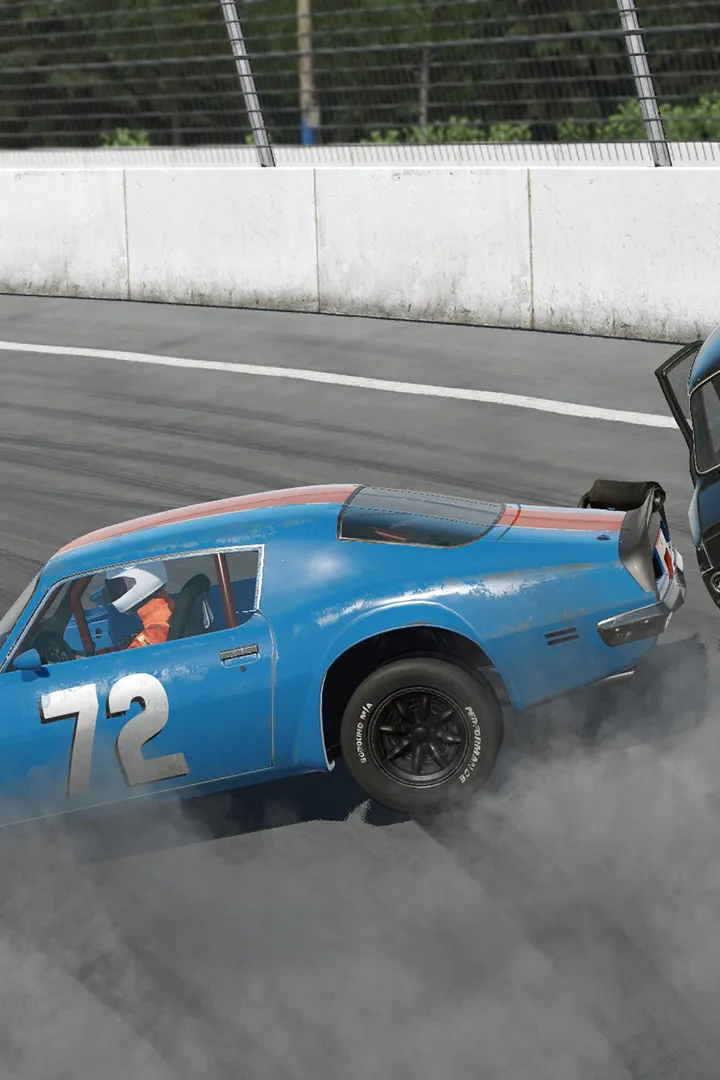
- In Wreckfest, these are crucial for conveying the chaos. Try to keep this at Medium or High if your system can handle it. Lowering too much can reduce the impact of collisions.
- Anti-Aliasing (AA): Smooths jagged edges.
- FXAA/SMAA: Less performance intensive, but can make the image slightly blurry.
- MSAA (2x, 4x, 8x): More demanding but provides a sharper image. Experiment to find a balance. If performance is an issue, consider turning it off or using a lighter AA method.
Sound Settings: Immersion and Awareness
Sound is just as vital as visuals in Wreckfest, providing crucial cues for incoming opponents and the sheer satisfaction of destruction. Navigate to Options from the Main Menu, then select Audio.
- Master Volume: Adjust to your preference. Start at 100% and lower if needed.
- Music Volume: The in-game soundtrack is excellent, but if you prefer your own tunes or want to focus purely on engine sounds, adjust this slider accordingly.
- SFX Volume: This is critical. Keep this high! Engine roars, tire squeals, and the crunch of metal are your primary audio feedback. Hearing a car approaching from behind or the distinct sound of a specific impact can give you a tactical advantage.
- Voice Volume: Controls announcer voices. Adjust based on personal preference.
- Dynamic Range:
- Full: Offers the widest range between quiet and loud sounds, ideal for headphones or high-quality speaker systems.
- Compressed: Reduces the difference between loud and quiet, making everything more consistently audible. Useful for playing at lower volumes or with less capable audio setups.
- Audio Output: Ensure this matches your current setup (e.g., Stereo, 5.1 Surround, Headphones). Incorrect settings can lead to muffled sound or poor positional audio.
Advanced Tips for Optimal Performance
- Driver Updates: Always ensure your graphics card drivers (NVIDIA, AMD, Intel) are up to date. Manufacturers frequently release game-ready drivers that include Wreckfest-specific optimizations.
- Background Applications: Close any unnecessary programs running in the background while playing Wreckfest. Browsers, streaming apps, and other games can consume valuable CPU and RAM resources.
- In-Game Benchmark: Wreckfest often includes a built-in benchmark tool. Utilize this after making significant changes to your settings to get an objective measure of your performance.
- Experimentation: The "best" settings are subjective and depend heavily on your specific hardware. Don't be afraid to experiment with individual settings, making small adjustments and testing them in-game until you find the perfect balance for your system and preferences.
100% Human-Written. AI Fact-Checked. Community Verified. Learn how AntMag verifies content