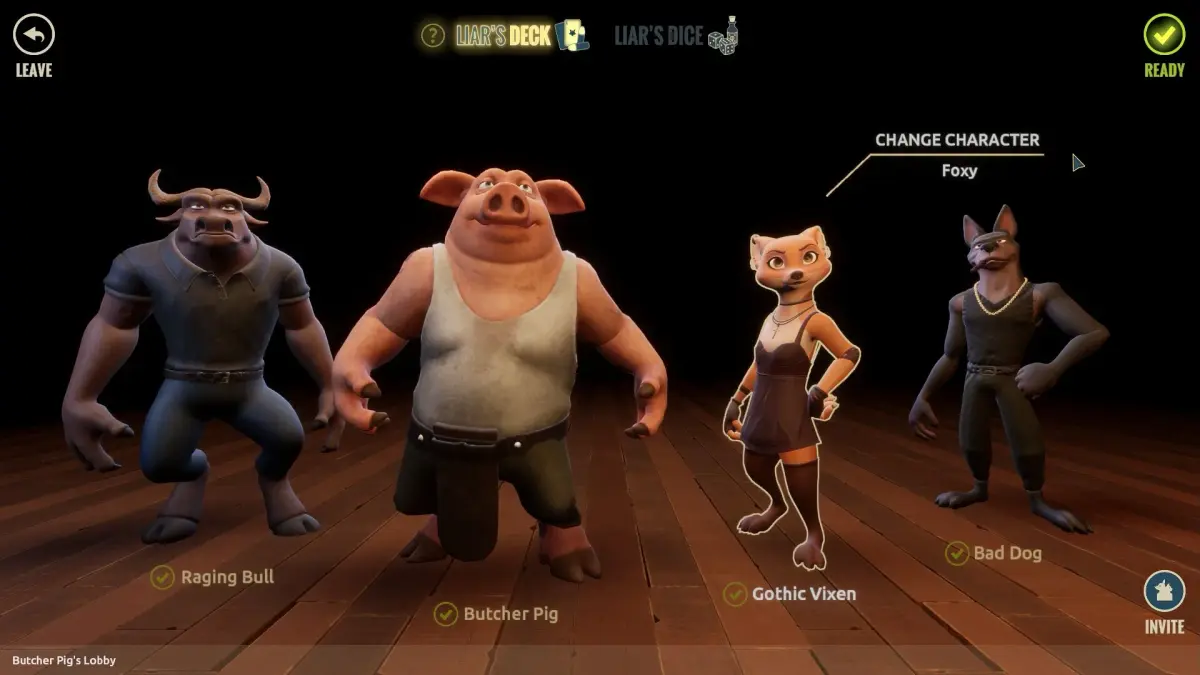
Resolve common issues with the Liar's Bar troubleshooting guide. Overcome technical glitches and progression blockers for a smooth gameplay experience.
Even in the most charming establishments like Liar's Bar, sometimes things don't go quite as planned. This detailed troubleshooting guide will help you navigate common hiccups and ensure your experience is as smooth as a perfectly mixed cocktail. We'll cover everything from technical glitches to in-game progression blockers, ensuring you get back to the fun in no time.
Common Technical Issues
If you're experiencing crashes, freezes, or performance issues, start here. These steps often resolve the most frequent technical problems.
Game Not Launching or Crashing on Startup
This is a frustrating one, but usually has a straightforward fix. Follow these steps sequentially:
- Verify Game Files:
- Steam/Epic Games Store: Right-click on "Liar's Bar" in your game library. Go to "Properties" -> "Local Files" -> "Verify integrity of game files...". This checks for corrupted or missing files and redownloads them.
- Other Platforms: Consult your platform's specific instructions for verifying game files.
- Update Graphics Drivers:
- Outdated graphics drivers are a common culprit. Visit the website of your graphics card manufacturer (NVIDIA, AMD, Intel) and download the latest drivers for your specific model. Perform a clean installation if possible.
- Run as Administrator:
- Right-click on the "Liar's Bar" executable file (usually found in the game's installation directory) and select "Run as administrator". This can resolve permission-related issues.
- Check System Requirements:
- Refer to the game's Title Data or Release Data for the minimum and recommended system specifications. Ensure your PC meets these requirements.
- Disable Overlays/Background Applications:
- Applications like Discord Overlay, GeForce Experience Overlay, or other background programs can sometimes interfere with game launch. Try disabling them temporarily.
Performance Issues (Low FPS, Stuttering)
If the game runs but isn't smooth, try these adjustments:
- Adjust In-Game Graphics Settings:
- Start by lowering settings like Texture Quality, Shadow Quality, and Anti-Aliasing in the game's options menu. Experiment with different combinations to find a balance between performance and visual fidelity.
- Consider reducing the Resolution if other settings don't yield sufficient improvement.
- Close Background Applications:
- Ensure no unnecessary programs are running in the background, consuming CPU or RAM resources.
- Monitor Temperatures:
- Overheating components (CPU, GPU) can lead to throttling and performance drops. Use monitoring software (e.g., HWMonitor) to check your system temperatures during gameplay.
In-Game Progression Blockers
Sometimes, the puzzle isn't obvious, or you might encounter an unexpected roadblock. Here's how to get unstuck.
Stuck on a Puzzle or Objective
Liar's Bar is known for its clever, sometimes tricky, puzzles. If you feel like you've tried everything, consider these strategies:
- Re-examine the Environment:
- Go back to the immediate area of your objective. Use your cursor to hover over every interactive object. Sometimes a small detail, like a loose floorboard near the Rusty Keg or a peculiar stain on the Bartender's Towel, holds the key.
- Pay attention to any new dialogue options that might have appeared after completing a previous task.
- Check Your Inventory:
- Open your inventory (default key:
I). Look at every item you possess. Can any items be combined? Does an item have a secondary use you haven't considered? For example, the Bent Spoon might look useless, but it's perfect for prying open the Locked Crate behind the bar.
- Open your inventory (default key:
- Talk to Everyone (Again):
- NPCs often provide subtle hints or unlock new dialogue paths as the story progresses. Revisit characters like Old Man Tiberius at his usual stool or Mysterious Woman Elara by the dartboard. They might have new information for you.
- Consult a Walkthrough:
- If you're truly stumped, a quick peek at a community-contributed guide (like those found on , similar to "Guide and Walkthrough (PC) by Thuyker" or "Guide and Walkthrough (PC) by odino") can provide the specific step you're missing. Try to only look for the immediate next step to avoid spoilers!
Missing Key Items or NPCs
If an item or character crucial for progression seems to have vanished, try these steps:
- Retrace Your Steps:
- Think back to where you last saw the item or NPC. Did you drop something? Did an NPC move to a new location after a specific event? For instance, the Lost Key to the Cellar often spawns near the Spilled Beer Puddle after you've spoken to the Bouncer.
- Check All Accessible Areas:
- Sometimes items are placed in less obvious spots. Thoroughly search areas like the Back Alley Dumpster, under tables, or even behind decorative elements like the Mounted Fish Plaque.
- Reload a Previous Save:
- If you suspect a bug, loading an earlier save file can sometimes resolve the issue. Always try to maintain multiple save files to avoid losing significant progress.
Reporting Bugs and Seeking Further Assistance
If you've exhausted all troubleshooting steps and believe you've encountered a genuine bug, please consider reporting it.
- Official Support Channels:
- Check the game's Release Data or official website for links to their support forums or bug reporting tools.
- Community Forums:
- Many games have active community forums (often linked from the game's store page). Other players might have encountered and resolved similar issues.
- Provide Detailed Information:
- When reporting a bug, include as much detail as possible: your system specifications, what you were doing when the bug occurred, error messages, and any steps you've already taken to troubleshoot.
We hope this comprehensive guide helps you overcome any obstacles and fully enjoy your time at Liar's Bar!
Compare troubleshooting inObserver100% Human-Written. AI Fact-Checked. Community Verified. Learn how AntMag verifies content