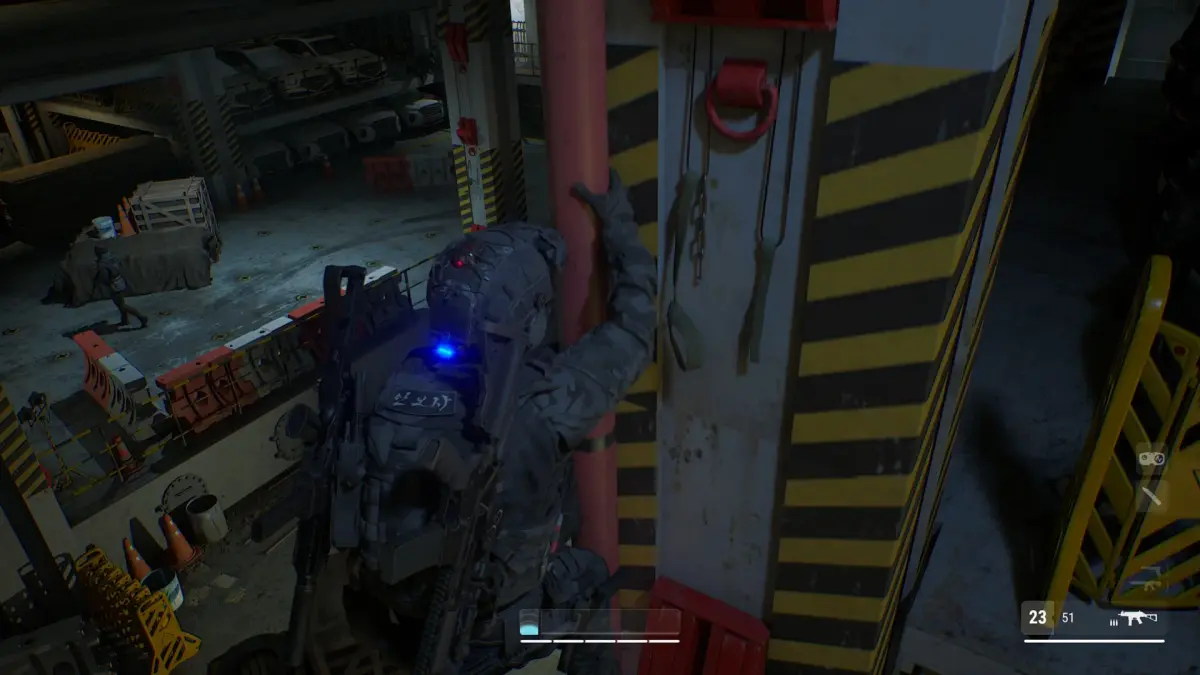
Optimize your MUDANG: Two Hearts initial game settings for smoother combat and improved visual clarity, especially when facing Whispering Specters.
Upon launching MUDANG: Two Hearts for the first time, taking a few moments to adjust the game's settings can significantly enhance your gameplay experience, especially concerning responsiveness and visual clarity. Optimizing these settings ensures that the fast-paced combat, particularly when facing agile foes like the Whispering Specters, feels fluid and that crucial visual cues are not missed.
Display Settings:
- Resolution: Set this to your display's native resolution (e.g., 1920x1080 for Full HD, 3840x2160 for 4K) for the sharpest image.
- Frame Rate: On consoles, you'll typically have options like "Performance Mode" (prioritizing higher frame rates, often around 60 FPS) and "Quality Mode" (prioritizing graphical fidelity, often 30 FPS). For action-heavy games like MUDANG, Performance Mode is generally recommended to ensure smooth combat and quicker reaction times, especially during intense encounters with multiple enemies or when executing complex combos with the Twin Fangs.
- V-Sync: If you experience screen tearing, enabling V-Sync can help, but it may introduce input lag. Experiment with this setting to find what works best for your setup.
- HDR (High Dynamic Range): If your display supports HDR, enabling it can dramatically improve color vibrancy and contrast, making the dark, atmospheric environments of the Forsaken Crypts more immersive.
Control Settings:
- Invert Y-Axis: Many players prefer to invert the vertical camera controls. Adjust this to your personal preference.
- Controller Vibration: This can add to the immersion, providing feedback for impacts and powerful attacks. You can adjust its intensity or disable it if you find it distracting.
- Sensitivity: Fine-tune camera and aiming sensitivity. A slightly higher sensitivity can allow for quicker target acquisition when facing swift enemies, while a lower setting offers more precision for deliberate attacks.
Audio Settings:
- Master Volume: Adjust to a comfortable level.
- Music Volume: Lowering this can help you better hear in-game sound effects, such as the distinct audio cues of an enemy's charging attack or the subtle rustle of a hidden trap.
- Sound Effects Volume: Ensure this is high enough to clearly distinguish important audio cues, like the parry window timing or the activation of a powerful ability like the 'Crimson Surge'.
Gameplay Settings:
- Subtitles: Enable for dialogue clarity, especially if you find the ambient sounds of the world overwhelming.
- Damage Numbers: Turning these on can provide valuable feedback on the effectiveness of your attacks against different enemy types, helping you understand which weapon or ability deals the most damage to, for instance, the heavily armored Stone Golems.
Experimenting with these settings before diving deep into the game will ensure a more comfortable and effective playthrough, allowing you to focus on mastering the intricate combat system and exploring the vast, dangerous world.
100% Human-Written. AI Fact-Checked. Community Verified. Learn how AntMag verifies content