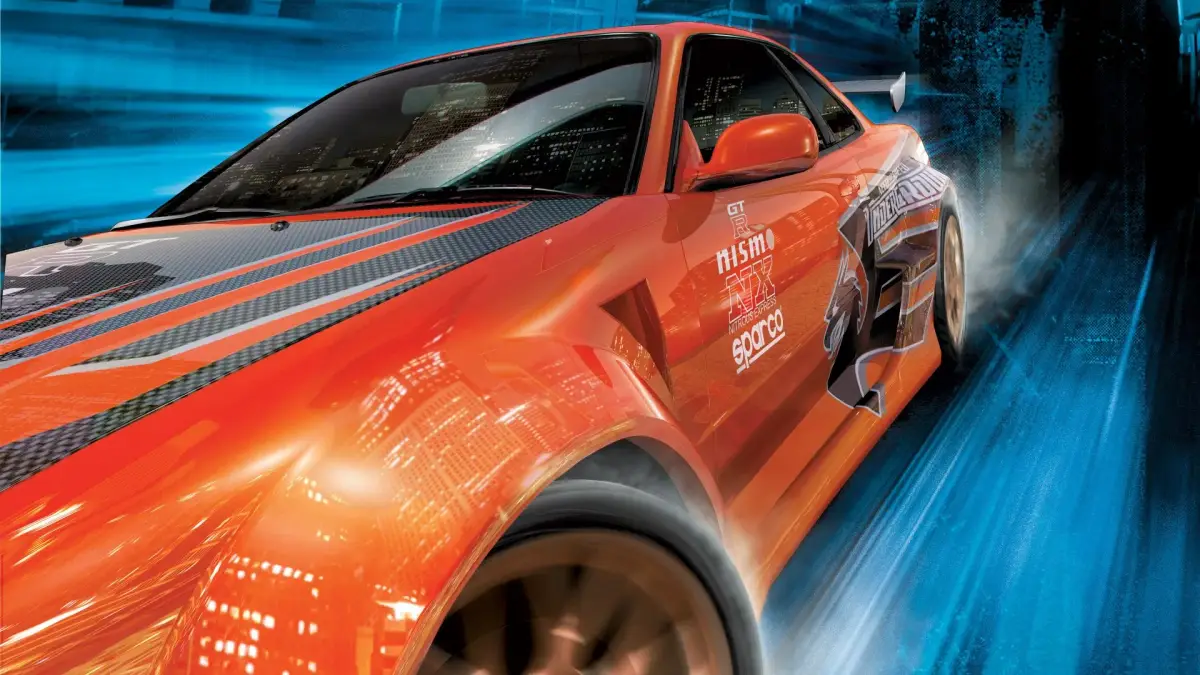
Welcome to the streets of Need for Speed: Underground! Released in 2003 by EA Black Box, this iconic racer lets you dive headfirst into the underground street racing scene. You'll be mastering the art of the race, whether it's Outrun, Sprint, Drift, or Drag, all while customizing your ride to the max. It's all about earning cash and boosting your style rating to become the top dog in the city.
This guide is your key to conquering Underground. We'll walk you through everything from picking your first car and getting the game set up, to detailed strategies for every race type across PC, Xbox, PlayStation 2, and GameCube. Get ready to learn how to maximize your earnings and style to achieve ultimate underground racer status.
I. Controls
Get a grip on Need for Speed: Underground! Learn all the essential controls for driving, drifting, and navigating menus to dominate the streets.
Alright, let's get you up to speed on how to actually *drive* in Need for Speed: Underground. This isn't just about looking cool; knowing your buttons is key to winning races and pulling off those sweet drifts. We'll cover the basics you need to get started, from accelerating to braking and everything in between.
Since this game is available on a few different platforms, the exact button names might vary slightly, but the functions are the same. We'll try to cover the most common ones.
| Action | PC | PlayStation 2 | Xbox |
| Accelerate | UP ARROW | X | A |
| Brake/Reverse | DOWN ARROW | SQUARE | X |
| Steer Left | LEFT ARROW | LEFT on D-PAD/ANALOG STICK | LEFT on D-PAD/ANALOG STICK |
| Steer Right | RIGHT ARROW | RIGHT on D-PAD/ANALOG STICK | RIGHT on D-PAD/ANALOG STICK |
| Handbrake | SPACEBAR | CIRCLE | B |
| Nitro | SHIFT | TRIANGLE | Y |
| Look Back | B | L1 | LB |
| Horn | H | R1 | RB |
| Change Camera | C | R2 | RT |
| Menu Navigation | NUMPAD ENTER | START | START |
| Select | ENTER | X | A |
| Back | ESC | CIRCLE | B |
- Nitro is your best friend: Don't be shy with the nitro! Use it on straights to pull ahead, but save a bit for the final stretch. You'll see your nitro meter fill up as you drift or catch air.
- Master the Handbrake: The handbrake (SPACEBAR/CIRCLE/B) is crucial for taking sharp corners. Tap it briefly to initiate a drift, but don't hold it too long or you'll spin out. It's all about timing!
- Camera Angles: Experiment with the different camera views (C/R2/RT). Some players prefer the bumper cam for precision, while others like the wider view from further back. Find what works for you.
- Look Back: Use the 'Look Back' button (B/L1/LB) to check your rearview and see who's gaining on you. It's super helpful when you're trying to defend your position.
- Menu Navigation: Getting around the menus is pretty standard. Use the arrow keys or D-pad to move your cursor, ENTER/X to select, and ESC/CIRCLE/B to go back. Easy peasy.
Knowing these controls inside and out will make a huge difference. Practice them in the early races, and you'll be drifting like a pro and leaving your opponents in the dust in no time!
(PC) Keyboard Controls
Unlock the secrets of Need for Speed Underground PC keyboard controls. Master steering, throttle, braking, and special moves with our easy-to-read guide.
Alright, let's get you set up with the keyboard controls for Need for Speed Underground on PC. You've got a few options here, and honestly, the 'recommended' settings aren't set in stone. What feels good to you is what matters most, but this chart will give you a solid starting point.
| Primary | Secondary | Recommended | |
| Steering (left) | Left | Num 4 | Left |
| Steering (right) | Right | Num 6 | Right |
| Throttle | Up | Num 8 | Up |
| Brake/Reverse | Down | Num 5 | Space |
| E-brake * | Right Shift | Shift | Shift |
| Nitrous Boost | Space | N | X |
| Shift Up | Ins | A | A |
| Shift Down | Del | Z | Z |
| Look back | B | Right Ctrl | B |
| Camera Change | C | Enter | C |
| Reset car | R | Home | R |
| Pause Game | Esc | P | Esc |
A quick note on the E-brake (Emergency Brake): Holding it down applies more pressure, which is great for stopping quickly. But for those sweet drifts you see in the game? You'll just want to tap it briefly while holding your steering input (left or right) when you've got some speed built up. It's also often called the handbrake.
Experiment with these! Find what feels natural for you as you're weaving through the streets and pulling off those insane drifts. Happy racing!
(PS2) Controls
Master Need for Speed Underground (PS2) controls for steering, braking, nitrous, and camera views. Learn all button functions.
Controls:
- Steering Left/Right: Directional Buttons or Left Analog Stick
- Throttle/Brake/Reverse: Right Analog Stick
- Throttle: X Button
- Brake/Reverse: Square Button
- Look Back: Circle Button
- Change Camera View: Triangle Button (Cycle through Bumper, Far, and Near views)
- E-Brake: R1 Button
- Nitrous Boost: L1 Button
- Shift Up (Manual Transmission only): R2 Button
- Shift Down (Manual Transmission only): L2 Button
- Reset Car: Select Button
- Pause/Menu: Start Button
- The Right Analog Stick offers nuanced control over both throttle and braking.
- Remember that R2 and L2 are only used for shifting gears if you have selected Manual Transmission in the game's options.
- Use the Circle button to check behind your car without changing your main camera perspective.
(PS2) Menu Controls
Master the menus of Need for Speed: Underground on PS2 with our comprehensive control guide. Learn button mappings for navigation, customization, and more to enhance your gameplay experience.
Navigate the menus of Need for Speed: Underground on PlayStation 2 with ease. This guide details the button configurations for all menu interactions, helping you customize your ride and select races efficiently.
| Action | Button |
|---|---|
| Navigate Menus (Up/Down/Left/Right) | D-Pad / Left Analog Stick |
| Select Option | X Button |
| Go Back / Cancel | Circle Button |
| Open Options Menu | Start Button |
| Scroll Through Options (Fast) | L1 / R1 Buttons |
| Switch Tabs (e.g., Garage, Career, Online) | L2 / R2 Buttons |
| View Car Details / Rotate Car | Square Button / Right Analog Stick |
| Access Quick Menu / Map | Triangle Button |
Similar guides you might like






100% Human-Written. AI Fact-Checked. Community Verified. Learn how AntMag verifies content