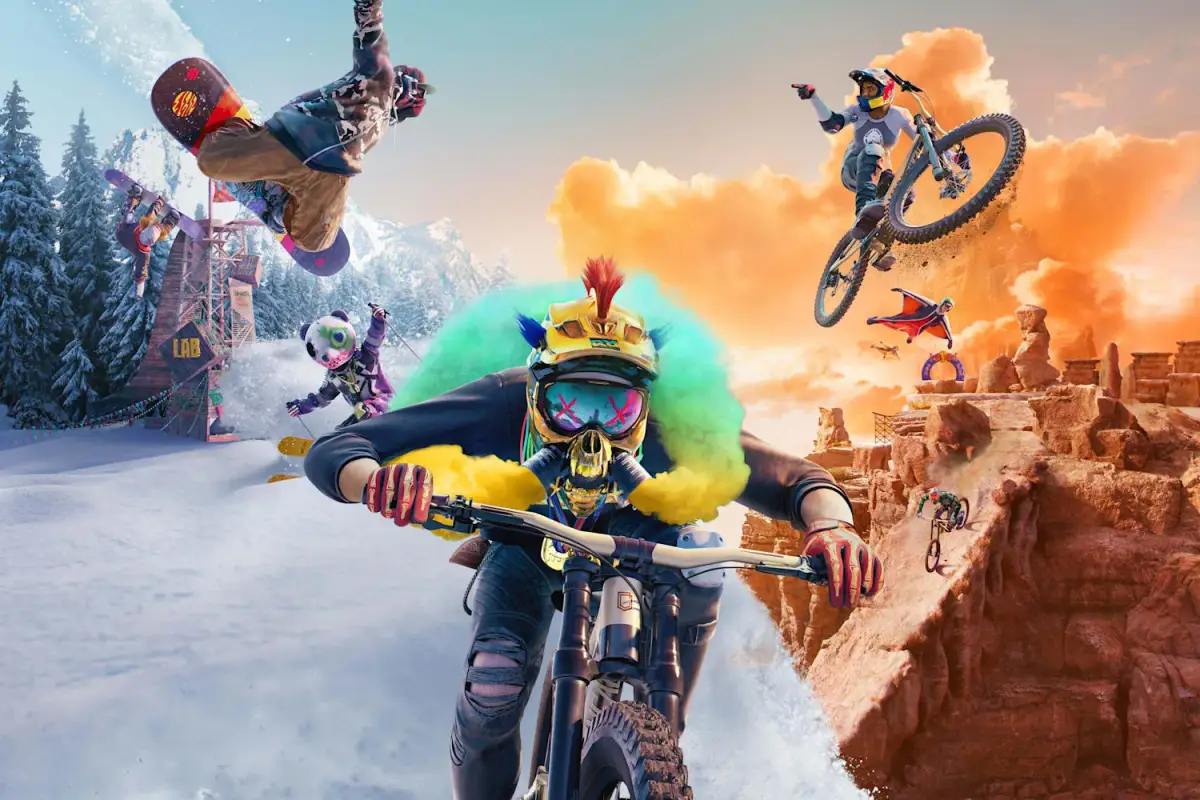
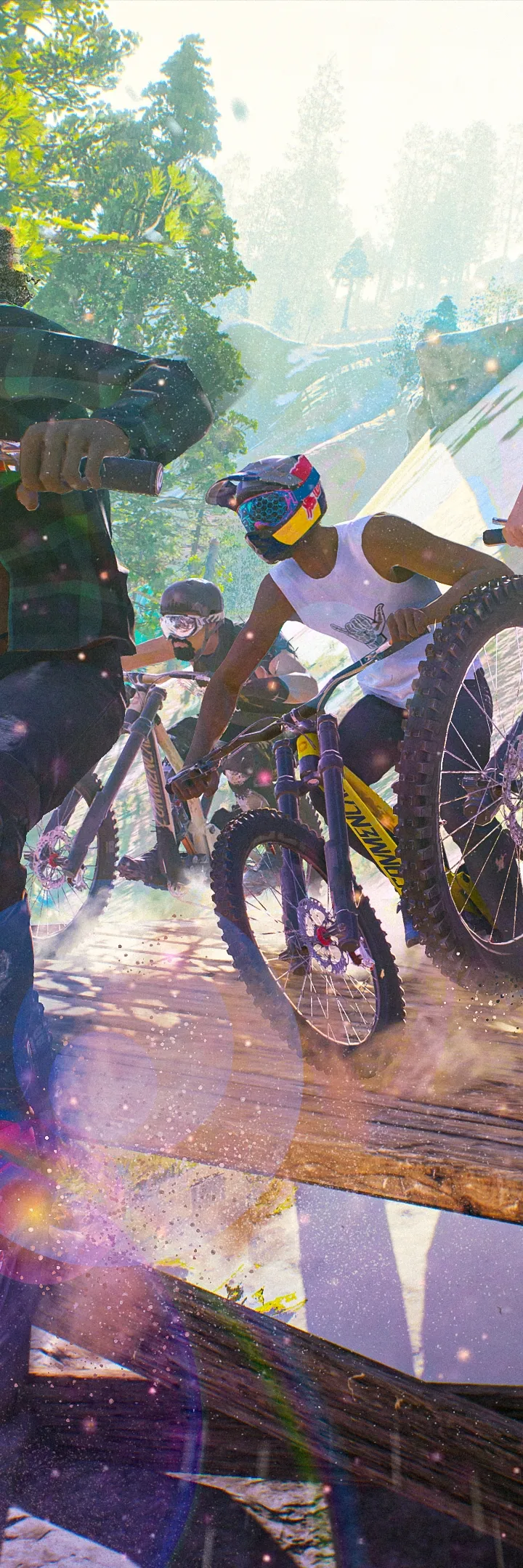
Capture epic moments in Riders Republic using Photo Mode and the Replay Editor. Freeze action and compose breathtaking shots of gravity-defying tricks.
Riders Republic offers robust tools for capturing and sharing your most epic moments, from breathtaking landscapes to gravity-defying tricks. The Photo Mode and Replay Editor are your keys to becoming a virtual cinematographer and photographer.
Accessing Photo Mode
Photo Mode can be activated at almost any time during gameplay, allowing you to freeze the action and compose the perfect shot. This is ideal for capturing spontaneous events or specific trick animations.
- During Gameplay: Press the dedicated Photo Mode button (typically
Up on the D-Padfor controllers, orPon keyboard). - From Replay Editor: While reviewing a replay, you can enter Photo Mode at any point in the timeline to capture a still image.
Photo Mode Controls & Features
Once in Photo Mode, a suite of options becomes available to fine-tune your image:
- Camera Movement: Use the left stick/WASD to move the camera horizontally and vertically, and the right stick/mouse to pan and tilt.
- Zoom: Adjust the focal length to get closer to the action or capture a wider vista.
- Depth of Field (DoF): Control the blur of the foreground and background to emphasize your subject. Experiment with different aperture settings for cinematic effects.
- Field of View (FoV): Change the camera's perspective, from a wide-angle fisheye look to a more telephoto compression.
- Filters: Apply various visual filters (e.g., "Vintage," "Sepia," "Vibrant") to alter the mood and aesthetic of your photo.
- Time of Day: Adjust the in-game time to change lighting conditions. Early morning or late afternoon often provide the most dramatic shadows and golden hour glow.
- Weather: Toggle between clear skies, rain, snow, or fog to add atmosphere.
- Character Poses: Select from a range of pre-set poses for your rider, perfect for static shots or showcasing specific gear.
- Hide UI: Toggle the user interface off to capture a clean, unadulterated image.
- Take Photo: Once satisfied, press the designated button (e.g.,
X/Aon controller,Enteron keyboard) to save your masterpiece to your console's or PC's gallery.
Utilizing the Replay Editor
The Replay Editor is a powerful tool for reliving and documenting your most impressive runs, tricks, and wipeouts. It allows for detailed camera work and cinematic sequencing.
Accessing the Replay Editor
Replays are automatically saved for your recent activities. To access them:
- From the main menu, navigate to the "Progression" tab.
- Select "Replays".
- Choose the activity you wish to review from the list.
Alternatively, after completing an event or activity, you'll often see an option to "Watch Replay" directly on the results screen.
Replay Editor Workflow
The Replay Editor provides a timeline-based interface for crafting your video clips.
- Timeline Navigation: Use the left stick/WASD to scrub through the replay timeline. You can fast-forward, rewind, and pause at any point.
- Adding Keyframes: Keyframes are essential for creating dynamic camera movements.
- Move the camera to your desired position and angle.
- Press the "Add Keyframe" button (e.g.,
Square/Xon controller,Spacebaron keyboard). - Repeat this process at different points in the timeline and with different camera angles to create a sequence. The editor will smoothly interpolate camera movement between keyframes.
- Camera Presets: Experiment with various camera presets like "Follow Cam," "Drone Cam," "Helmet Cam," or "Free Cam" to quickly change perspectives.
- Adjusting Playback Speed: Slow down critical moments for dramatic effect or speed up less interesting sections.
- Visual Effects: Apply filters, adjust exposure, contrast, and saturation to enhance your replay's visual appeal.
- Trimming the Clip: Set "In" and "Out" points on the timeline to define the start and end of your final video clip.
- Saving & Sharing: Once you're happy with your edited replay, select "Save Clip" (e.g.,
Triangle/Yon controller,Con keyboard). This will render your video and save it to your local gallery, from where you can share it with the Riders Republic community or other platforms. - Rule of Thirds: Imagine a 3x3 grid over your screen. Place points of interest along the lines or at their intersections for a more balanced and engaging composition in Photo Mode.
- Leading Lines: Utilize natural elements like trails, fences, or mountain ridges to draw the viewer's eye towards your subject.
- Action Shots: In Replay Editor, use slow-motion during peak action moments like big air jumps, grinds, or near-misses.
- Environmental Storytelling: Don't just focus on your rider. Capture the vastness of the Canyonlands, the dense forests of Sequoia, or the snowy peaks of Grand Teton to add context and scale.
- Experiment with Angles: Don't be afraid to get low, high, or use unconventional angles to make your shots stand out. A worm's-eye view of a rider launching off a ramp can be incredibly dynamic.
- Community Showcase: Regularly check the "Community" tab in the game's menu for inspiration from other players' shared photos and replays.
Advanced Tips for Stunning Visuals
100% Human-Written. AI Fact-Checked. Community Verified. Learn how AntMag verifies content