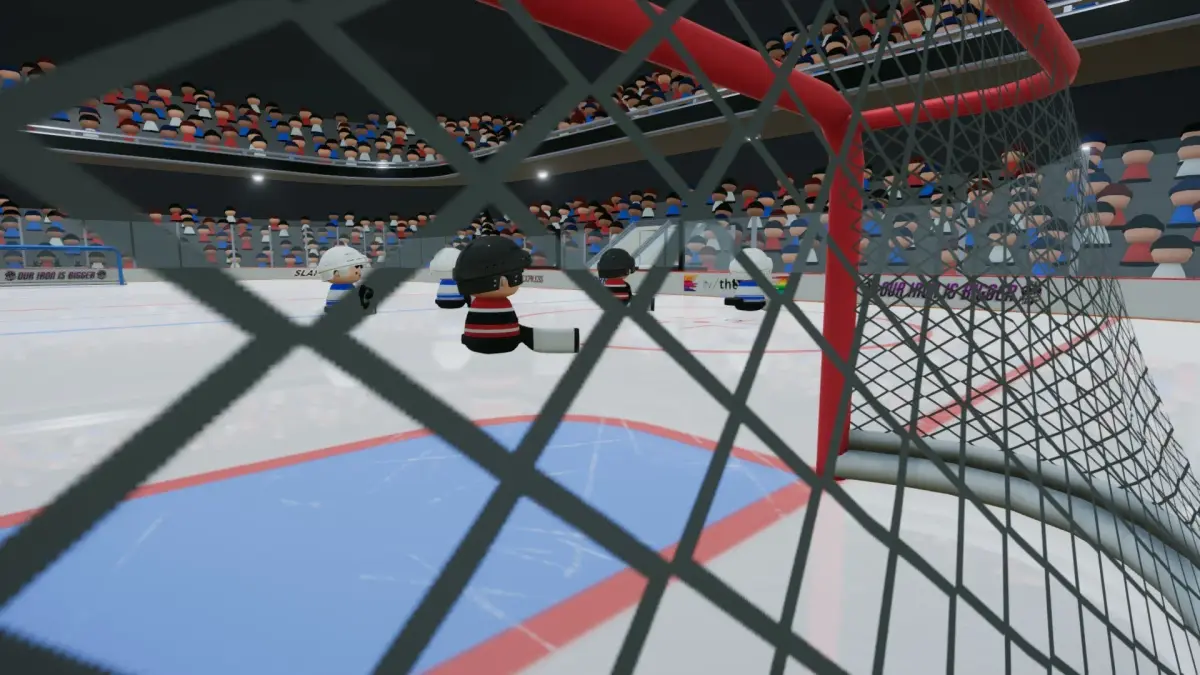
Learn to optimize your SLAPSHOT Rebound experience by adjusting game settings and options. Tailor performance and controls for peak ice hockey gameplay.
Welcome, aspiring Slapshot Rebound pros! Diving into the game's settings and options is crucial for tailoring your experience, optimizing performance, and truly mastering the ice. This detailed guide will walk you through every essential menu, ensuring you're always playing at your peak.
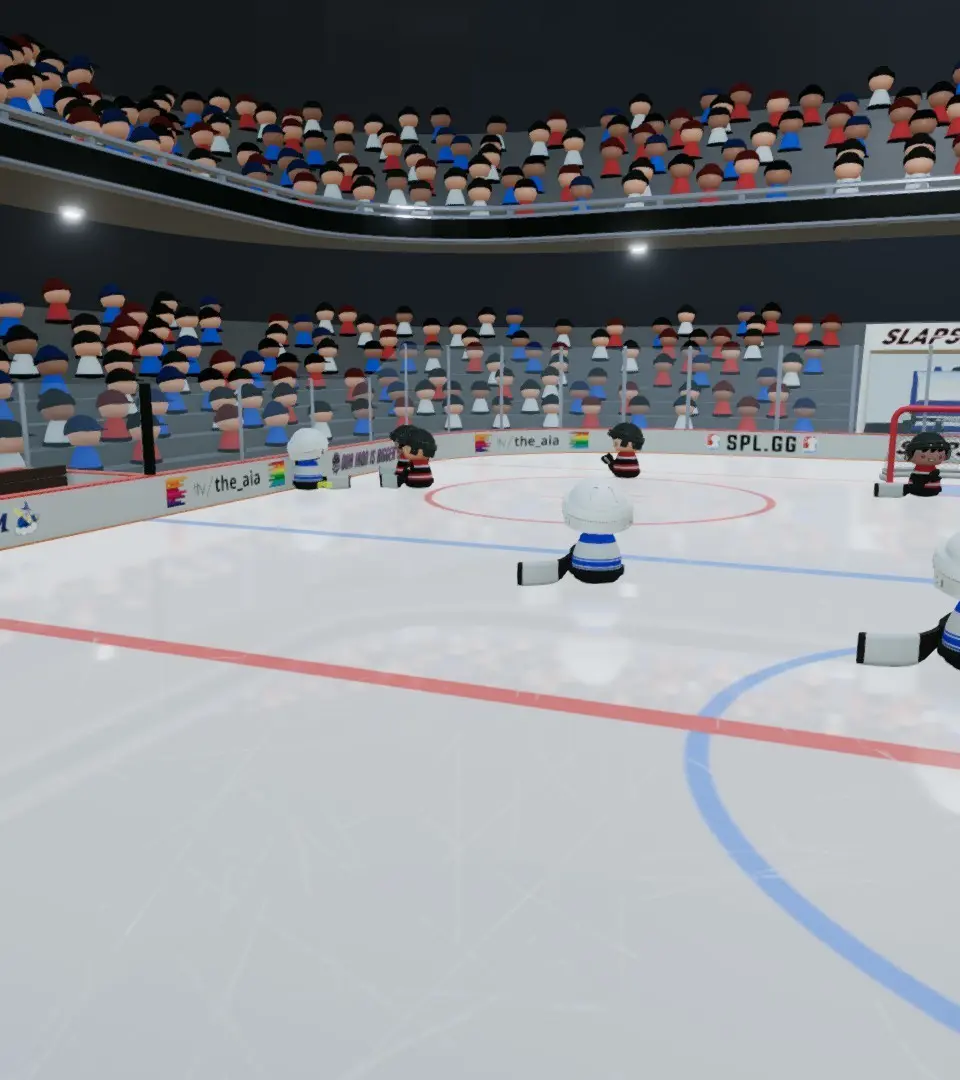
Accessing the Settings Menu
From the main menu, navigate to the "Options" icon, typically represented by a gear or cogwheel. Click or select this to open the primary settings hub. Alternatively, during a match, you can often pause the game and select "Game Options" to adjust certain in-game preferences on the fly.
Gameplay Settings
This section is your command center for how the game plays out. Fine-tuning these can dramatically impact your performance and enjoyment.
- Difficulty:
- Beginner: Ideal for new players learning the ropes. AI opponents are less aggressive and forgiving.
- Amateur: A good stepping stone for players comfortable with basic mechanics. AI offers a moderate challenge.
- Pro: For seasoned players seeking a competitive match. AI is more strategic and skilled.
- All-Star: The ultimate challenge. Expect relentless AI, precise passing, and aggressive defense. Only for the truly dedicated!
- Game Length: Adjust the duration of each period. Options typically range from 2 minutes to 10 minutes. Shorter periods are great for quick matches, while longer ones allow for more strategic play.
- Offsides:
- On: Enforces realistic offside rules, requiring careful puck control and positioning.
- Off: Disables offsides, allowing for more aggressive offensive rushes without penalty. Recommended for casual play or practicing shots.
- Icing:
- On: Enforces realistic icing rules, penalizing players who shoot the puck across the opponent's goal line from their own half.
- Off: Disables icing, allowing for long-range shots and clears without penalty.
- Penalties:
- On: Activates all in-game penalties (e.g., tripping, slashing, hooking). Adds a layer of strategy and consequence to aggressive play.
- Off: Disables penalties, allowing for more physical and unrestricted gameplay.
- One-Timer Assist:
- On: Provides a slight assist for executing one-timer shots, making them easier to connect.
- Off: Requires precise timing and positioning for one-timers, offering a more challenging and rewarding experience for skilled players.
Visual & Audio Settings
Customize your game's look and sound to enhance immersion and comfort.
- Camera Angle: Experiment with different camera perspectives to find what works best for you.
- Classic: A traditional, slightly elevated view of the ice.
- Dynamic: Follows the puck more closely, offering a more intense, action-oriented perspective.
- Broadcast: Mimics a TV broadcast, providing a wider view of the play.
- Custom: Allows for fine-tuning of zoom, height, and angle.
- Player Indicator:
- On: Displays an arrow or highlight above You you are currently controlling. Highly recommended for clarity.
- Off: Removes the indicator, relying solely on player movement and jersey recognition.
- Puck Glow:
- On: Makes the puck glow, increasing its visibility on the ice, especially during fast-paced play.
- Off: The puck appears naturally.
- Crowd Volume: Adjust the intensity of the crowd's cheers and reactions.
- SFX Volume: Control the volume of in-game sound effects like puck hits, skates, and whistles.
- Music Volume: Adjust the volume of background music during menus and gameplay.
Controller Settings
Tailor your control scheme for maximum comfort and responsiveness.
- Control Scheme: Select from pre-set layouts or create your own.
- Default: The standard control layout, often recommended for new players.
- Alternate: Offers a different button mapping for actions like shooting and passing.
- Custom: Allows you to re-map individual actions to specific buttons. This is where you can truly personalize your experience.
- Vibration:
- On: Enables controller vibration for impacts, goals, and other in-game events.
- Off: Disables vibration.
- Analog Stick Sensitivity: Adjust how responsive your analog sticks are for movement and aiming. Higher sensitivity means smaller movements have a greater effect.
Saving Your Preferences
After making any changes, always remember to select "Apply" or "Save Changes" (the exact wording may vary) before exiting the settings menu. This ensures your customized preferences are stored for future gameplay sessions. Failure to do so may result in your changes being lost.
100% Human-Written. AI Fact-Checked. Community Verified. Learn how AntMag verifies content