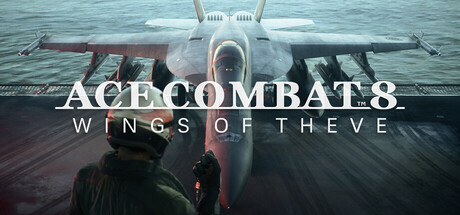
Compare performance and capabilities of Standard Fighter Jets in Ace Combat 8: Wings of Theve. Choose the right aircraft for any aerial engagement.
Initial Game Settings Optimization
Before you dive into your first mission, taking a moment to optimize your game settings can significantly enhance your experience in Ace Combat 8: Wings of Theve. This section focuses on adjusting key visual and control parameters to ensure smooth performance and comfortable gameplay, whether you're playing on PC, PlayStation 5, or Xbox Series S/X.
Visual Settings (PC Focus, but applicable to consoles):
- Resolution: Set this to your display's native resolution for the sharpest image.
- Frame Rate Limit: If you're experiencing stuttering, consider capping your frame rate to a stable number (e.g., 60 FPS) that your system can consistently maintain. On consoles, this is often tied to performance modes.
- Graphics Presets: Start with a medium or high preset and then fine-tune individual settings.
- Texture Quality: Higher textures improve detail but require more VRAM (PC) or system memory.
- Shadow Quality: Shadows can be demanding. Lowering this can significantly boost performance with minimal visual impact in fast-paced combat.
- Anti-Aliasing: Smooths out jagged edges. FXAA is less demanding than MSAA.
- Motion Blur: This is a personal preference. Many players disable it for clearer visuals during high-speed maneuvers.
- Field of View (FOV): Adjusting FOV can improve situational awareness. A wider FOV shows more of the environment but can sometimes distort distant objects.
Control Settings:
- Controller Sensitivity: Experiment with stick sensitivity to find a balance that allows for precise aiming without being overly twitchy.
- Button Mapping: Ace Combat games often offer extensive controller remapping. Ass frequently used actions like missile firing, countermeasures, and special weapon selection to easily accessible buttons. Consider mapping pitch and roll to the analog sticks for intuitive flight control.
- Flight Model: Ace Combat 8 likely offers both Standard and Expert flight models. The Standard model is more forgiving, while the Expert model provides greater control and realism, essential for advanced maneuvers. Start with Standard if you're new to the series.
- Assists: Features like auto-throttle, auto-rudder, and missile assist can be toggled. While helpful for beginners, disabling some of these can lead to a more rewarding and challenging experience.
Audio Settings:
- Master Volume: Adjust to your preference.
- Music Volume: You might want to lower this to better hear critical in-game audio cues like missile warnings and radio chatter.
- Sound Effects Volume: Ensure this is high enough to clearly distinguish engine sounds, weapon fire, and warning alerts.
Accessibility Options: Check for any accessibility features that might improve your experience, such as colorblind modes, subtitle options, or adjustable text sizes.
Saving Your Settings: Once you've found a configuration that feels right, remember to save your settings. You can always revisit these menus to make further adjustments as you become more familiar with the game.
100% Human-Written. AI Fact-Checked. Community Verified. Learn how AntMag verifies content