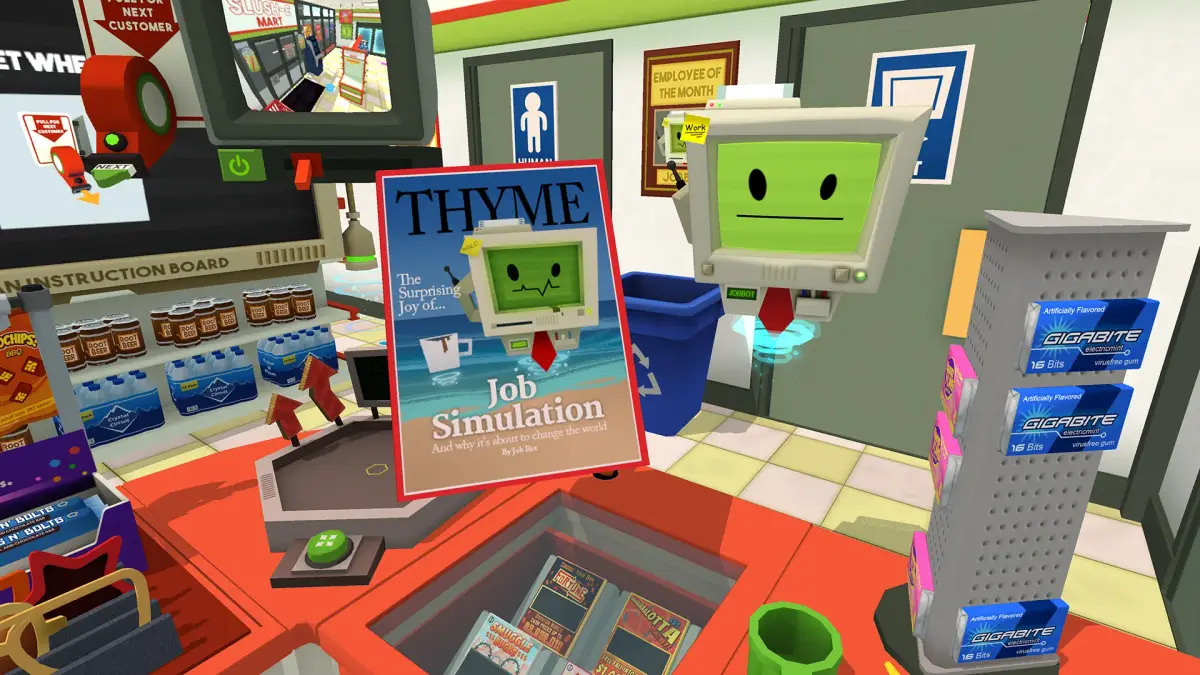
Master Job Simulator's Afternoon Productivity by engaging in virtual meetings, shredding documents, and tidying your desk before clocking out.
Afternoon Productivity: Concluding Your Workday
As the workday progresses into its final hours, the office environment shifts from the bustling morning to a more focused, often reflective, afternoon. In Job Simulator, this period is designed to encapsulate the typical end-of-day office routine, offering a blend of collaborative tasks, administrative duties, and personal preparation for departure. Mastering these tasks efficiently will ensure you leave a lasting impression on your robotic overlords (or at least, avoid any negative performance reviews).
Key Afternoon Tasks:
- The Virtual Meeting: Engage in essential digital collaboration.
- Document Shredding: Securely dispose of sensitive information.
- Desk Tidy-Up / Chaos Creation: Personalize your workspace's final state.
- Clocking Out: Officially conclude your shift.
Detailed Walkthrough & Strategies:
1. The Virtual Meeting
The virtual meeting is a crucial collaborative element of your afternoon. You'll be prompted to participate by a notification appearing on your computer monitor. Your objective is to actively engage with your virtual colleagues and contribute to the discussion.
Interaction Steps:
- Locate Your Chair: Ensure you are seated comfortably in your office chair. The game will often guide you to this position.
- Activate the Monitor: Once seated, look towards your main computer monitor. The meeting interface will automatically load.
- Engage with Prompts: During the meeting, various interactive prompts will appear on the screen. These are not merely passive observations; you are expected to respond.
- Answering Questions: A robotic voice will pose questions related to project updates or team progress. Often, you'll see multiple-choice options appear on your screen. Use your virtual hand to point and select the appropriate answer. For example, you might be asked, "What is the status of Project Alpha?" and given options like "On Track," "Delayed," or "Completed."
- Presenting Data/Reports: Occasionally, you may be prompted to "present" data. This usually involves interacting with a virtual chart or graph that appears on your screen. You might need to point out specific trends, highlight key figures, or even virtually "drag and drop" elements to illustrate a point. Listen carefully to the robotic moderator's instructions.
- Collaborative Input: Some meetings may require you to contribute ideas or feedback. This could manifest as a virtual whiteboard where you can "write" or "draw" using your controller, or a voting system where you indicate your preference on a topic.
- Nodding/Shaking Head: Pay attention to the non-verbal cues. Sometimes, simply nodding or shaking your head in response to a statement (by physically moving your head in VR) can register as an interaction.
- Maintain Focus: While it's tempting to get distracted, remaining engaged throughout the meeting is important for a good performance review. Avoid throwing objects or making excessive noise during this period.
Common Pitfalls:
- Ignoring Prompts: Failing to interact with the screen when prompted will result in a lower "engagement" score.
- Incorrect Answers: While not always critical, consistently choosing incorrect answers might trigger humorous robotic disapproval.
2. Document Shredding
Security is paramount, even in a robot-run office! You'll be tasked with shredding sensitive documents to prevent unauthorized access. This is a straightforward but satisfying task.
Interaction Steps:
- Locate the Shredder: The document shredder is typically found near your desk, often integrated into a cabinet or standing as a separate unit. It's usually a tall, rectangular device with a slot at the top.
- Identify Sensitive Documents: Look for papers marked with "CONFIDENTIAL," "TOP SECRET," or similar security classifications. These are often highlighted or glow slightly to indicate they are shreddable. They might be on your desk, in a tray, or even in a nearby filing cabinet.
- Feed the Shredder: Pick up a sensitive document with your virtual hand. Align the document with the shredder's slot and push it in. You'll hear a satisfying whirring sound and see the paper disappear.
- Continue Until Clear: Repeat this process until all designated sensitive documents have been shredded. A notification will usually confirm when the task is complete.
Strategy Tip:
- Efficiency: Gather all shreddable documents near the shredder before you begin to streamline the process.
3. Desk Tidy-Up / Chaos Creation
Before you clock out, you have a final opportunity to personalize your workspace. This task offers a humorous choice: leave your desk pristine or in utter disarray.
Interaction Steps:
- The Choice is Yours: There's no right or wrong answer here, but your choice will be reflected in the final state of your office.
- Tidy-Up Option:
- Organize Objects: Place pens in holders, stack papers neatly, put away mugs, and generally return items to their designated spots.
- Dispose of Trash: Throw any unwanted items or virtual trash into the waste bin.
- Wipe Surfaces: While not always explicitly required, sometimes wiping down surfaces with a virtual cloth can contribute to a "tidy" score.
- Chaos Creation Option:
- Scatter Objects: Throw papers on the floor, overturn coffee cups, and generally create as much mess as possible.
- Stack Items Precariously: Build unstable towers of office supplies.
- Launch Objects: Use your virtual hands to launch objects across the room for maximum disarray.
Reward/Outcome:
- Your chosen desk state will be preserved and might even be commented on by the robotic boss during your performance review. There's no mechanical advantage to either choice, purely comedic value.
4. Clocking Out
The final act of your workday is to officially clock out. This signifies the completion of your shift.
Interaction Steps:
- Locate the Clock-Out Station: This is usually a small terminal or panel near the exit of your office cubicle. It often has a large button or a slot for a virtual ID card.
- Initiate Clock-Out:
- Press Button: If it's a button, simply press it with your virtual hand.
- Insert Card: If it requires an ID card, locate your virtual ID card (often found on your desk or attached to your person) and insert it into the slot.
- Confirmation: A sound or visual cue will confirm that you have successfully clocked out, and the simulation for the day will conclude.
Strategy Tip:
- Last Task: Ensure all other afternoon tasks are completed before clocking out, as you cannot return to them once you've officially ended your shift.
By diligently following these steps and engaging with the various interactive elements, you will successfully navigate the "Afternoon Productivity" phase of Job Simulator, earning the approval of your robotic employers and concluding your workday with a sense of accomplishment (or glorious chaos!).
100% Human-Written. AI Fact-Checked. Community Verified. Learn how AntMag verifies content