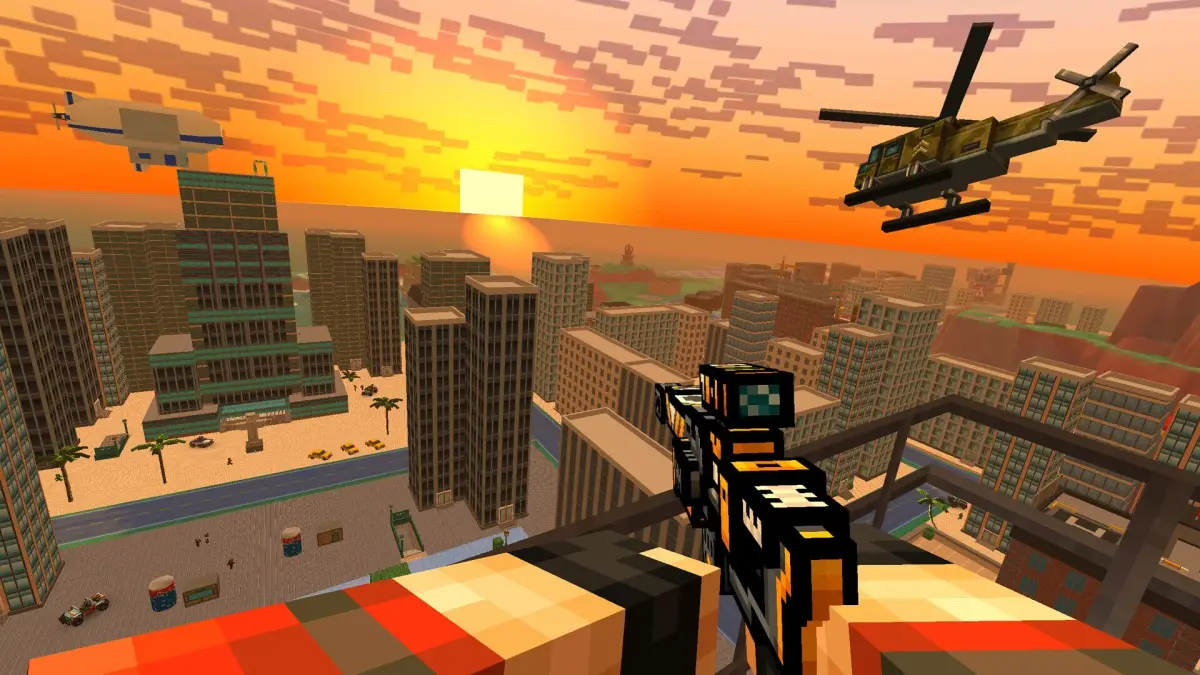
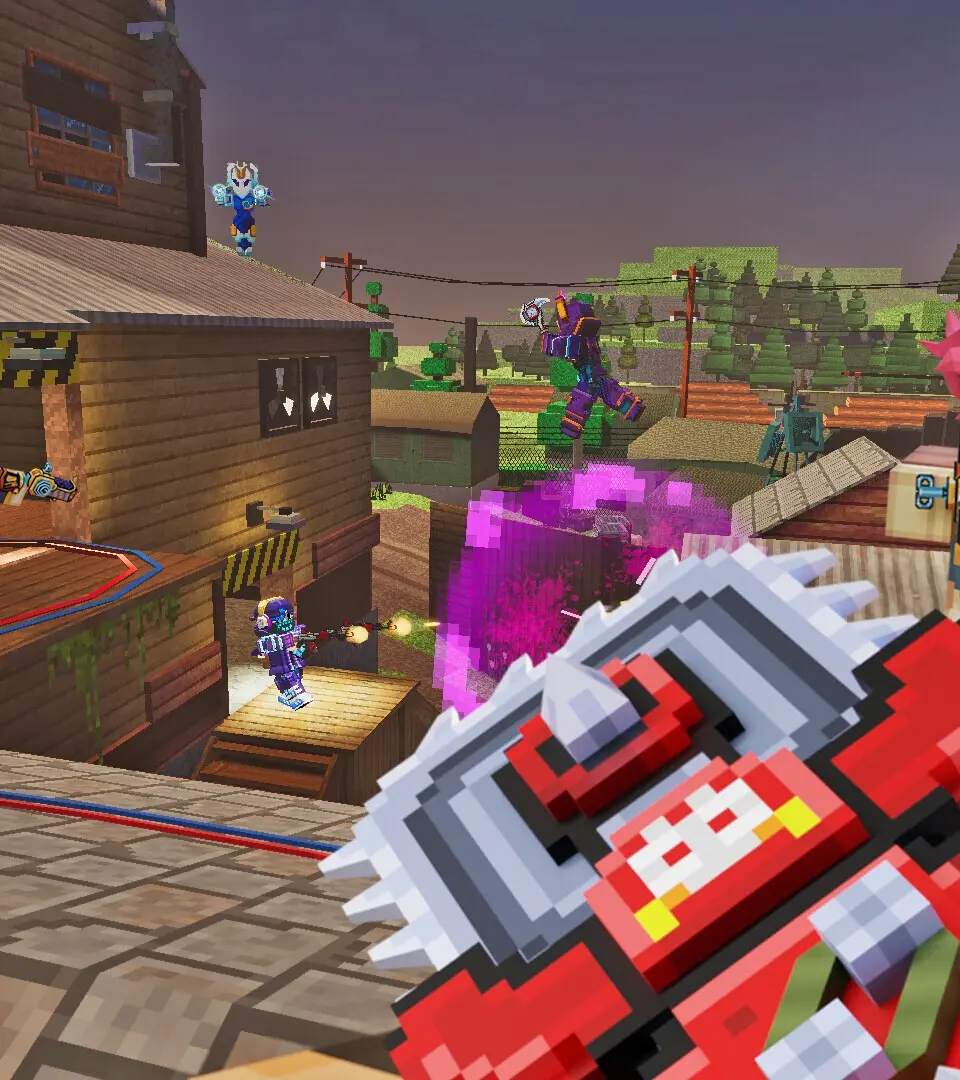
Personalize your avatar in Pixel Gun 3D: PC Edition. Learn about cosmetic sets, skins, and headwear to craft a unique style for the battlefield.
Welcome, Pixel Gunner! In Pixel Gun 3D: PC Edition, personalizing your character is more than just aesthetics; it's about making a statement on the battlefield. This comprehensive guide will walk you through every facet of character customization, from basic appearances to advanced cosmetic enhancements, ensuring your avatar truly reflects your unique style.
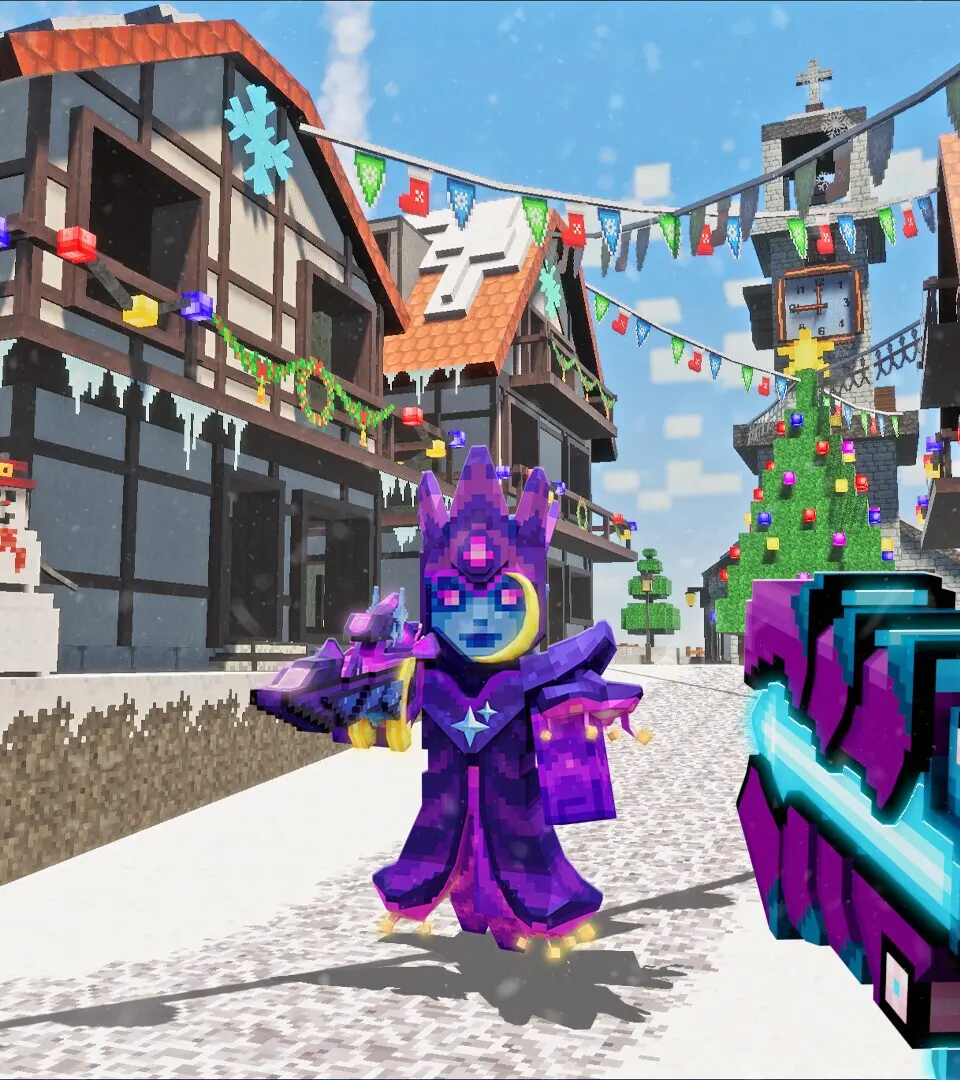
Accessing the Customization Menu
To begin your customization journey, navigate to the main menu. From there, select the "Locker" icon, typically located in the bottom-left corner of your screen. This will open your personal customization hub, where all your cosmetic options reside.
Skins: Your Visual Identity
Skins are the most fundamental aspect of character customization, altering your character's entire appearance. You have several avenues for acquiring and applying skins:
- Default Skins: Upon starting the game, you'll have access to a selection of basic, pre-designed skins. These are excellent for getting started and understanding the visual variety available.
- Skin Editor: For the truly creative, the "Skin Editor" (found within the Locker under the "Skins" tab) allows you to design your own pixel-by-pixel masterpiece.
- Creating a New Skin: Select "New Skin" and choose a base template (e.g., Male, Female, Blocky). You'll be presented with a 3D model and a color palette. Use the various brush sizes and fill tools to meticulously craft your design. Remember to save frequently!
- Importing Skins: If you've found a cool skin online or have a design from another platform, you can often import it using the "Import Skin" option. This typically requires a .PNG file of the skin template.
- Exporting Skins: Share your creations with the community by using the "Export Skin" function, which saves your design as a .PNG file.
- Shop Skins: The in-game "Shop" frequently features exclusive and themed skins available for purchase with Coins or Gems. Keep an eye out for seasonal events and limited-time offers for unique designs.
- Battle Pass & Event Rewards: Participating in the "Battle Pass" or special in-game events often rewards you with exclusive skins that cannot be obtained elsewhere. Check the Battle Pass progression and event reward tracks regularly.
Hats & Capes: Adding Flair
Beyond full skins, you can further personalize your character with a wide array of hats and capes. These are purely cosmetic and offer additional layers of individuality.
- Hats: From the iconic "Pixel Helmet" to the whimsical "Party Hat", hats come in various styles. Access them via the "Hats" tab in the Locker.
- Acquisition: Hats are primarily obtained through the "Shop" (using Coins or Gems), "Lucky Chests", or as rewards from specific events.
- Equipping: Simply tap on the hat you wish to wear, and it will instantly appear on your character model.
- Capes: Capes add a dynamic, flowing element to your character's back. The "Heroic Cape" and "Shadow Cape" are popular choices.
- Acquisition: Similar to hats, capes are found in the "Shop", "Lucky Chests", and as event rewards.
- Equipping: Navigate to the "Capes" tab in the Locker and select your desired cape.
Pet Companions: Your Loyal Sidekicks
Pets are more than just cosmetic; they can offer minor in-game benefits or simply be adorable companions. While not directly part of your character's appearance, they are an extension of your personalized loadout.
- Accessing Pets: Find your pet collection under the "Pets" tab in the Locker.
- Types of Pets: Examples include the agile "Pixel Dragon", the loyal "Robo-Dog", and the mischievous "Mini Zombie". Each pet has a unique visual and sometimes a passive ability.
- Acquisition: Pets are typically acquired through the "Shop", special "Pet Chests", or as high-tier rewards from the "Battle Pass".
- Equipping: Select the pet you wish to accompany you into battle. Only one pet can be active at a time.
Emotes: Express Yourself
Emotes allow you to communicate and express yourself in-game beyond simple chat messages. They are purely cosmetic animations.
- Accessing Emotes: The "Emotes" tab in the Locker displays your available expressions.
- Types of Emotes: From the celebratory "Victory Dance" to the taunting "Facepalm", emotes add personality to your gameplay.
- Acquisition: Emotes are primarily purchased from the "Shop" with Coins or Gems, or earned through "Battle Pass" progression and event rewards.
- Equipping for Use: You can assign up to four emotes to your quick-access wheel in-game. Drag and drop your favorite emotes into the designated slots within the Locker's "Emotes" section.
Player ID & Clan Tags: Your Public Persona
While not directly visual customization on your character model, your Player ID and Clan Tag are crucial elements of your public persona in Pixel Gun 3D.
- Player ID: This is your unique in-game name. You can change it by navigating to your profile settings (usually accessible from the main menu or Locker). Be aware that name changes may cost Gems after the initial free change.
- Clan Tags: If you're part of a clan, your clan tag will appear before your Player ID. This is set by your clan leader and cannot be individually customized. Joining an active clan is a great way to show team spirit!
By mastering these customization options, you'll not only stand out on the battlefield but also create an avatar that truly represents your unique style and personality in the vast world of Pixel Gun 3D: PC Edition. Experiment, create, and dominate with flair!
100% Human-Written. AI Fact-Checked. Community Verified. Learn how AntMag verifies content