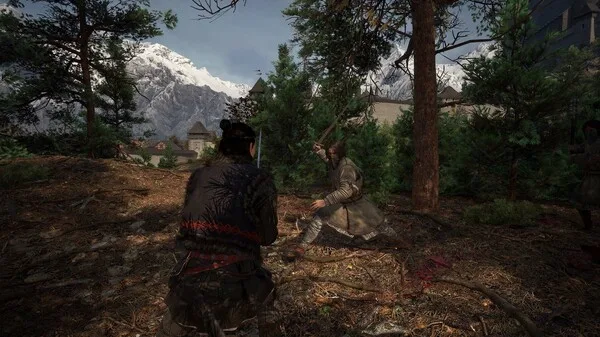
Welcome to The Blood of Dawnwalker, the first chapter in a new role-playing saga from Rebel Wolves. In this game, you'll navigate a world ravaged by bloody conflicts and the Black Death, where decimated human populations struggle for survival. You'll face off against a variety of foes – humans, monsters, and even the terrifying 'tic' – in a desperate fight for existence. It's a challenging world, and your moment-to-moment gameplay will be focused on overcoming these brutal threats.
This guide is here to help you conquer the toughest challenges The Blood of Dawnwalker throws your way. We'll cover everything from mastering combat against formidable bosses to finding all the hidden collectibles scattered throughout the desolate lands. Whether you're aiming for a perfect playthrough or just need a hand overcoming a particularly nasty encounter, this guide has the information you need to survive and thrive.
PC System Requirements
Meet the PC system requirements for The Blood of Dawnwalker. Ensure your hardware runs smoothly with minimum and recommended specifications.
To embark on your journey through the blighted lands of The Blood of Dawnwalker on PC, ensure your system meets the following minimum and recommended specifications. Meeting these will provide a smooth and immersive experience, allowing you to fully appreciate the grim beauty and intense combat the game offers.
Minimum System Requirements:
- Operating System: Windows 10 (64-bit)
- Processor: Intel Core i5-4690K or AMD FX-8350
- Memory: 8 GB RAM
- Graphics: NVIDIA GeForce GTX 960 (4GB) or AMD Radeon R9 280 (3GB)
- DirectX: Version 11
- Storage: 50 GB available space
- Sound Card: DirectX Compatible
Recommended System Requirements:
- Operating System: Windows 10 (64-bit)
- Processor: Intel Core i7-7700K or AMD Ryzen 5 1600
- Memory: 16 GB RAM
- Graphics: NVIDIA GeForce GTX 1070 (8GB) or AMD Radeon RX Vega 56 (8GB)
- DirectX: Version 12
- Storage: 50 GB available space (SSD Recommended)
- Sound Card: DirectX Compatible
An SSD is highly recommended for faster loading times, especially in open-world areas and during fast travel. Ensure your graphics drivers are up to date for optimal performance.
Console Installation Guide
Install The Blood of Dawnwalker on PS5 or Xbox Series S/X by following our clear steps. Get your game disc or digital copy ready to begin your journey.
Installing The Blood of Dawnwalker on your PlayStation 5 or Xbox Series S/X is a straightforward process, ensuring you can quickly dive into the action. Follow these steps to get started.
PlayStation 5 Installation:
- Insert the game disc into your PS5 console. If you purchased a digital version, navigate to your game library.
- The console will automatically detect the game and begin the installation process. A progress bar will appear on your screen.
- You may be prompted to download the latest patches and updates. It is highly recommended to allow these to download and install for the best experience.
- Once installation is complete, the game icon will appear on your home screen. Select it to launch The Blood of Dawnwalker.
Xbox Series S/X Installation:
- Insert the game disc into your Xbox Series S/X console. For digital purchases, go to your "My games & apps" section.
- The console will automatically begin the installation. You can monitor the progress from the "Queue" section in your dashboard.
- Allow any necessary updates or patches to download and install. These often contain crucial bug fixes and performance improvements.
- After installation, the game will be available in your library. Select it to start your adventure.
For both platforms, ensure you have sufficient free storage space. The game requires approximately 50 GB of space. A stable internet connection is recommended for downloading updates.
Graphics Settings Optimization (PC)
Optimize PC graphics for The Blood of Dawnwalker, balancing visual fidelity and performance. Adjust resolution and fullscreen settings for the best experience.
Optimizing your graphics settings on PC is crucial for achieving a balance between visual fidelity and smooth performance in The Blood of Dawnwalker. Experiment with these settings to find your ideal configuration.
Display Settings:
- Resolution: Set this to your monitor's native resolution (e.g., 1920x1080, 2560x1440) for the sharpest image.
- Fullscreen Mode: Always use Fullscreen for the best performance. Borderless Windowed can introduce a slight performance hit.
- V-Sync: Enable V-Sync if you experience screen tearing. If you have a G-Sync or FreeSync monitor, you can often disable in-game V-Sync and enable it through your GPU control panel for smoother results.
- Frame Rate Limit: If you're not using V-Sync, consider setting a frame rate limit slightly above your monitor's refresh rate (e.g., 70 FPS for a 60Hz monitor) to prevent unnecessary GPU strain.
Graphics Quality Settings:
- Texture Quality: High or Ultra if you have 8GB+ VRAM. Medium if you have 4-6GB VRAM. Lower if you experience stuttering.
- Shadow Quality: This is a major performance hog. Start with Medium and adjust down to Low if needed. High shadows can significantly impact FPS.
- Anti-Aliasing: FXAA is the least demanding but can blur the image. TAA offers a good balance. MSAA is more demanding but provides sharper edges. Experiment to see what looks best and performs well.
- Ambient Occlusion: Can add depth but is performance-intensive. Try Medium or Low, or disable if performance is critical.
- Post-Processing Effects (Bloom, Motion Blur, Depth of Field): These are largely personal preference. Motion Blur can be turned off for clearer visuals during fast movement. Bloom and Depth of Field can be lowered or disabled for a performance boost.
- View Distance: Affects how far objects and details are rendered. Lowering this can improve FPS in open areas.
Start with a preset like "High" or "Medium" and then fine-tune individual settings. Monitor your FPS using an in-game overlay or external software to see the impact of each change.
PC Keyboard & Mouse Controls
Master The Blood of Dawnwalker PC controls with our comprehensive guide. Learn keyboard and mouse mappings for combat, movement, and all essential actions to dominate the dark fantasy world.
This guide details the PC keyboard and mouse controls for The Blood of Dawnwalker, helping you navigate the game's mechanics and master your actions as Coen.
| Action | Key |
|---|---|
| Movement | WASD |
| Jump | Spacebar |
| Crouch | Ctrl |
| Interact | E |
| Primary Attack | Left Mouse Button |
| Secondary Attack | Right Mouse Button |
| Dodge | Shift |
| Use Item | Q |
| Ability 1 | 1 |
| Ability 2 | 2 |
| Ability 3 | 3 |
| Ability 4 | 4 |
| Inventory | I |
| Character Sheet | C |
| Map | M |
| Quest Log | J |
| Pause Menu | Esc |
100% Human-Written. AI Fact-Checked. Community Verified. Learn how AntMag verifies content