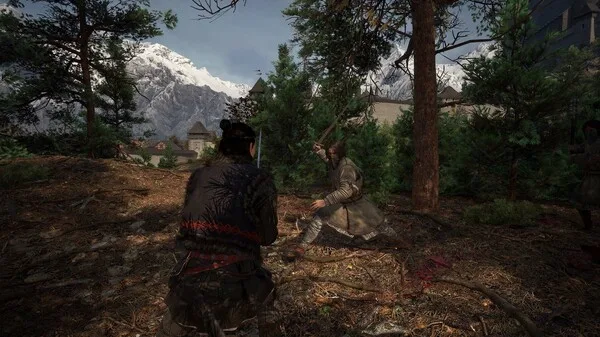
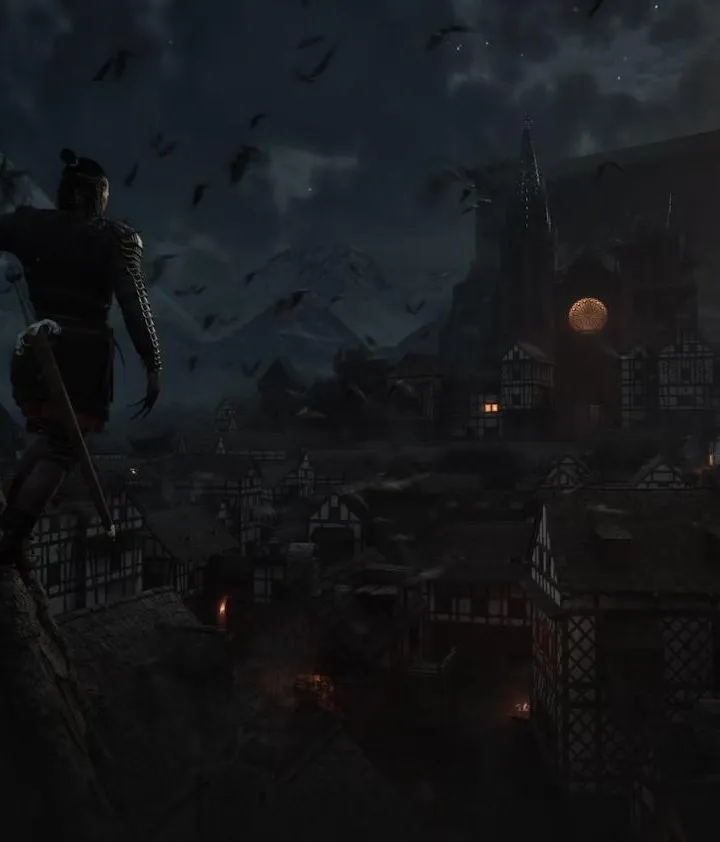
Optimize PC graphics for The Blood of Dawnwalker, balancing visual fidelity and performance. Adjust resolution and fullscreen settings for the best experience.
Optimizing your graphics settings on PC is crucial for achieving a balance between visual fidelity and smooth performance in The Blood of Dawnwalker. Experiment with these settings to find your ideal configuration.
Display Settings:
- Resolution: Set this to your monitor's native resolution (e.g., 1920x1080, 2560x1440) for the sharpest image.
- Fullscreen Mode: Always use Fullscreen for the best performance. Borderless Windowed can introduce a slight performance hit.
- V-Sync: Enable V-Sync if you experience screen tearing. If you have a G-Sync or FreeSync monitor, you can often disable in-game V-Sync and enable it through your GPU control panel for smoother results.
- Frame Rate Limit: If you're not using V-Sync, consider setting a frame rate limit slightly above your monitor's refresh rate (e.g., 70 FPS for a 60Hz monitor) to prevent unnecessary GPU strain.
Graphics Quality Settings:
- Texture Quality: High or Ultra if you have 8GB+ VRAM. Medium if you have 4-6GB VRAM. Lower if you experience stuttering.
- Shadow Quality: This is a major performance hog. Start with Medium and adjust down to Low if needed. High shadows can significantly impact FPS.
- Anti-Aliasing: FXAA is the least demanding but can blur the image. TAA offers a good balance. MSAA is more demanding but provides sharper edges. Experiment to see what looks best and performs well.
- Ambient Occlusion: Can add depth but is performance-intensive. Try Medium or Low, or disable if performance is critical.
- Post-Processing Effects (Bloom, Motion Blur, Depth of Field): These are largely personal preference. Motion Blur can be turned off for clearer visuals during fast movement. Bloom and Depth of Field can be lowered or disabled for a performance boost.
- View Distance: Affects how far objects and details are rendered. Lowering this can improve FPS in open areas.
Start with a preset like "High" or "Medium" and then fine-tune individual settings. Monitor your FPS using an in-game overlay or external software to see the impact of each change.
100% Human-Written. AI Fact-Checked. Community Verified. Learn how AntMag verifies content