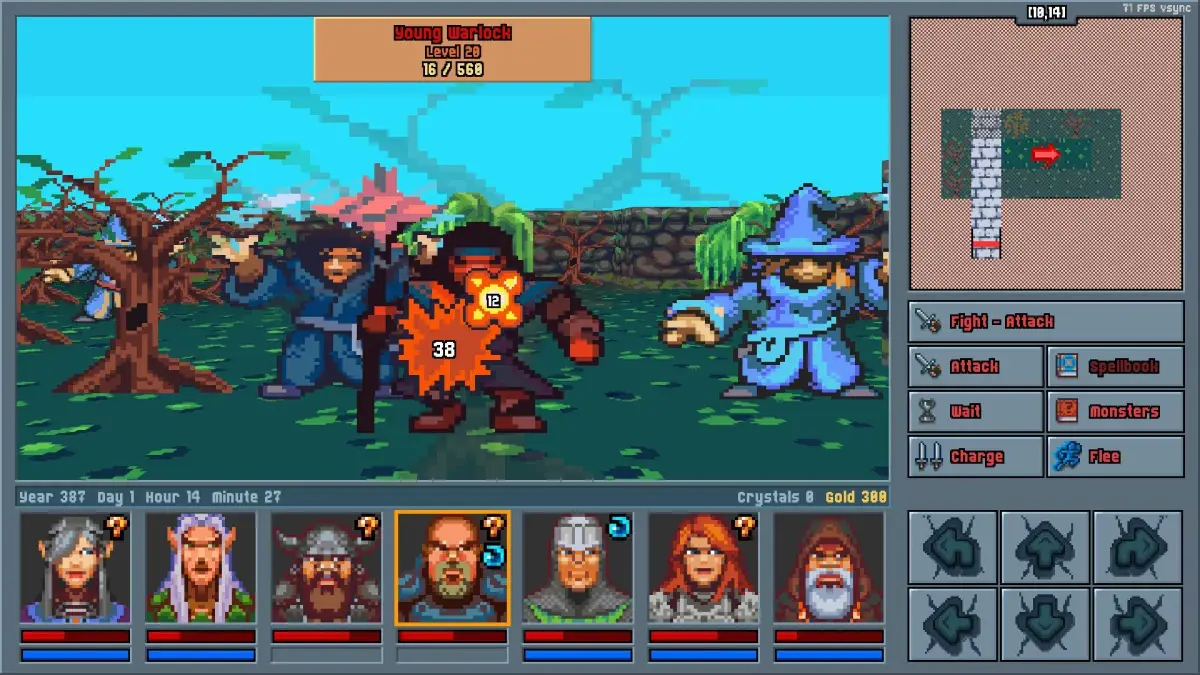
Optimize Legends of Amberland III: The Crimson Tower PC settings. Balance visuals and performance by adjusting graphics like Shadow Quality and FOV.
Optimizing the game settings in Legends of Amberland III: The Crimson Tower is crucial for achieving a balance between visual fidelity and smooth performance on your PC. The game offers a range of graphical and gameplay options that can be adjusted to suit your hardware capabilities and personal preferences. By carefully tweaking these settings, you can enhance your gaming experience, ensuring that the game runs at a stable frame rate without sacrificing too much visual detail. This is particularly important in demanding situations, such as large-scale battles with numerous enemies or when exploring visually complex environments like the interior of the Crimson Tower. Understanding how each setting impacts performance will allow you to make informed decisions, leading to a more enjoyable and responsive gameplay experience. For instance, reducing the "Shadow Quality" from "Ultra" to "High" can often yield a significant performance boost with minimal visual degradation.
The primary goal of optimization is to achieve a consistent frame rate, ideally matching your monitor's refresh rate (e.g., 60 FPS for a 60Hz monitor), to prevent stuttering and input lag. This is especially important in a tactical RPG where precise timing and quick reactions can be critical. Before diving into extensive adjustments, it's a good practice to start with the game's default or recommended settings and then incrementally make changes. Test the game after each significant adjustment to observe the impact on performance. Pay attention to areas where you notice the most significant frame rate drops, as these will indicate the settings that are most taxing on your hardware. Common culprits include anti-aliasing, shadow detail, and post-processing effects. By strategically adjusting these, you can often unlock substantial performance gains without making the game look unappealing. Remember that the ideal settings will vary depending on your specific PC hardware, so experimentation is key.
Graphical Settings Adjustments
Legends of Amberland III: The Crimson Tower provides a comprehensive set of graphical options to fine-tune your visual experience. When adjusting these settings, prioritize those that have the most significant impact on performance. Start with "Resolution"; running the game at your monitor's native resolution is generally recommended for clarity, but lowering it can significantly boost frame rates if your GPU is struggling. "Texture Quality" affects the detail of surfaces; setting this to "High" or "Ultra" requires more VRAM, so consider lowering it if you have a GPU with limited memory. "Shadow Quality" is often a major performance hog; reducing this from "Ultra" to "High" or even "Medium" can provide substantial gains. "Anti-Aliasing" smooths jagged edges but can be computationally expensive; experiment with different levels or disable it if necessary. "Ambient Occlusion" adds depth to lighting but also impacts performance. "View Distance" affects how far into the distance objects are rendered; increasing this can strain your CPU and GPU. For players encountering performance issues, reducing these settings one by one and testing the impact is the most effective approach. For example, if you notice frame drops when facing multiple Hollow Soldiers, reducing "Particle Effects" might also be beneficial.
Gameplay and Interface Options
Beyond graphical settings, Legends of Amberland III: The Crimson Tower offers several gameplay and interface options that can be optimized for a better experience. "V-Sync" (Vertical Synchronization) can prevent screen tearing by capping your frame rate to your monitor's refresh rate, but it can also introduce input lag. If you experience input lag, try disabling V-Sync and enabling "Adaptive V-Sync" in your graphics card's control panel if available. "Field of View (FOV)" allows you to adjust how much of the game world is visible on screen; a wider FOV can be more immersive but may impact performance. "Motion Blur" can be a matter of personal preference; some find it adds to the cinematic feel, while others find it distracting and performance-impacting. "UI Scaling" allows you to adjust the size of the user interface elements, which can be helpful for players with different monitor resolutions or visual acuity. For those who find the game's pacing too slow or too fast, options related to "Game Speed" or "Combat Speed" might be available, allowing you to tailor the flow of gameplay to your liking. Carefully reviewing and adjusting these settings can significantly improve your overall enjoyment and control over the game, especially when managing your party's actions during critical moments against foes like the Crimson Knight.
100% Human-Written. AI Fact-Checked. Community Verified. Learn how AntMag verifies content