
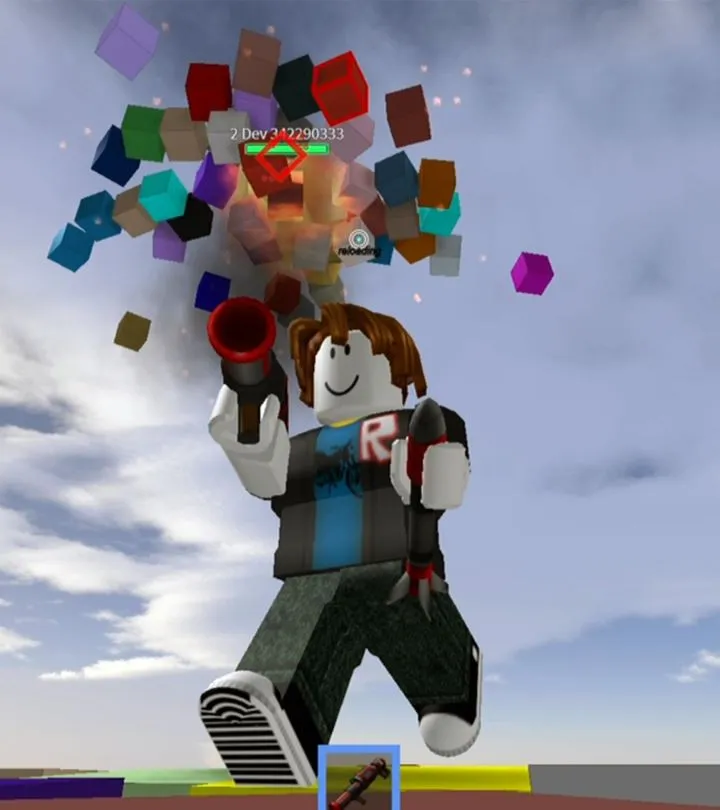
Learn the basics of Roblox controls and navigation. This guide breaks down movement, interaction, and essential tips to help you explore any Roblox game like a pro.
Hey there! So you're diving into Roblox and want to get a handle on how to move around and interact with the world? Awesome! It's pretty straightforward once you know the ropes, and I'm here to walk you through it. Think of this as your quick-start guide to becoming a Roblox navigation ninja!
Roblox games can be super diverse, but the core controls for moving your character and interacting with things are usually pretty consistent. We'll cover the basics so you can jump into any game and start exploring without missing a beat.
Basic Movement
Getting around is the first thing you'll want to master. Most Roblox games use a standard control scheme:
- Moving Forward/Backward/Left/Right: You'll typically use the W, A, S, D keys on your keyboard. Think of it like a little WASD dance to get anywhere you need to go.
- Jumping: Press the Spacebar to leap into the air. Sometimes you'll need to jump to get over obstacles or reach higher places.
- Running: Hold down the Shift key (usually the left one) while moving to sprint. This is super handy when you need to get somewhere fast or escape something!
- Camera Control: You can usually look around by holding down the right mouse button and moving your mouse. This lets you check out your surroundings, spot hidden items, or just admire the view.
Interacting with the World
Once you can move, you'll want to interact with stuff. This is how you'll pick up items, talk to characters, or activate things in the game.
- Primary Action/Use: This is often tied to the left mouse button. Clicking on objects, characters, or buttons will usually perform the main action.
- Secondary Action/Menu: Sometimes the right mouse button does more than just control the camera. It might bring up a context menu or perform a secondary action depending on what you're looking at.
- Inventory/Hotbar: Many games have an inventory system. You might open this with a key like 'I' or 'Tab'. This is where you'll manage items you've collected. You can often switch between items using the number keys (1-9) on your keyboard.
Important Tips for Navigation
Beyond the basic buttons, here are a few things to keep in mind that will make your Roblox adventures smoother:
- Check Game-Specific Controls: While the basics are common, some games might tweak controls or add special actions. Always look for a tutorial or a control menu within the game itself if something feels different.
- Pay Attention to Prompts: The game will often show you on-screen prompts telling you which button to press for specific actions. Don't ignore these! They're your best clue.
- Explore Your Surroundings: Don't be afraid to wander off the beaten path. Sometimes the best secrets or shortcuts are found by just looking around.
- Use the Map: If the game provides a map (often opened with 'M'), use it! It's your best friend for figuring out where you are and where you need to go.
That's the gist of it! With these controls and tips, you'll be navigating Roblox like a seasoned pro in no time. Have fun out there and happy gaming!
100% Human-Written. AI Fact-Checked. Community Verified. Learn how AntMag verifies content