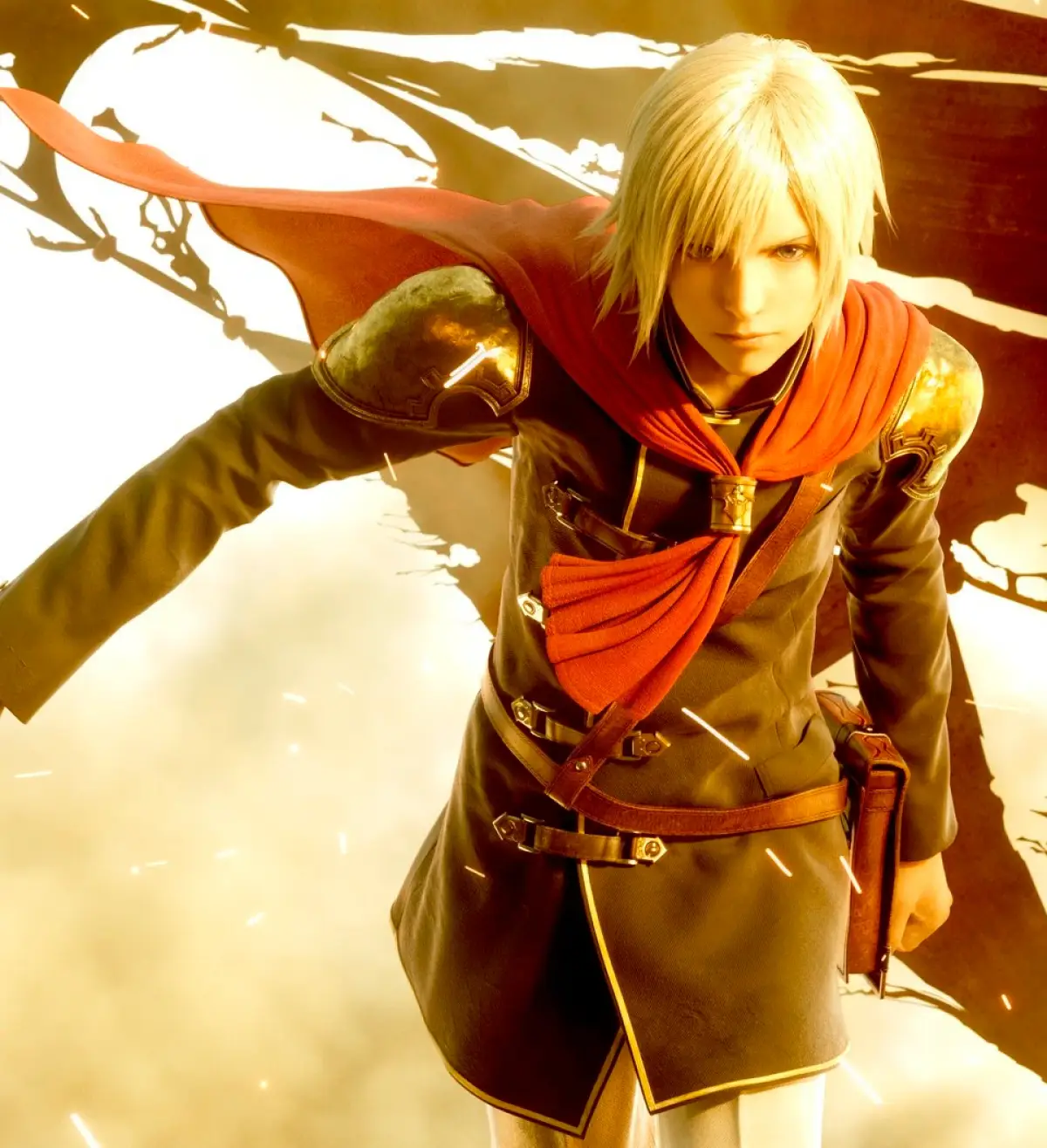
Welcome to Final Fantasy Type-0 HD! This guide covers essential controls, combat basics, and menu navigation to get you started on your journey through Class Zero.
Hey there! So you're diving into Final Fantasy Type-0 HD? Awesome! This guide is here to make sure you're not completely lost when you first boot up the game. Think of me as your friendly guide, helping you get the hang of things before you jump into the thick of it with Class Zero.
This game originally came out on the PSP, and this HD version is a fantastic way to experience it. Since it didn't get an official English release back in the day, finding info could be a pain. But don't worry, I've played through it and gathered everything you need right here, using the official HD version's terms so you're all set.
We'll cover the controls first – they're pretty important, obviously! You'll see a breakdown of what each button does, both when you're out exploring and when you're in the heat of combat or navigating menus. Pay close attention to the field and combat controls; getting these down will make your life a lot easier.
Controls Overview:
Here's a quick look at what your buttons do:
| Button | Field and Combat Control | Menu Control |
| L | Cancels Charged Attack | Tabs Left |
| R | Resets Camera View | Tabs Right |
| D-pad | Moves Camera | Highlights Sub Menu |
| Circle | Command 1, Talks / Inspects | Selects |
| Triangle | Normal Attack | Shows Extra Info |
| Square | Command 2 | - |
| X | Defense Command | Returns to the previous menu |
| Select | Uses Equipped Item | - |
| Analog | Moves Character | - |
| Analog + X | Dodge Roll | - |
| L + R | Sheathe / Unsheathe | - |
| Hold L | Shows Sub command | - |
| Hold L + Up D-pad | Calls Back Up | - |
| Hold L + Left / Right D-pad | Switches Character | - |
| Hold L + Down D-pad | Views S.O. (Special Order) | - |
| Hold R | Lock-On | - |
| Hold R + D-pad | Changes Lock-On Target | - |
| Hold R + Circle/Triangle/Square | Absorbs Phantoma | - |
| Circle + Triangle | (Unlocks in Chapter 3) | - |
| Square + X | (Unlocks in Chapter 2) | - |
| Start | Opens Menu | Closes Menu |
Necessary control adjustment:
Now, listen up – this is a pro tip! The default 'Hold R' to lock-on can feel a bit clunky. I *highly* recommend changing this to 'Press R'. It makes targeting so much smoother in combat. Here's how the 'Press R' settings work:
| Setting | Action |
| Activates Lock-On | Hold the R button for about 1 second |
| Switches between targets | While activating Lock-On press the left or right d-pad |
| Switches to the closest enemy | While activating Lock-On press the up d-pad |
| Switches to the closest item / dead enemy | While activating Lock-On press the down d-pad |
| Deactivates Lock-On | While activating Lock-On press the R button |
Trust me, making this small change early on will save you a lot of frustration. Getting used to these controls is the first step to mastering Class Zero. Let's get you ready for Chapter 1!
100% Human-Written. AI Fact-Checked. Community Verified. Learn how AntMag verifies content