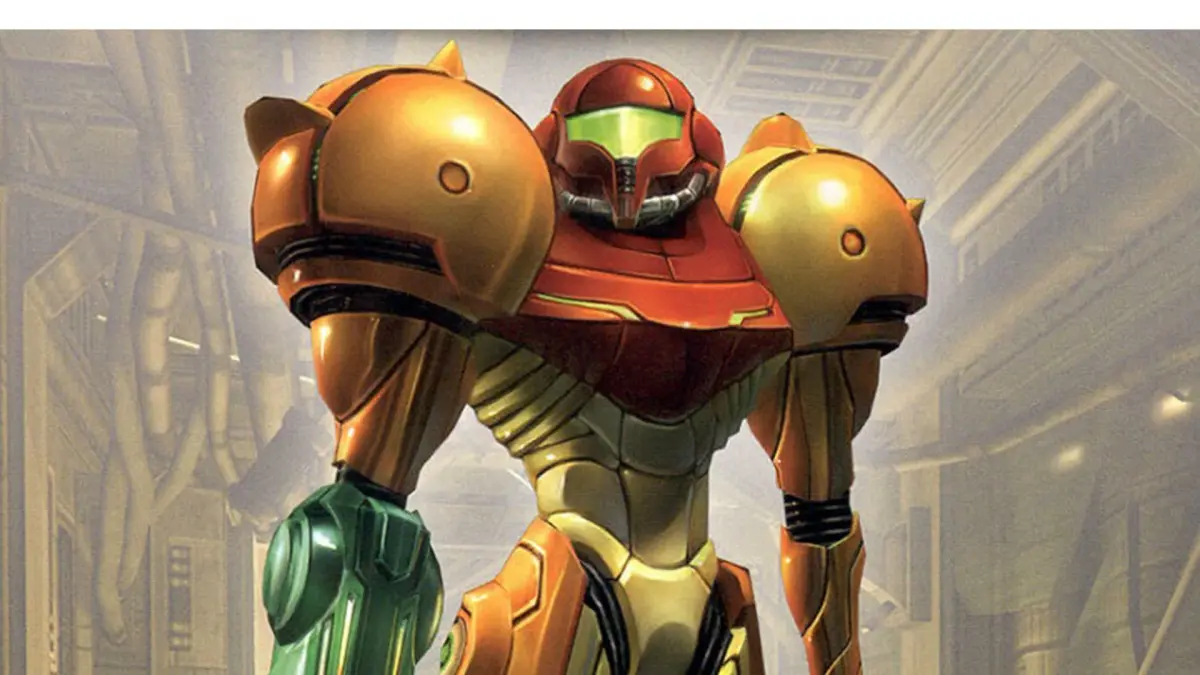
Navigate Metroid Prime's menus, including the Main Menu, Pause Menu, and Options. Understand your HUD elements like the mini-radar and Energy Reserve Meter.
Walkthrough
- 1From the Title Screen, press A to access the Main Menu.
- 2Select 'Play' to start a game or manage save files.
- 3Choose 'Options' to access game settings.
- 4Select 'Extras' to view the Concept Gallery, Character Gallery, and Soundtrack Gallery.
- 5During gameplay, press the appropriate button to bring up the Pause Menu.
- 6The Pause Menu allows access to your 'Inventory', 'Log Book', and 'Options'.
- 7The 'Log Book' stores entries gathered by analyzing elements in the game.
- 8The 'Options' menu, accessible from both Main and Pause menus, offers detailed settings.
Main Visor Display Explained:
- Energy Reserve Meter: Located across the top of the heads-up display (HUD (heads-up display — the on-screen icons showing health, ammo and the minimap)), showing your active Energy Tank and reserve Energy Tanks.
- Mini-radar (your minimap with nearby blips and threats marked): In the top left corner, displaying enemies (orange dots) and your forward field of vision.
- Sector Map: A small map of the current section in the top right corner.
- Threat Assessment: On the left side, this meter increases near dangerous areas like lava or acid, indicating incoming damage.
- Missile Reserves: On the right side, tracking your current Missile count.
- Visors: Shown in the lower left corner.
- Beam Weapons: Shown in the lower right corner.
- Targeting Reticle: In the center, indicating where your shots will travel.
Options Menu Details:
- Controls: Customize your control scheme.
- Display: Adjust HUD Opacity (transparency of HUD elements), Helmet Visibility (toggles helmet visuals), HUD Lag (mimics suit lag on turning), Hint System (alerts for story objectives), Extras Alert (notifies of new Extras content), Color Assist (for color blindness, with Red, Green, or Blue options), and Color Assist Intensity.
- Sound: Adjust SFX Volume, Music Volume, Narration (options for 'Partial' matching European version or 'Full' matching Japanese version, including area announcements), and Cinematic Subtitles (for voiced narration).
- Options can be restored to default. The Options menu also allows you to Quit Game and return to the Main Menu.
Tips
- Check the Options menu during gameplay for a more complete set of settings compared to the Main Menu.
- Save your game before quitting from the Options menu.
- The Hint System is on by default and provides alerts for your next story objective.
- Color Assist is off by default and is an accessibility feature.
- Narration options can add background voice-overs and area announcements.
100% Human-Written. AI Fact-Checked. Community Verified. Learn how AntMag verifies content