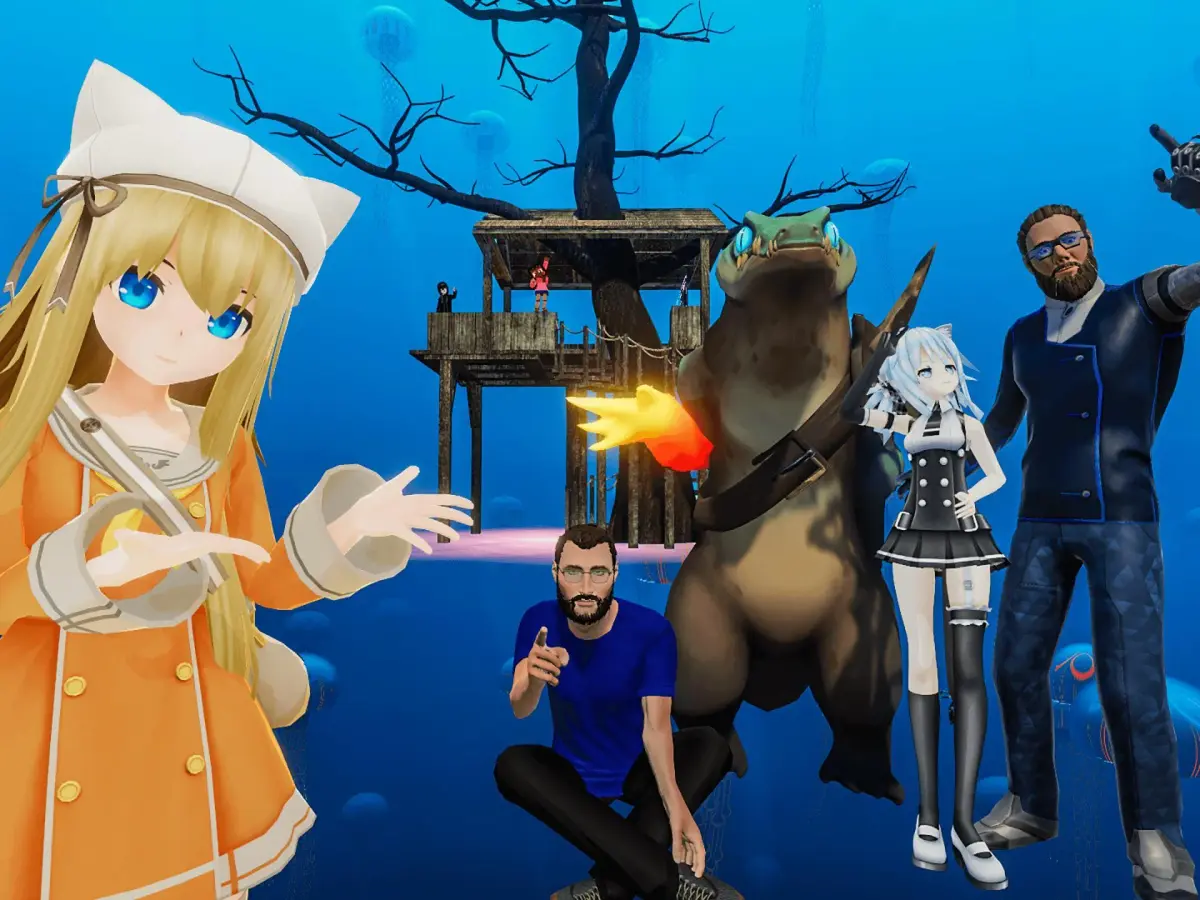
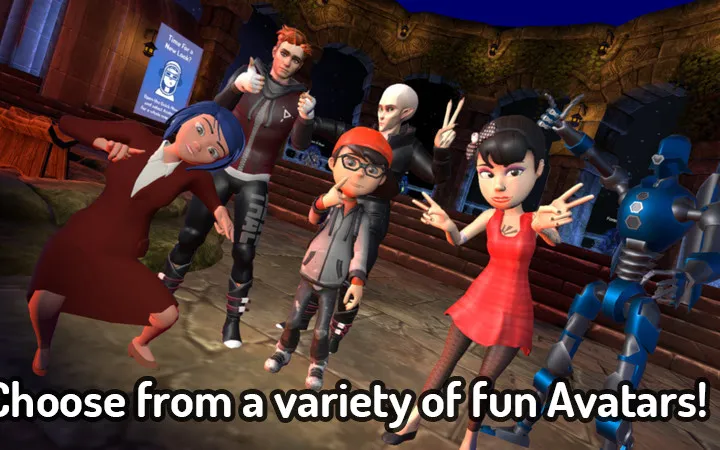
Create and customize your Player Housing and Personal Worlds in VRChat. Build your own social hub and control who enters your private instances.
VRChat offers an incredible opportunity to personalize your experience through Player Housing and Personal Worlds. These are private instances of worlds that you, and anyone you invite, can call home. They serve as a customizable hub, a place to relax, socialize, and even host events. Unlike public worlds, you have complete control over who enters and what content is displayed, making them perfect for private gatherings or creative projects.
Establishing Your Personal World
Every VRChat user automatically has access to a Personal World. Think of it as your default home base. Here's how to access and begin customizing it:
- Accessing Your Home World:
- Open your VRChat Quick Menu (typically by pressing the 'Esc' key on PC or the menu button on your VR controller).
- Navigate to the Worlds tab.
- Look for the My Home or Home button. Clicking this will instantly transport you to your personal instance.
- Choosing a Base World:
While you start with a default VRChat Home, you can change your personal world to any public world available. This allows for a vast array of environments to choose from.
- From your Quick Menu, go to the Worlds tab.
- Browse or search for a world you'd like to make your home. Popular choices for customization include "Empty Room" for a blank canvas, or "Cozy Cabin" for a pre-furnished feel.
- Once you've found a world, click on its thumbnail.
- On the world's detail page, locate and click the Set as Home button. Confirm your choice.
- The next time you select My Home from the Quick Menu, you will load into your newly chosen personal world.
Customizing Your Personal World
The true power of Player Housing lies in its customization. While direct in-world editing tools are limited for most users, you can still personalize your space through various methods.
1. World Instance Settings
These settings control the behavior and access of your personal world instance.
- Privacy Settings:
- Open your Quick Menu and go to the Social tab.
- Under your current instance details, you'll see options like Public, Friends+, Friends, Invite+ Only, and Invite Only.
- Choose the setting that best suits your needs. For a truly private space, Invite Only is recommended.
- Capacity:
While your personal world is a private instance, it still has a player capacity. This is usually determined by the world creator, but you can see the current capacity in the instance details.
2. Placing and Interacting with Objects (Udon Worlds)
Many worlds, especially those designed for housing, incorporate Udon scripts that allow for in-world object placement, manipulation, and even interactive elements. Look for worlds specifically tagged with "Home" or "Customizable."
- Identifying Interactive Elements:
Upon entering a potential home world, look for glowing outlines, UI prompts, or specific interaction points. Common interactive objects include:
- Object Spawners: Often found as panels or buttons, these allow you to spawn furniture, decorations, or even mini-games.
- Toggle Switches: For lights, music, or environmental effects.
- Move/Rotate Tools: Some worlds provide tools (often represented by a virtual wrench or hand icon) that allow you to grab, move, and rotate spawned objects.
- Saving Your Layout:
Crucially, many Udon-enabled home worlds feature a Save Layout or Save State button. Always use this after making significant changes to ensure your customizations persist across sessions. Without saving, your changes will be lost when you leave the world.
3. Advanced Customization (Unity & VRChat SDK)
For the most extensive customization, you'll need to delve into Unity and the VRChat SDK. This allows you to create your own custom worlds from scratch or modify existing ones for personal use. This is an advanced topic, but here's a brief overview:
- Prerequisites:
- Unity Hub and Unity Editor (specific version recommended by VRChat).
- VRChat SDK (downloadable from the VRChat website).
- Basic knowledge of Unity development.
- Workflow:
- Create a new Unity project.
- Import the VRChat SDK.
- Design your world using Unity's tools (import models, textures, set up lighting, add colliders).
- Implement interactive elements using Udon (VRChat's visual scripting language) or C# for more complex logic.
- Upload your world to VRChat through the SDK.
- Set your newly uploaded world as your personal home world in VRChat.
Hosting Events and Socializing
Your personal world is an excellent venue for social gatherings:
- Inviting Friends:
- From your Quick Menu, go to the Social tab.
- Find a friend you wish to invite and click on their name.
- Select Invite to Instance. They will receive a notification and can join you directly.
- Hosting Public Events (with caution):
While generally private, you can temporarily set your personal world to Public if you wish to host an open event. Be mindful of the content and ensure it adheres to VRChat's Community Guidelines.
Embrace the freedom of Player Housing to craft your ideal VRChat sanctuary!
100% Human-Written. AI Fact-Checked. Community Verified. Learn how AntMag verifies content