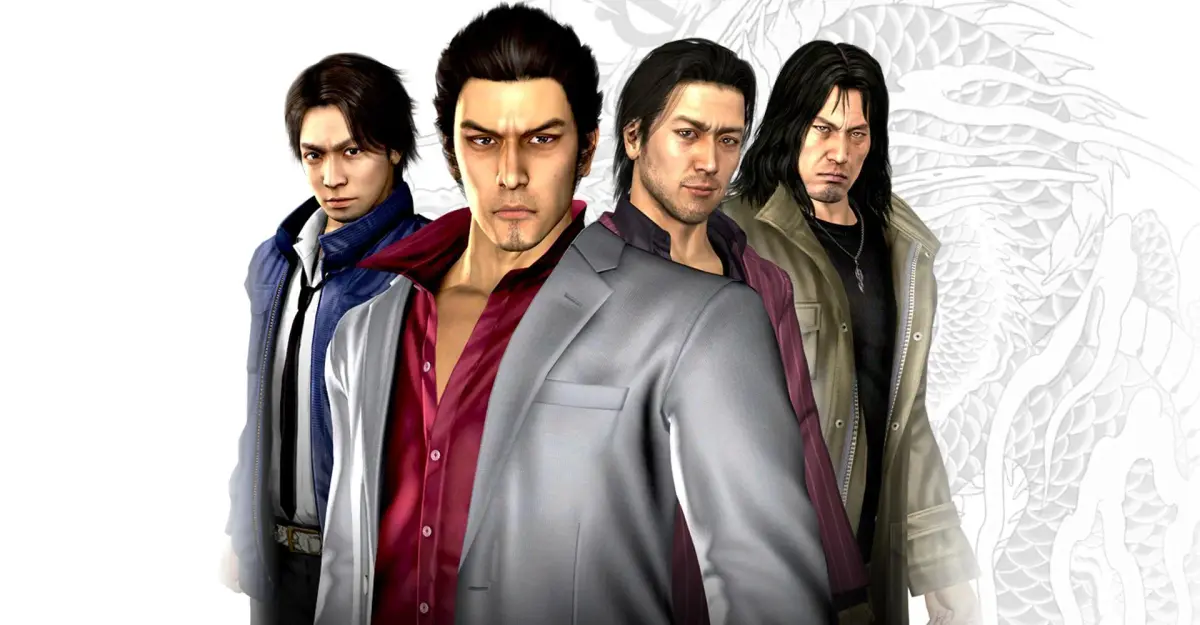
Get a grip on Yakuza 4! This guide breaks down exploration, menu navigation, and combat controls so you can start your journey through Kamurocho like a pro.
Alright, let's get you moving and grooving in Yakuza 4. Before you dive headfirst into the streets of Kamurocho, it's super important to know your way around the buttons. Think of this as your cheat sheet to everything from walking down the street to throwing down with some thugs.
We've got controls broken down into three main categories: how you explore the world, how you navigate menus, and how you handle yourself in a scrap.
Exploration Controls
This is how you'll be getting around Kamurocho when you're not in a fight. It's pretty standard stuff, but knowing it cold will make exploring feel natural.
| Control | Action |
| Left Stick | Move your character |
| Right Stick | Move the camera |
| X | Interact with people, objects, or doors |
| L1 | Hold this down to walk instead of run. Handy for sneaking or just taking in the sights without sprinting everywhere. |
| L2 | Tap this to quickly center the camera behind your character. Great for reorienting yourself on the fly. |
| R3 (Click Right Stick) | Switch to a first-person view. Useful for checking out details up close or aiming. |
| Start | Opens up the main Pause Menu, where you can save, check your stats, and more. |
Menu Controls
You'll be spending a fair bit of time in menus, whether it's managing your inventory, checking your phone, or looking at the map. Here's how to get around.
| Control | Action |
| Left Stick and D-Pad | Move the cursor around menus. Pretty straightforward. |
| X | Confirm your selection. On the Items screen, this is how you equip gear or use items. |
| Circle | Cancel out of a menu or go back. Your best friend when you make a mistake. |
| Square | Used for sorting options, especially handy in your Items screen to organize everything. |
| Triangle | Discard items. Be careful with this one – make sure you really don't need it anymore! |
| L1 and R1 | These are used in some specific menus to switch between different tabs or screens, like toggling between character stats and inventory. |
| Start | Exits you out of the menu entirely, back to the game. |
Combat Controls (Typical)
Now for the fun part! When things get heated, you'll need to know these commands like the back of your hand. Keep in mind that some moves might have slight variations depending on the character or situation, but this covers the basics.
| Control | Action |
| Left Stick | Move your character around the fight. |
| Right Stick | Adjust the camera during combat. Keep an eye on your surroundings! |
| Square | Unleash your Rush Combo. These are quick, rapid attacks. Good for staggering opponents. |
| Triangle | Perform a Heavy Attack. These are slower but hit harder. This is also your button for Finishing Blows and devastating Heat Moves when you've built up enough 'Heat'. |
| X | Evade. Use this to dodge incoming attacks. Timing is key here! |
| Circle | Grab an enemy or a nearby weapon. Once grabbed, you can throw them or use them as a makeshift weapon. |
| L1 | Guard. Hold this to block incoming physical attacks. Doesn't work against grabs, though! |
| R1 | Enter Fighting Stance. This primes you for more aggressive moves and can sometimes lead into combos. |
| L2 | Center the camera. Just like in exploration, this helps you keep track of the action. |
| R2 | Taunt. While it might not seem useful, taunting can sometimes build your 'Heat' meter faster, allowing for powerful Heat Actions. |
| Start | Brings up the Pause Menu, even in the middle of a fight. |
| D-Pad Left, Up, Right | Quickly pull out a weapon you've assigned to that direction. Essential for switching on the fly. |
Don't worry if it seems like a lot at first. The game does a great job of introducing these as you play. For a deeper dive into the nitty-gritty of combat, make sure to check out the dedicated Combat and Abilities section!
100% Human-Written. AI Fact-Checked. Community Verified. Learn how AntMag verifies content