
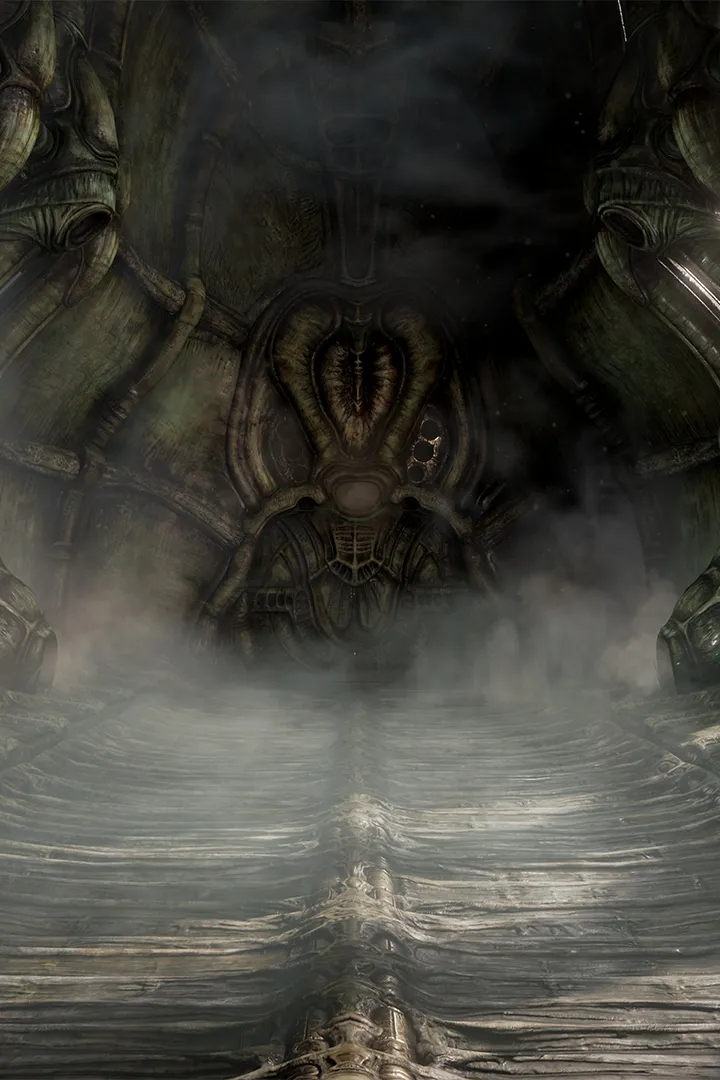
Get Scorn set up properly. This guide covers installation and initial configuration for a smooth entry into its disturbing world.
Embarking on your journey through the unsettling world of Scorn requires a smooth installation and setup process. Whether you're diving into this H.R. Giger-inspired nightmare on PC or Xbox Series S/X, ensuring your system is ready will allow you to fully immerse yourself in the game's oppressive atmosphere without technical interruptions. The game is available on both platforms, offering players a chance to experience its unique blend of puzzle-solving and atmospheric exploration. This section will guide you through the initial steps to get Scorn up and running, covering the essential requirements and procedures for each platform. A proper setup is the first step towards unraveling the mysteries that lie within the vast, endless landscapes presented in the game.
The initial moments of Scorn are crucial for setting the tone, and a seamless installation ensures that the game's intricate machinery and desolate environments are presented as intended. This guide aims to provide all the necessary information to get you started, from understanding system requirements to the actual installation process. By following these steps, you can minimize potential issues and begin your adventure with confidence. The game's focus on atmosphere and deliberate pacing means that any technical hiccups can detract significantly from the experience. Therefore, taking the time to ensure your system meets the demands and that the installation is performed correctly is a vital prerequisite to enjoying the puzzle solutions and combat tips that will be detailed in later sections of this walkthrough.
PC Installation and Verification
- Digital Purchase: Scorn is available for purchase digitally on PC through various storefronts. Once purchased, initiate the download and installation process through your chosen platform's client (e.g., Steam, Epic Games Store).
- Download Size: Ensure you have sufficient free disk space for the game's installation. The exact download size can vary, so check the store page for the most up-to-date information.
- Installation Location: Choose an installation drive that has ample space and is preferably an SSD for optimal loading times.
- Verification of Files: After installation, most PC game clients offer a function to verify the integrity of game files. This process checks for any corrupted or missing files and redownloads them, which can resolve many common launch issues.
- Launch and Initial Setup: Once installation is complete, launch Scorn. The game may prompt you for initial setup, such as adjusting display settings or accepting terms of service.
Troubleshooting Common Installation Issues
- Insufficient Disk Space: If the installation fails due to lack of space, free up the required amount on your chosen drive.
- Corrupted Download: If the game fails to launch or crashes immediately after installation, try verifying the integrity of game files.
- Driver Updates: Ensure your graphics card drivers are up to date. Outdated drivers are a common cause of performance issues and crashes.
- Antivirus Interference: In rare cases, antivirus software may interfere with game installations or launches. Temporarily disabling your antivirus during installation or adding an exception for Scorn might resolve the issue.
100% Human-Written. AI Fact-Checked. Community Verified. Learn how AntMag verifies content