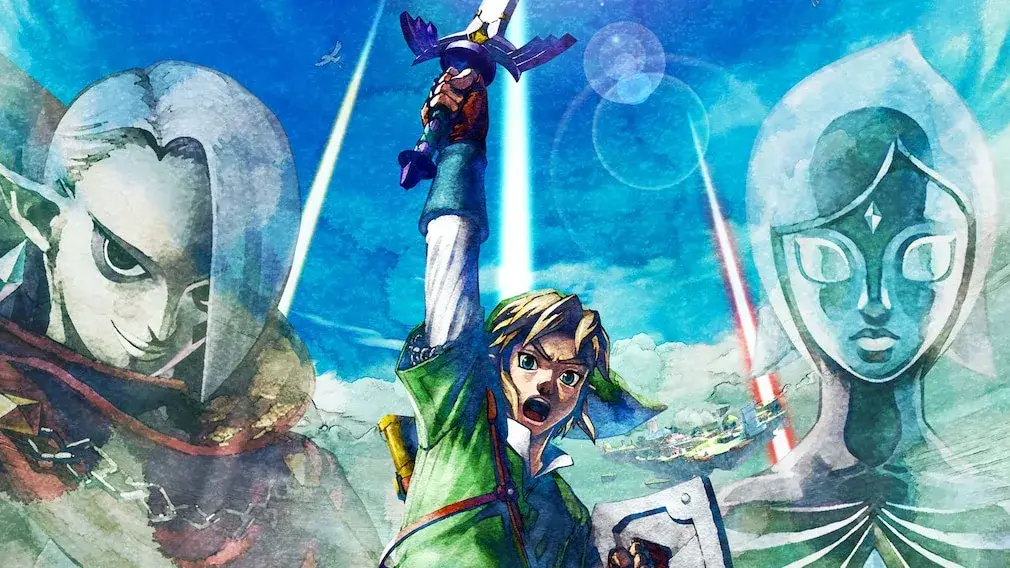
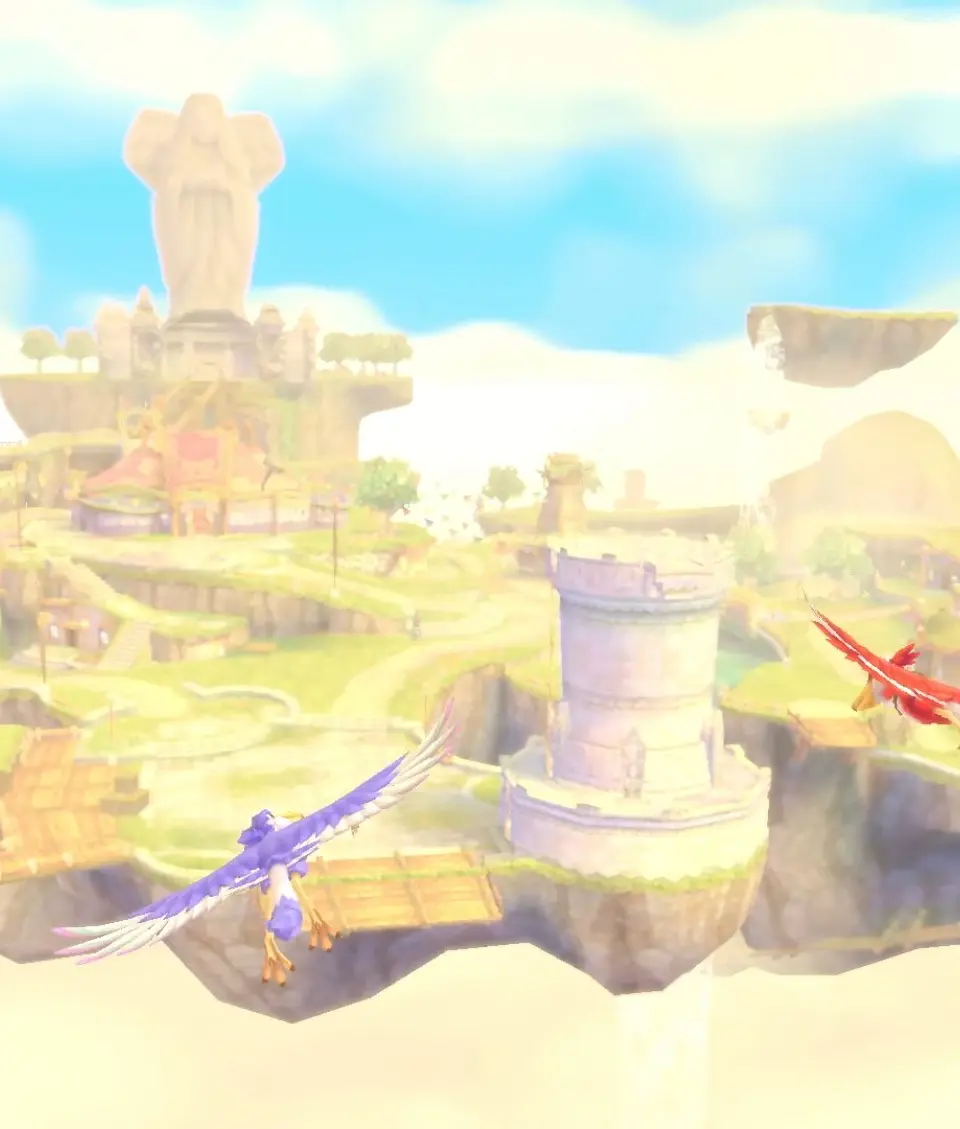
Skyward Sword HD features new accessibility options on Switch. Adjust motion controls, button mapping, and HUD elements for a smoother Hyrule adventure.
The Legend of Zelda: Skyward Sword HD on the Nintendo Switch introduces several quality-of-life improvements and accessibility features that were not present in the original Wii release. These options can significantly enhance your gameplay experience, especially if you found certain aspects of the original challenging or preferred alternative control schemes. Familiarizing yourself with these settings early on can save you frustration and allow for a more personalized adventure.
Accessing Accessibility Settings
Most accessibility options can be found within the game's main menu. To access these:
- Press the + (Plus) Button on your Nintendo Switch controller during gameplay to open the Pause Menu.
- Navigate to the "Options" tab, typically represented by a gear icon.
- Select "Controls" or "Gameplay" to find the relevant settings.
Control Scheme Customization
One of the most significant accessibility enhancements is the ability to choose between different control schemes, catering to various playstyles and preferences.
- Motion Controls (Joy-Con): This is the classic Skyward Sword experience, updated for the Joy-Con controllers.
- Sword Swings: Mimic sword movements by swinging the Right Joy-Con.
- Shield Bash: Flick the Left Joy-Con forward.
- Bow/Slingshot Aiming: Hold the Left Trigger (ZL) and use motion controls to aim.
- Flying Loftwing: Tilt the Joy-Cons to steer.
- Fine-Tuning: If you experience drift or inaccuracy, press Y during gameplay to quickly recenter your camera and motion controls. For more persistent issues, consider recalibrating your Joy-Cons via the Switch's system settings.
- Button Controls (Joy-Con or Pro Controller): A completely new option for Skyward Sword HD, offering a more traditional control setup.
- Sword Swings: Control Link's sword with the Right Analog Stick. Flicking the stick in different directions (up, down, left, right, diagonal) performs corresponding sword slashes.
- Shield Bash: Press the Right Analog Stick (R3) button.
- Bow/Slingshot Aiming: Hold the Left Trigger (ZL) and use the Right Analog Stick to aim.
- Flying Loftwing: Use the Left Analog Stick to steer.
- Advantages: This scheme can be particularly beneficial for players who find motion controls tiring, difficult to master, or prefer playing in handheld mode. It also allows for consistent control regardless of your physical environment.
Camera and View Options
Adjusting camera behavior can greatly impact comfort and navigation.
- Camera Speed: Within the "Options" menu, look for "Camera Speed" or "Camera Sensitivity." You can adjust this to make the camera turn faster or slower when using the Right Analog Stick (in button control mode) or when recentering. Experiment with different settings to find what feels most natural.
- Inverted Camera: If you prefer inverted camera controls for vertical movement, this option is available under "Options." Toggle it on or off as per your preference.
Text and UI Enhancements
While not extensive, there are a few options to improve readability and reduce interruptions.
- Skippable Cutscenes: Most major cutscenes can now be skipped by pressing the + (Plus) Button. This is a huge time-saver for repeat playthroughs or if you've already seen the narrative unfold.
- Dialogue Speed: While not a direct "speed" option, you can advance dialogue boxes more quickly by repeatedly pressing the A Button.
- Item Descriptions: When picking up items for the first time, you'll get a detailed description. Subsequent pickups of the same item will have a much shorter, quicker notification, reducing interruptions. This is an automatic improvement in Skyward Sword HD and doesn't require a setting change.
Audio Adjustments
Tailoring the audio mix can help with focus and immersion.
- Volume Controls: Navigate to the "Options" menu and look for "Sound Settings." Here, you can adjust the master volume, as well as individual sliders for Music, Sound Effects, and Voice. If you find certain sound effects overwhelming or prefer to focus on the beautiful soundtrack, these sliders are invaluable.
General Gameplay Assists
These aren't strictly "accessibility" but contribute to a smoother experience.
- Autosave: Skyward Sword HD features an autosave system, indicated by a small icon in the corner of the screen. This reduces the risk of losing significant progress, a common concern in the original. However, it's still wise to save manually at Bird Statues frequently.
- Fi's Hints: Fi's guidance can be adjusted. While you cannot fully disable her, her frequency of offering hints is generally reduced compared to the Wii version. Pay attention to her prompts, as they often point you in the right direction without being overly intrusive.
By exploring these accessibility options, you can tailor your journey through Skyloft and the Surface to be as comfortable and enjoyable as possible, allowing you to fully immerse yourself in Link's heroic quest.
100% Human-Written. AI Fact-Checked. Community Verified. Learn how AntMag verifies content