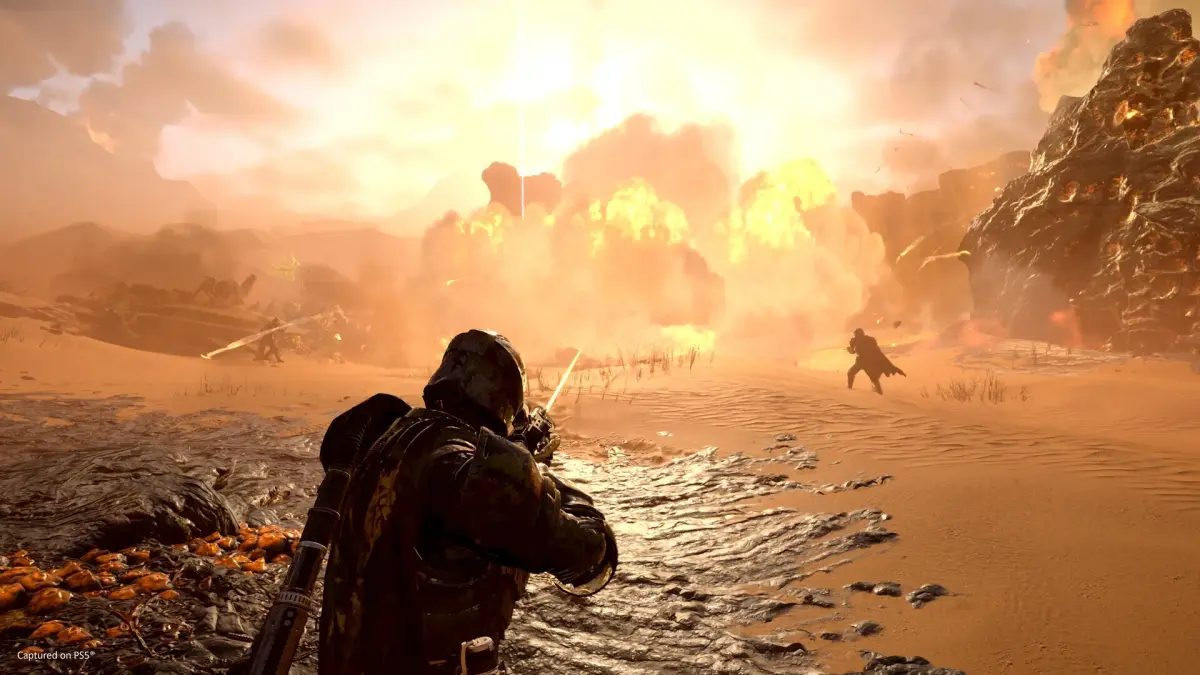
Master Helldivers 2 Photo Mode. Learn to access, use camera controls, visual adjustments, and take stunning screenshots of your combat experiences.
17.2. Photo Mode Guide
As a Helldiver, your primary mission is to spread managed democracy with extreme prejudice. However, the visual record of your service – the valor, the chaos, and the sheer spectacle of your campaigns – is equally vital for propaganda and morale. Helldivers 2 offers a robust Photo Mode, allowing you to pause the relentless war and capture breathtaking screenshots of your adventures across the galaxy. From the precise impact of a stratagem to the awe-inspiring scale of a Bile Titan, Photo Mode empowers you to immortalize your contributions to the Galactic War.
Accessing Photo Mode
Photo Mode can be activated during gameplay by pressing the designated button or keybind. The exact input varies by platform:
- PC: Typically the P key.
- PlayStation 5: Press the Options button, then navigate to the Photo Mode icon.
Photo Mode is generally available during missions, while on your Super Destroyer, or in the lobby area. It is not available during the initial drop sequence or when the mission is failed/completed.
Key Features of Photo Mode
Helldivers 2's Photo Mode provides a comprehensive suite of tools to craft the perfect shot:
Camera Controls
- Free Camera: Allows unrestricted movement of the camera around your Helldiver, squadmates, enemies, or the environment.
- Rotation: Rotate the camera on any axis to achieve dynamic and unique perspectives.
- Zoom: Adjust the focal length to capture sweeping vistas or intimate details of combat.
- Field of View (FOV): Modify the camera's FOV to create wide-angle shots or more focused perspectives, influencing the sense of scale and immersion.
Visual Adjustments
- Exposure: Control the overall brightness of the image, crucial for balancing well-lit and shadowed areas.
- Contrast: Adjust the difference between the brightest and darkest parts of the image, enhancing detail and mood.
- Saturation: Tweak the intensity of colors. High saturation can make alien flora pop, while desaturated tones can evoke a grim wartime atmosphere.
- Color Grading/Filters: Apply several pre-set filters (e.g., "Cinematic," "Gritty," "Vibrant") or manually adjust color temperature and tint to establish a specific mood.
- Depth of Field: Control the focus plane and blur intensity. This is invaluable for isolating your subject (e.g., a charging Charger) against a chaotic battlefield or a stunning alien sky.
Character and Object Controls
- Hide UI: Essential for a clean, immersive screenshot, this removes all HUD elements.
- Character Posing: Yes, Helldivers 2 *does* feature character posing. You can select your Helldiver (or squadmates if they are idle) and choose from several pre-set poses to create more dynamic and narrative-driven images. This is perfect for showcasing triumphant stances or moments of intense action.
- Object Visibility: While not a direct toggle for most environmental objects, the free camera allows you to position yourself to exclude unwanted elements or focus on specific details.
Saving and Sharing Your Masterpieces
Once your perfect shot is framed, saving and sharing is straightforward:
- PC:
- Screenshots are typically saved automatically to your system. The default save location is usually within your user folders:
C:\Users\[YourUsername]\Pictures\Helldivers2. - You can also use platform-specific overlay tools like Steam's screenshot feature (default F12) or NVIDIA GeForce Experience/AMD Radeon Software for more advanced capture options and immediate sharing to social media.
- Screenshots are typically saved automatically to your system. The default save location is usually within your user folders:
- PlayStation 5:
- After taking a screenshot using Photo Mode, press the Create button on your DualSense controller.
- Select "Share" to upload directly to platforms like Twitter, or "View All" to save it to your Media Gallery. From the Media Gallery, you can further share to other connected services or transfer to a USB drive.
Share your most heroic moments, your most terrifying encounters, and your most stunning discoveries with the Helldivers community and Super Earth!
Tips for Taking Great Photos in Helldivers 2
Elevate your screenshots from mere captures to epic chronicles of your service:
- Capture Stratagem Impact: Position your camera to witness the raw power of a Hellbomb detonating on a nest, an Orbital Barrage obliterating a patrol, or a Resupply Pod crashing into the battlefield. The visual effects are spectacular.
- Showcase Enemy Scale: Frame your Helldiver against the colossal form of a Bile Titan, a hulking Automaton Hulk, or a swarm of Terminid Warriors. Use low angles to emphasize their size and threat.
- Embrace Environmental Drama: use the unique lighting and weather effects of different planets. A shot during a toxic fog on a jungle planet, or under the twin moons of a desert world, can be incredibly atmospheric.
- The Moment Before the Storm: Capture the tense quiet before a major engagement. A squad huddled behind cover, weapons ready, with a horde of enemies just out of frame, builds anticipation.
- Highlight Squad Cohesion: Photograph your Helldivers working together – reviving a fallen comrade, coordinating fire on a target, or celebrating a successful extraction. These shots tell a story of camaraderie.
- Exploit Explosions and Fire: The particle effects in Helldivers 2 are dense and dynamic. Use Photo Mode to freeze the frame during an explosion, a flamethrower burst, or the fiery trails of a rocket.
- Focus on the Little Details: Zoom in on the intricate armor designs, the alien textures of flora and fauna, or the scorch marks left by heavy weaponry.
- Experiment with Poses: Use the character posing feature to create dramatic hero shots. Have your Helldiver strike a triumphant pose after defeating a boss, or a determined stance before charging into danger.
- Depth of Field for Focus: When facing multiple enemies, use Depth of Field to blur the background and draw the viewer's eye to your primary subject, be it a Helldiver executing a powerful melee attack or a key enemy unit.
- Post-Mission Glory: Capture your Helldiver(s) standing proudly amidst the wreckage of a completed mission, or boarding the Pelican-1 for extraction, silhouetted against a setting alien sun.
Photo Mode is an integral tool for any Helldiver who appreciates the visual storytelling of their war effort. Master these features and tools to document your legend and inspire fellow soldiers across Super Earth.
100% Human-Written. AI Fact-Checked. Community Verified. Learn how AntMag verifies content