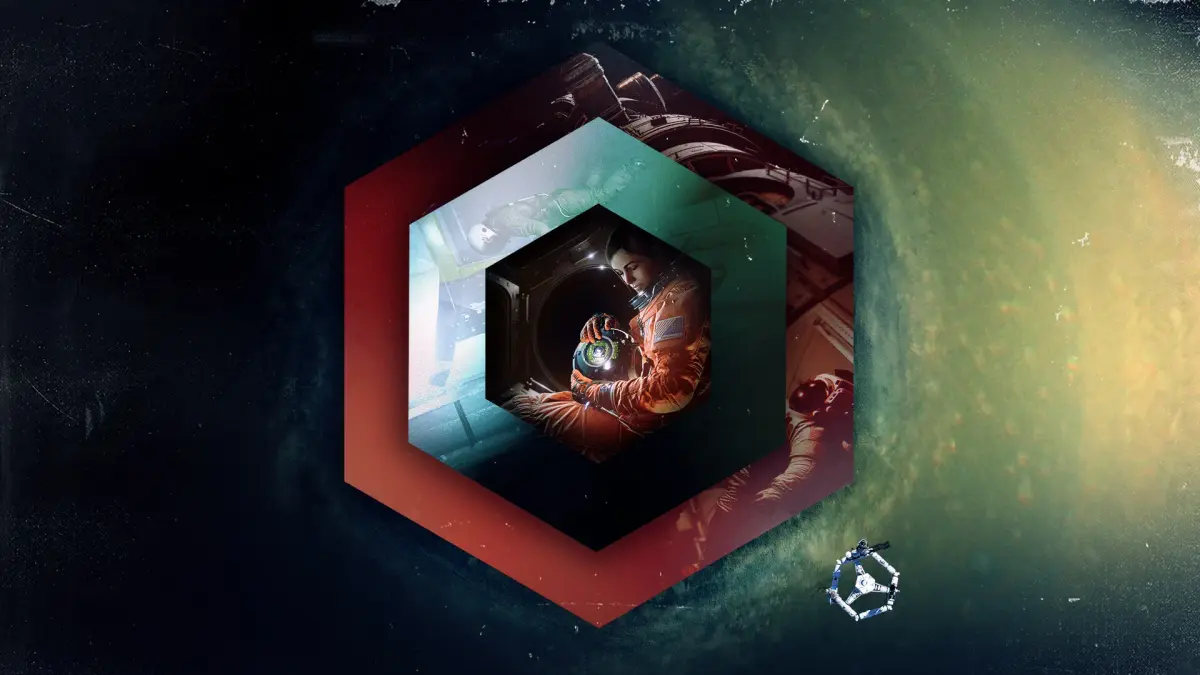
Complete Observation Part I (2) walkthrough, covering voice authentication, sphere controls, and finding all data points.
Walkthrough
- 1After the title sequence, select "Analyse" and move the left stick right to scan the voice pattern. Accept or reject the scan.
- 2You will now control a personality core with thrusters. Use the left stick to move towards Emma.
- 3Use the right stick to turn around and fly back to Emma. If you fail, she will reset your orientation.
- 4To strafe, move the left stick left or right. Use the left and right bumpers to rotate the sphere.
- 5When back with Emma, move the right stick down and right (or down and left if Emma is upside down) to face the sphere on the table. Trigger-click it (alternatively, the CO2 Refill Station or the wall-mounted laptop are options).
- 6After dialogue, open the menu to access your map. Click on modules to return to stationary cameras.
- 7Click on the "Connection Sphere" box in the lower right.
- 8While in the sphere, press Y to return to stationary cameras in the current module, and Y again to switch back to the sphere. The map shows your sphere's current module.
- 9While in a camera, hold the left bumper for a wireframe view highlighting electronic equipment like hatches and laptops.
- 10Your objective is EAS-01 "Epic". Go to EAS-01 directly from the map and switch to Camera C.
- 11Look up slightly to find a document for [Data Point 45].
- 12Switch to Camera B in EAS-01. Move the camera right to find another document on the wall near shut-down laptops for [Data Point 36].
- 13In EAS-01, Camera A can link with hatch controls but not open them. The "Schematic" (X button) is key.
- 14Go to cameras in EAS-02 "HAB 1". On Camera A, look at the wall-mounted laptop and pair with it.
- 15Hold A to connect with the laptop and view "EAS Hatch Schematic". This grants [Data Point 65] and unlocks the schematic feature.
- 16Still in EAS-02's Camera A, go to the hatch controls left of the hatch. Zoom in to interact.
- 17Pair with the hatch controls and hold X to access the schematic. Follow the screenshot path to unlock the hatch.
- 18Move the cursor onto the first box with the right stick and hold A. Use the D-pad to trace the route shown in the screenshot. Release A after the last box turns red to unlock the hatch.
- 19Return to your sphere in EAS-09 "Spheres".
- 20Head to EAS-10 "Enlighten" for collectibles. If facing Emma, EAS-10 is behind you.
- 21In EAS-10, find a flashing low power indicator on a laptop. Locate and turn on its power caddy (down and right from the laptop).
- 22Pair with the power caddy and turn it on. Return to the laptop for [Data Point 52] and [Data Point 1].
- 23Look up at the ceiling, pair with the EMU Calibration Unit, and turn it on for [Data Point 61].
- 24Return to EAS-09. Move past Emma to EAS-05 "ECC".
- 25A brief blackout will occur. After power returns, press Y. On Camera A, look diagonally down and left for "RMS Arm Station".
- 26Pair with the RMS Arm Station and turn it on for [Data Point 63].
- 27Directly above the RMS Arm Station, find a document on the wall for [Data Point 50].
- 28Switch to Camera B in EAS-05. Pair with the laptop slightly above your starting position for [Data Point 16].
- 29Continue to EAS-03 "Helix" and use Camera B.
Tips
- The sphere controls are intentionally clunky but mandatory for certain sections.
- The map always shows which module your sphere is currently in.
- The wireframe view (hold left bumper in a camera) can highlight useful electronic equipment, though it's not always essential.
- If you see a low power indicator on a device, you must find and activate its power source.
100% Human-Written. AI Fact-Checked. Community Verified. Learn how AntMag verifies content