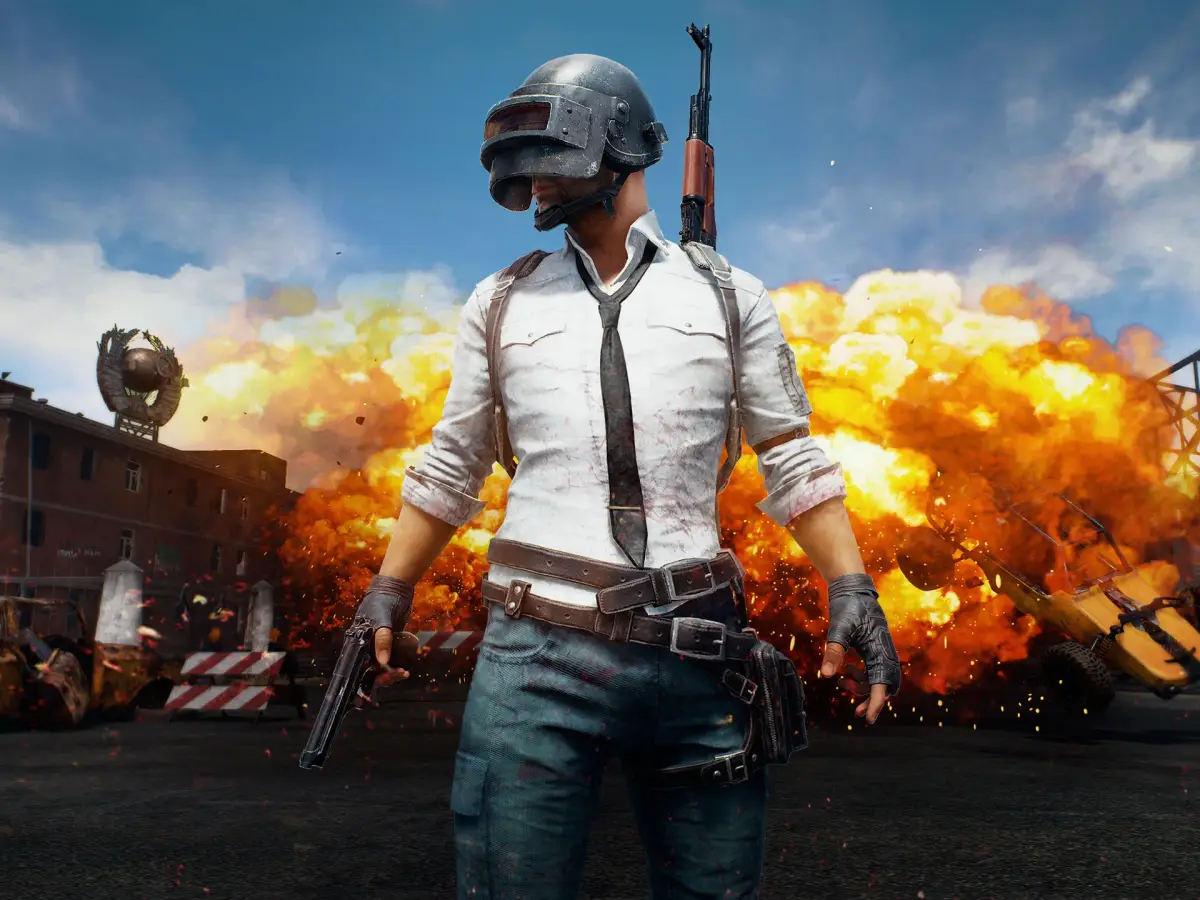
Learn the essential keyboard and mouse controls for PUBG: Battlegrounds. Master movement, aiming, shooting, and vehicle controls to dominate the battlefield.
Alright, so you wanna get a handle on how to actually *play* PUBG, right? The controls can feel a bit overwhelming at first, especially since PC lets you customize pretty much everything. But don't sweat it! Most folks stick to a pretty standard setup, kind of like how Half-Life did things way back when. You'll be moving with WASD and looking around with your mouse. And hey, don't forget those extra buttons on your gaming mouse – they can be super handy!
Here's a rundown of the most common controls you'll see:
| Input Type | Command | Action |
| Keyboard | WASD | Move Character |
| F | Interact | |
| C | Crouch | |
| Z | Prone | |
| SHIFT | Sprint (while aiming on ADS: hold breath by holding it down) | |
| Ctrl | Walk | |
| SPACE | Jump | |
| TAB or I | Inventory | |
| M | Map | |
| N | Expanded Mini-map | |
| ALT | Free look | |
| - | Use curative | |
| 0 | Use boost item | |
| Q | Lean Left | |
| E | Lean Right | |
| R | Reload Weapon | |
| B | Change firing rate | |
| X | Unequip weapon | |
| G | Throwables Wheel | |
| ~ | Heal Items Wheel | |
| T | Voice Chat (Push to talk) | |
| F3 | Radio message wheel/Quick Marker (Hold/Press) | |
| 1 | Primary WEAPON 1 | |
| 2 | Primary WEAPON 2 | |
| 3 | Secondary WEAPON (Handgun) | |
| 4 | Melee Weapon | |
| 5 | Throwables | |
| V | Change between 1st and 3rd Person Perspectives (TPP Mode only) | |
| Mouse | Move | Move Camera/Hip Firing Aiming |
| Left Click | Shoot | |
| Right Click | Soft Aiming/ADS (Hold/Press) | |
| Scroll Up/Down | Cycle through Weapons | |
| Mouse Wheel (Click) | Radio message (Quick marker) | |
| Thumb Button 1 | _Your choice_ (the game has no defaults for these ones maybe because not everyone has a gaming mouse) | |
| Thumb Button 2 | ||
| Keyboard/Mouse | ALT + Thumb Button 1 | |
| ALT + Thumb Button 2 | ||
| ALT + Mouse Wheel | _Your choice_ | |
| ALT + Scroll Up | ||
| ALT + Scroll Down | ||
| ALT + Right Click | Canted Sight |
Now, let's talk about vehicles. You'll steer and accelerate with WASD, just like moving around, and use your mouse to look around. Hit SPACE for the handbrake if you need to stop on a dime, and Z to turn off the engine. Yeah, you can actually turn off the engine! This is super useful when you're getting close to where you want to be. It's a smart move that not many games let you do.
You can also be a real pain to your enemies by shooting out their vehicle's tires. If you're ditching your own ride and want to make sure no one else can use it, pop those tires before you move on. It's a great way to block off an area of the map.
You can honk the horn with Left Mouse Button (LMB). And get this: you can choose your seat using Ctrl + 1 through Ctrl + 6. Pretty neat, huh?
If you've got a gaming mouse with those extra thumb buttons, you can totally assign commands to them. The game doesn't set defaults because not everyone has them, but you should definitely experiment. A good starting point might be to assign one button to your map and another to your throwables. But honestly, play around and see what feels best for you!
Also, remember you can tweak how some functions work in the settings. For instance, do you prefer to sprint by holding SHIFT or just tapping it once? You can choose that!
Throwables are another cool feature. Pay attention to the arc that shows up on your screen when you aim – it's super helpful for making accurate throws. You can also change your throwing stance by holding Right Mouse Button (RMB), which gives you a lot more control. This is way better than how other games just make throwables feel like random junk.
And don't forget about peeking! You can tilt your body left or right to peek around corners using Q and E, or whatever keys you've rebound them to. This is crucial for staying alive in this game. You expose way less of yourself, making it much harder for enemies to spot or hit you.
You can also use 'modifiers' for things like the canted sight with ALT+RMB. You can even set up your own modifiers using CTRL or SHIFT combined with other keys, which gives you even more button options. Big thanks to Reddit user 'MankBaby' for that tip!
Update (June 24th, 2021): There's even more you can do with the Windows Key! Check out the section 'USE THE WINDOWS KEY FOR 7+ ADDITIONAL KEYBINDS!!!' for the full scoop. Basically, it unlocks a bunch more keybinds:
| Input Type | Command | Action |
| Keyboard | Windows Key | _Your choice_ |
| Keyboard/Mouse | Windows Key + Thumb Button 1 | |
| Windows Key + Thumb Button 2 | ||
| Windows Key + Wheel Button | ||
| Windows Key + Scroll Up | ||
| Windows Key + Scroll Down | ||
| Windows Key + Right Mouse Button |
100% Human-Written. AI Fact-Checked. Community Verified. Learn how AntMag verifies content