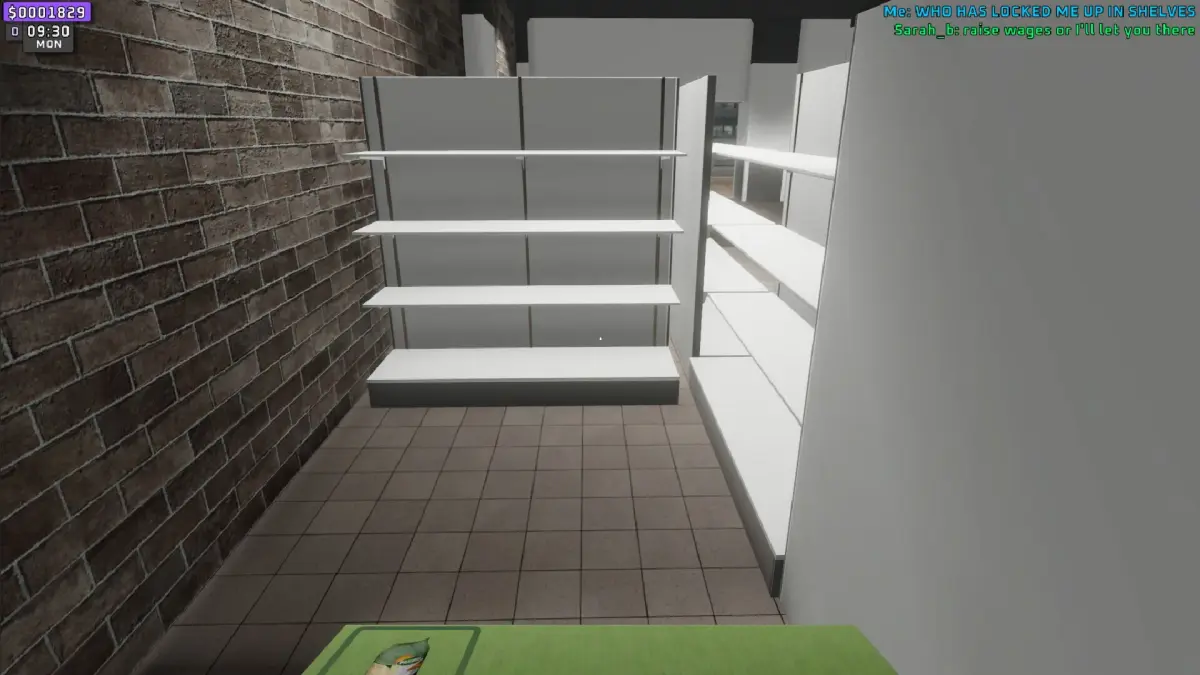
Learn how to set up and use controllers for Supermarket Together. This guide covers controller support, button mapping, and tips for the best co-op supermarket simulation experience.
Supermarket Together can be played with a controller, offering a more relaxed way to manage your virtual store. While the game is primarily designed for keyboard and mouse, controller support is available and can enhance the cooperative experience.
| Action | Default Button (Controller) |
|---|---|
| Move | Left Analog Stick |
| Camera Control | Right Analog Stick |
| Interact / Confirm | A Button (Xbox) / X Button (PlayStation) |
| Cancel / Back | B Button (Xbox) / Circle Button (PlayStation) |
| Open Menu | Start Button / Options Button |
| Inventory | Y Button (Xbox) / Triangle Button (PlayStation) |
| Action (e.g., Cashiering, Restocking) | X Button (Xbox) / Square Button (PlayStation) |
| Special Action (e.g., Broom Swing) | Right Trigger (RT / R2) |
Note: Button prompts may vary slightly depending on the controller type (e.g., Xbox, PlayStation, or other compatible controllers). It is recommended to check the in-game settings for the most accurate and customizable controller layout.
- Familiarize yourself with the layout: Spend a few minutes in-game to get accustomed to the controller mapping.
- Cooperative Play: Controllers can make the game more accessible for friends who may not be as comfortable with keyboard and mouse, enhancing the shared experience.
- Customization: If the default layout isn't to your liking, explore the game's settings to rebind keys and create a control scheme that suits your playstyle.
100% Human-Written. AI Fact-Checked. Community Verified. Learn how AntMag verifies content