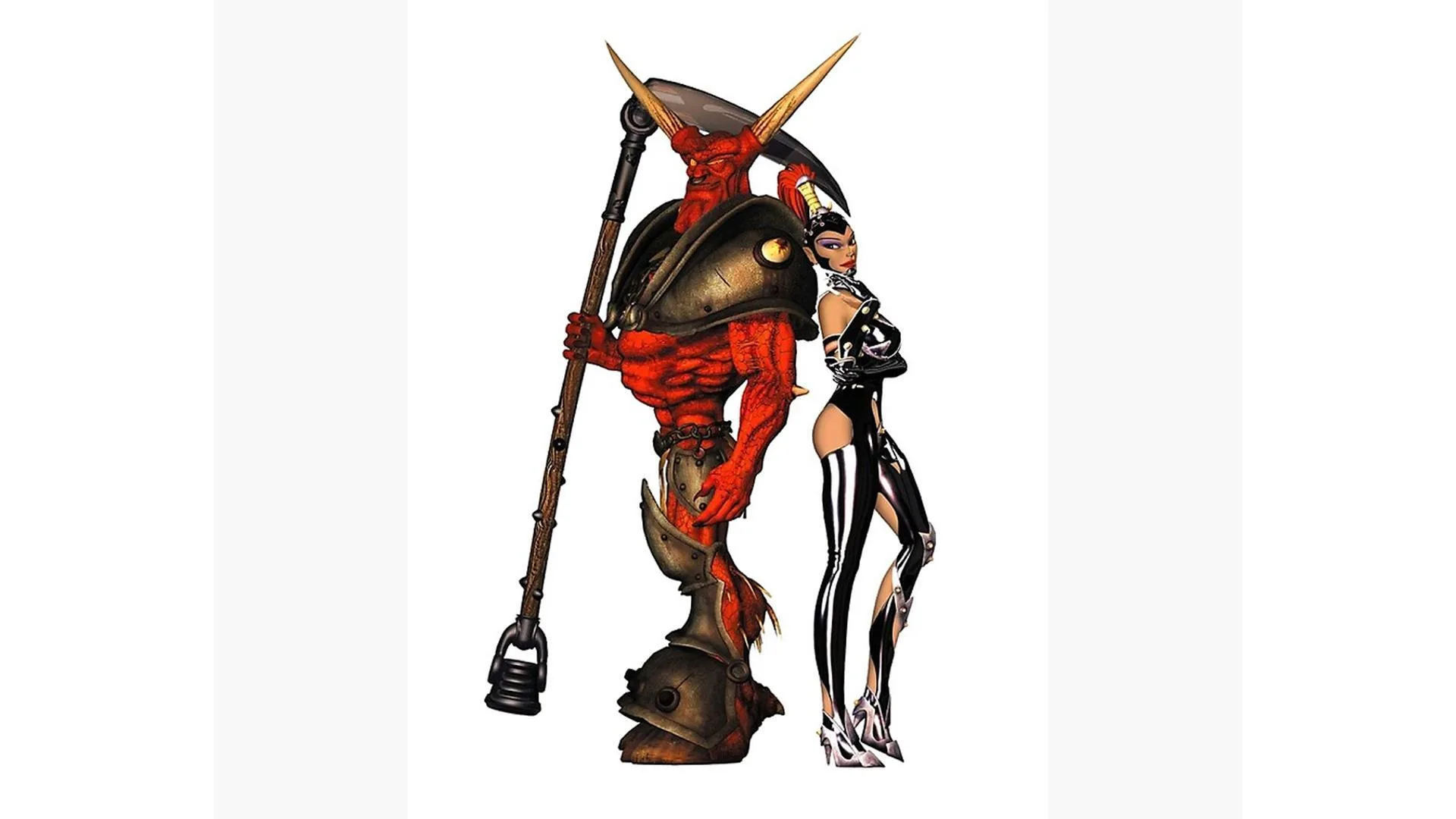
Master Dungeon Keeper 2 with a full list of God Mode and Possessed Mode controls, plus a breakdown of the HUD.
Walkthrough
- 1God Mode Controls:
- Scroll Up: Arrow Key UP
- 2Scroll Down: Arrow Key DOWN
- 3Scroll Left: Arrow Key LEFT
- 4Scroll Right: Arrow Key RIGHT
- 5Zoom In: HOME or CTRL + Arrow Key UP
- 6Zoom Out: END or CTRL + Arrow Key DOWN
- 7Speed Scroll: SHIFT + Arrow Key
- 8Rotate View Left: DELETE or CTRL + Arrow Key LEFT
- 9Rotate View Right: PG DN or CTRL + Arrow Key RIGHT
- 10Pause + Options: ESC
- 11Take Screen Shot: PRINT SCREEN
- 12Pick up Objects (Not creatures): PAGE UP
- 13Send Multiplayer messages: TAB
- 14Increase Ambient Light: =
- 15Decrease Ambient Light: -
- 16Camera Isometric: F1
- 17Camera Top Down: F2
- 18Camera Oblique: F3
- 19User Camera 1: F4
- 20User Camera 2: F5
- 21User Camera 3: F6
- 22Ally Window: A
- 23Zoom to next fight: F
- 24Toggle GUI (Graphical User Interface): G
- 25Zoom To Dungeon Heart: H
- 26Toggle Player Information: I
- 27Map: M
- 28Zoom To Portal: P
- 29Camera Mouse Rotate: X + MOUSE LEFT/RIGHT
- 30Camera Mouse Zoom: Z + MOUSE UP/DOWN
- 31Increase Gamma: SHIFT + .
- 32Decrease Gamma: SHIFT + ,
- 33Roll Right (Free Camera / Set User Camera): CTRL + DELETE
- 34Pitch Down (Free Camera / Set User Camera): CTRL + END
- 35Pitch Up (Free Camera / Set User Camera): CTRL + HOME
- 36Roll Left (Free Camera / Set User Camera): CTRL + INSERT
- 37Yaw Right (Free Camera / Set User Camera): CTRL + PG DN
- 38Yaw Left (Free Camera / Set User Camera): CTRL + PG UP
- 39Pick High Level Creature: CTRL + . + Click on Creature portrait
- 40Pick Low Level Creature: CTRL + , + Click on Creature portrait
- 41Quick Load: CTRL + L
- 42Restart Level: CTRL + R
- 43Quick Save: CTRL + S
- 44Possessed Mode Controls:
- Toggle Sniper Mode: INSERT
- 45Pick Lock/Disarm/Jailbreak: NUM 0
- 46Fire: SPACE
- 47Creep: CTRL
- 48Run: SHIFT
- 49Possessed Melee Select: 1
- 50Possessed Spell Select 1: 2
- 51Possessed Spell Select 2: 3
- 52Possessed Spell Select 3: 4
- 53Possessed Primary Ability: 5
- 54Possessed Secondary Ability: 6
- 55Possessed Group Select: 7
- 56Remove From Group: CTRL + G
- 57Possessed Mode Interaction: In Possessed mode, you must hold down the relevant key then left-click the mouse for some actions. For example, to form a group of possessed creatures, hold 7 to highlight a creature, then left-click to have it follow you.
- 58HUD (Heads-Up Display) Breakdown:
- Top Area: Dungeon Heart health icon, current Mana reserves, the $ payday meter, stored gold, and a scrolling information panel.
- 59Bottom Right Corner: The minimap (radar (your minimap with nearby blips and threats marked)) of your dungeon. As you excavate more lands, it turns red. Lava is dark red, unclaimed and enemy land is grey. Rival Keepers' territory is blue/green/purple/yellow. Portals are flashing dots. Circles on the map indicate the radius of influence from certain rooms. You can click on the minimap to move quickly to another area.
- 60Around the minimap: Four icons: '?' is the query icon, '$' allows you to select areas of rooms to sell, the 'PC' icon opens the Option Menu, and the Magnifying Glass zooms in and out of your dungeon.
- 61Next to panel icons (above panels): Message panel for information and alerts from your Mentor. Right-click to dismiss. A battle icon appears on the far right of the bottom area during attacks; right-click to zoom to the battle.
- 62Room, Spell, and Creature Management Panels:
- Imps Panel: Permanently displayed. Shows total imps, idle imps, busy imps, and fighting imps. Left-click to pick up imps quickly.
- 63Creature Panel: Shows the number and type of creatures. Left-click to pick them up quickly, right-click to move the view to their location. Includes icons for Jobs, Fighting, and Moods.
- 64Rooms Panel: Shows available rooms to build. Select a room and drag the blueprint onto excavated land. A red frame indicates it costs too much gold to build currently.
- 65Workshop Panel: Shows available Doors and Traps. Select an item, drag the blueprint, and assign workers to build. A clock hand around the Workshop icon indicates building progress.
- 66Spells Panel: Monitors spell research and upgrades. Select spells to cast if you have enough Mana.
- 67Campaign Mode Specific: The HORNY icon appears in Campaign Mode only. Horny collects Portal Gems at the end of each level. Finding a bonus level fills a quarter of the Horny Talisman, granting the ability to summon Horny in the next realm.
Tips
- Left-click on the Imps panel to quickly select imps.
- Left-click on creatures in the creature panel to pick them up quickly.
- Right-click on creatures in the creature panel to move the dungeon view to their location.
- Click on the minimap to quickly travel to different areas of your dungeon.
- Right-click on mentor messages to dismiss them quickly.
- Right-click on the battle icon to quickly zoom to a fight.
100% Human-Written. AI Fact-Checked. Community Verified. Learn how AntMag verifies content