
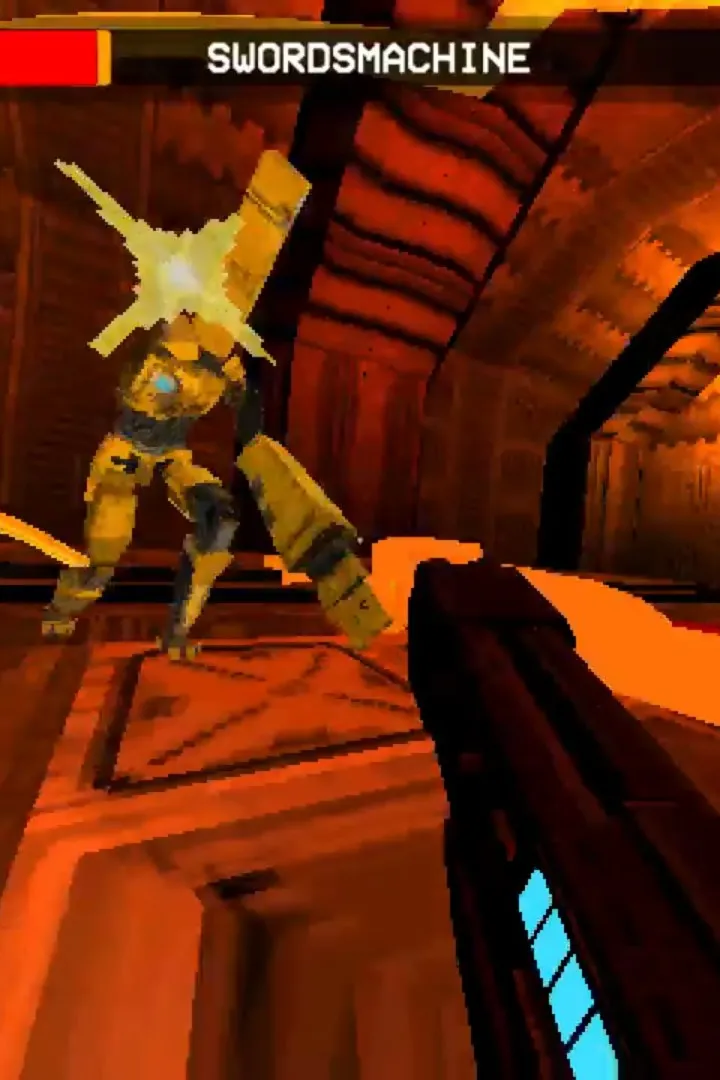
Fine-tune your ULTRAKILL graphics settings for buttery-smooth frame rates. Balance visual fidelity and performance for responsive, fast-paced combat.
While ULTRAKILL is known for its excellent optimization, fine-tuning your graphics settings can further enhance your experience, ensuring a buttery-smooth frame rate that is paramount for its fast-paced, demanding combat. The goal is to strike a balance between visual fidelity and performance, prioritizing responsiveness above all else. A consistent high frame rate allows for precise aiming, timely dodges, and overall better control.
When diving into the graphics options, start with the presets. The "Low" or "Medium" presets are often a good starting point for most systems. From there, you can incrementally increase settings that don't heavily impact performance. Prioritize settings that affect clarity and visual noise over those that add complex graphical effects.
Here's a breakdown of key settings and their impact:
- Resolution: This is the most impactful setting. Running at your monitor's native resolution is ideal for clarity, but if you're struggling for frames, consider lowering it slightly.
- Texture Quality: This affects the detail of surfaces. While higher textures look better, they consume more VRAM. If you have ample VRAM, you can likely keep this on "High" or "Very High." If not, "Medium" is a good compromise.
- Shadow Quality: Shadows can be a significant performance hog. Lowering this to "Medium" or even "Low" can yield substantial frame rate gains with minimal visual loss in the heat of combat.
- Anti-Aliasing: This smooths out jagged edges. While visually pleasing, it can impact performance. Experiment with different levels or consider turning it off if you're desperate for frames.
- Post-Processing Effects (Bloom, Motion Blur, etc.): These effects can add to the visual flair but often come with a performance cost. Motion Blur, in particular, is often detrimental to precise aiming in fast-paced games and is best turned off. Bloom can be a matter of preference.
- View Distance: This affects how far away objects are rendered. For ULTRAKILL's arenas, this usually doesn't need to be set to maximum unless you have a very powerful system.
It's highly recommended to use an in-game frame rate counter (often found in the game's settings or via external tools like MSI Afterburner) to monitor your performance as you adjust these settings. Aim for a stable frame rate that matches your monitor's refresh rate (e.g., 60 FPS for a 60Hz monitor, 144 FPS for a 144Hz monitor). Small adjustments can make a big difference, so don't be afraid to experiment until you find the perfect balance for your system.
100% Human-Written. AI Fact-Checked. Community Verified. Learn how AntMag verifies content