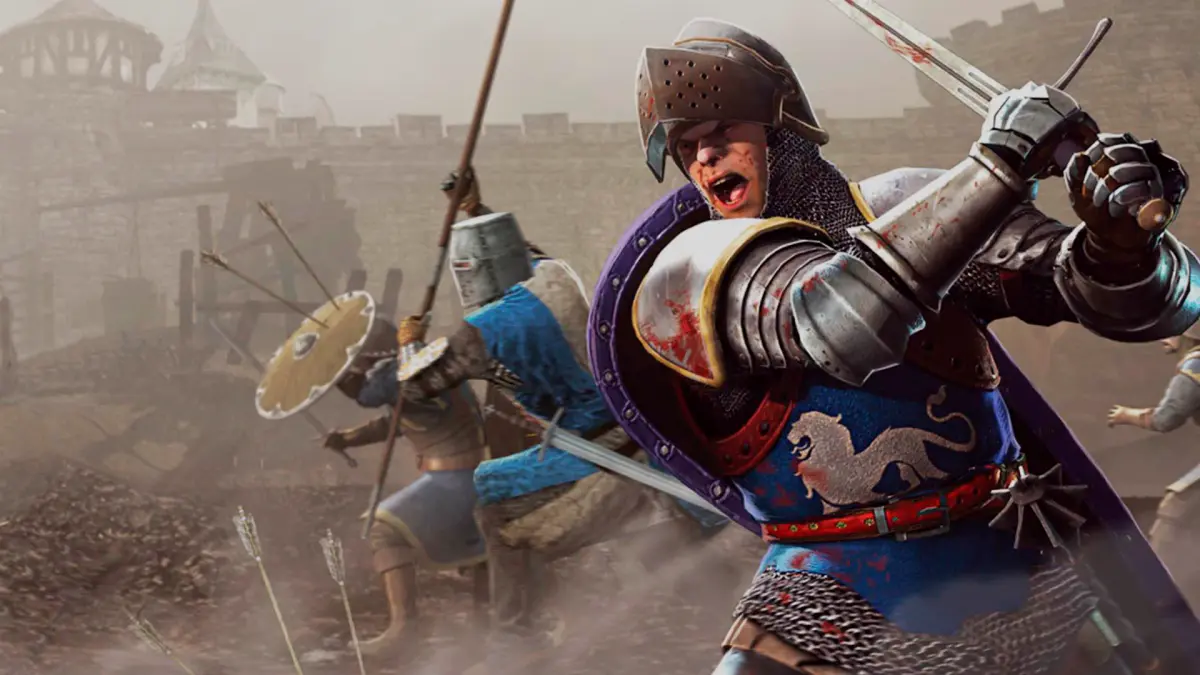
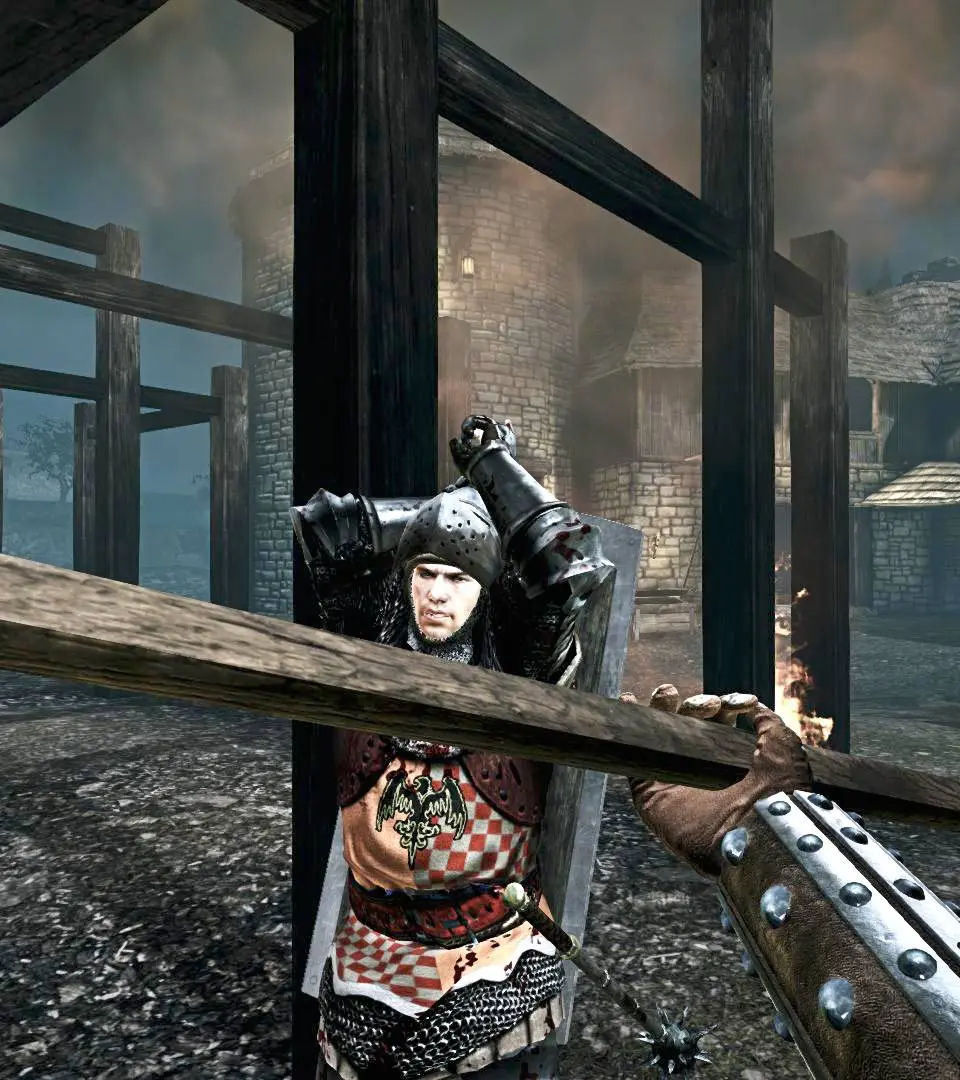
Optimize your combat efficiency in Chivalry: Medieval Warfare. Learn essential game settings and keybind adjustments for battlefield dominance.
Welcome, aspiring knight! To truly master the brutal battlefields of Chivalry: Medieval Warfare, understanding and optimizing your game settings and keybinds is paramount. A well-configured setup can mean the difference between a glorious victory and a humiliating defeat. This section will guide you through the essential adjustments to enhance your combat efficiency and overall gameplay experience.
Accessing the Settings Menu
To begin, launch Chivalry: Medieval Warfare. From the main menu, navigate to the Options button, typically found in the lower-right corner of the screen. Clicking this will open the comprehensive settings panel, where you can fine-tune various aspects of the game.
Video Settings: Optimizing Performance and Visibility
The Video Settings tab is crucial for balancing visual fidelity with performance. A smooth framerate is vital for reacting quickly in combat.
- Resolution: Set this to your monitor's native resolution for the sharpest image. Found under the Display section.
- Fullscreen Mode: Always play in Fullscreen for optimal performance and to prevent accidental clicks outside the game window.
- Field of View (FOV): This is a personal preference, but a higher FOV (e.g., 90-100) can provide a wider peripheral vision, allowing you to spot flanking enemies more easily. Experiment to find what feels comfortable without distorting the view too much.
- Texture Quality: If you're experiencing frame drops, lowering this from High to Medium or even Low can significantly improve performance without drastically impacting gameplay.
- Shadow Quality: Shadows are often a major performance hog. Reducing Shadow Quality to Medium or Low is highly recommended for competitive play, as it frees up resources and can sometimes make enemies in shadowed areas more visible.
- Anti-Aliasing: This smooths jagged edges. While it makes the game look nicer, it can impact performance. If you need frames, consider turning it off or setting it to a lower level like FXAA.
- Vertical Sync (V-Sync): If you experience screen tearing, enable V-Sync. However, be aware that it can introduce input lag. If you have a high refresh rate monitor and don't experience tearing, it's often better to leave it off.
Audio Settings: Situational Awareness
Sound cues are incredibly important in Chivalry. Pay attention to these settings:
- Master Volume: Adjust to a comfortable level.
- Sound Effects Volume: This is critical. Ensure it's high enough to clearly hear weapon swings, grunts, and footsteps. These sounds provide vital information about enemy positions and attacks.
- Music Volume: Lowering or even disabling music can help you focus on crucial sound effects during intense battles.
- Voice Volume: Adjust to hear character voice lines, which can sometimes indicate incoming attacks or enemy presence.
Gameplay Settings: Fine-Tuning Your Experience
These settings directly impact how you interact with the game world.
- Crosshair Type: Experiment with different crosshair styles. A simple dot or small cross can be less distracting and help with aiming projectiles.
- Show Damage Numbers: Enabling this (found under HUD Options) can help you understand the effectiveness of your attacks and weapon choices.
- Blood & Gore: While visually impactful, disabling excessive gore can sometimes improve visibility in chaotic melees, though many players prefer to keep it on for immersion.
- Mouse Sensitivity: This is perhaps the most personal and crucial setting. Start with a moderate sensitivity and gradually adjust it until you can comfortably perform 180-degree turns and precise aim without overshooting. Many competitive players prefer lower sensitivities for greater control.
- Mouse Acceleration: Disable this! Mouse acceleration makes your cursor move faster the quicker you move your mouse, leading to inconsistent aiming. For precise combat, you want a 1:1 relationship between mouse movement and in-game camera movement.
Keybinds: Customizing Your Controls for Efficiency
The Controls tab is where you can remap nearly every action in the game. The default keybinds are functional, but customizing them can significantly improve your reaction time and comfort.
Essential Keybinds to Consider Changing:
- Attack Direction (Mouse Swings): Chivalry's unique combat system relies heavily on directional attacks. By default, these are often tied to mouse movement while holding down the attack button.
- Overhead Attack: Default is often Mouse Up + Left Click. Consider binding this to a dedicated key if you struggle with consistent overheads.
- Stab: Default is often Mouse Forward + Left Click. Some players bind this to a side mouse button for quick thrusts.
- Left/Right Horizontal Swings: Default is Mouse Left/Right + Left Click. These are fundamental and usually best left to mouse movement, but practice is key.
- Kick (Default 'F'): Kicking is a vital tool for breaking blocks and creating openings. Ensure it's on an easily accessible key. Some players move it to a side mouse button.
- Block (Default Right Click): This is fundamental. Ensure it's comfortable and responsive.
- Feint (Default 'Q'): Feinting is a powerful advanced technique. Having it on an easily reachable key is crucial for deceiving opponents.
- Special Attack (Default 'Mouse Wheel Down'): This can be awkward to use in the heat of battle. Consider remapping it to a keyboard key (e.g., 'E' or 'R') or a side mouse button for more reliable execution.
- Throw Weapon (Default 'G'): If you frequently use throwing weapons or want to discard your main weapon to pick up another, ensure this is accessible.
- Switch Weapon (Default 'Mouse Wheel Up' / '1', '2', '3'): While mouse wheel is common, using dedicated number keys for specific weapon slots (e.g., '1' for primary, '2' for secondary, '3' for shield) can be faster and more precise.
- Crouch (Default 'Left Ctrl'): Useful for ducking under attacks or navigating tight spaces. Ensure it's comfortable for quick activation.
- Voice Commands (Default 'C', 'V', 'X', 'Z'): While not directly combat-related, using voice commands can be fun and occasionally useful for team communication. Ensure they don't interfere with your combat keybinds.
Strategy for Customizing Keybinds:
- Identify Your Core Actions: What actions do you perform most frequently in combat (attack, block, kick, feint, special)? These should be on your most accessible keys.
- use Mouse Buttons: If your mouse has extra buttons, these are excellent candidates for actions like Kick, Special Attack, or Stab.
- Keep Related Actions Together: Grouping similar actions (e.g., all attack modifiers) can help with muscle memory.
- Test Thoroughly: After making changes, jump into a local game or a less competitive server to practice and ensure your new keybinds feel natural and efficient. Don't be afraid to iterate!
- Consider a Gaming Keyboard/Mouse: Peripherals with programmable buttons can offer even greater customization options.
By taking the time to meticulously adjust your game settings and keybinds, you'll gain a significant edge on the battlefield. Experiment, practice, and find the configuration that best suits your playstyle. May your swings be true and your blocks unyielding!
100% Human-Written. AI Fact-Checked. Community Verified. Learn how AntMag verifies content