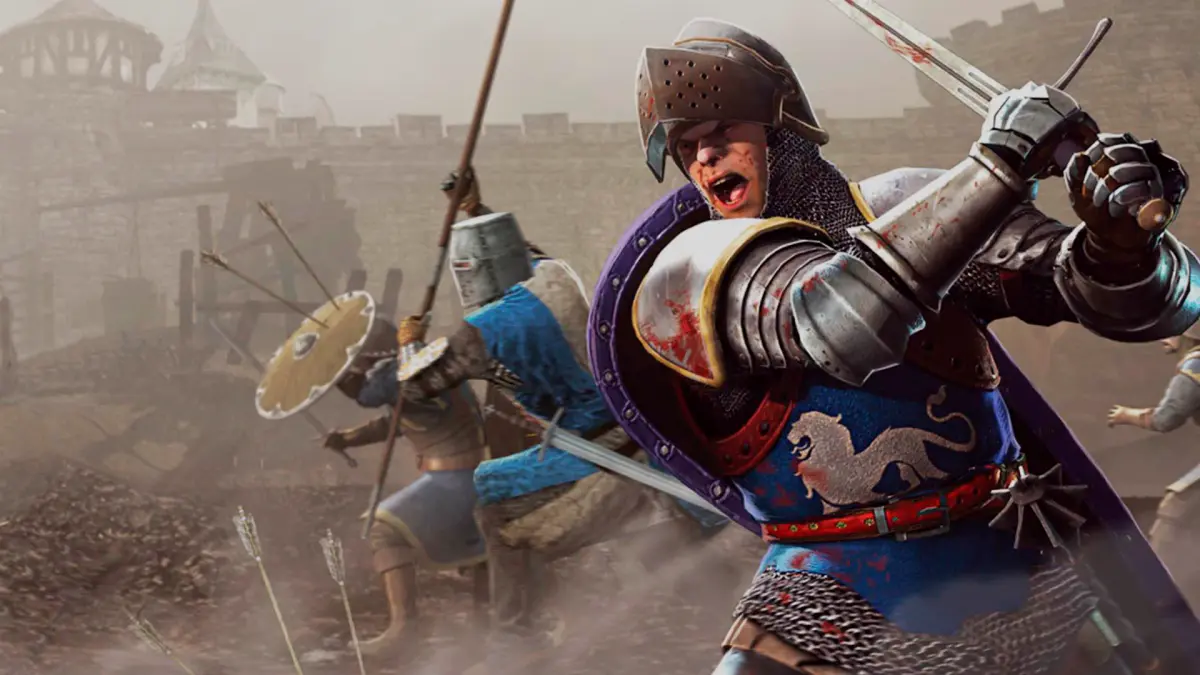
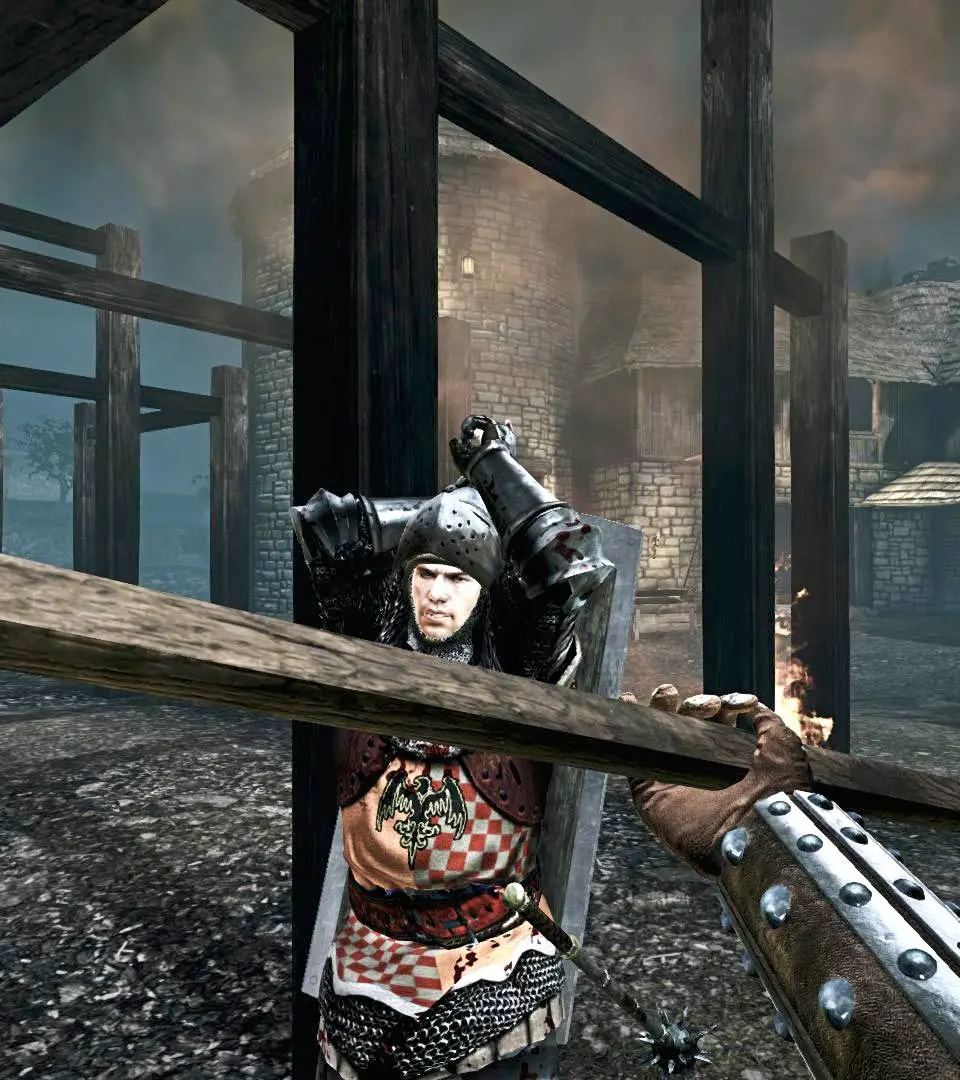
Analyze battles and learn from experts using Spectator Mode and Replays in Chivalry: Medieval Warfare. Improve your understanding of combat and maps.
Chivalry: Medieval Warfare offers robust Spectator Mode and Replay functionalities, allowing players to observe live matches, learn from skilled combatants, and review their own glorious (or inglorious) battles. Mastering these tools can significantly enhance your understanding of map layouts, weapon matchups, and advanced combat techniques. Whether you're a seasoned veteran looking to refine your skills or a newcomer eager to grasp the fundamentals, these features are invaluable resources.
Entering Spectator Mode
There are several ways to enter Spectator Mode, providing flexibility for different situations:
- From the Server Browser: When browsing available servers, locate the desired match. To the right of the "Join" button, you will find a "Spectate" option. Clicking this will seamlessly transition you into the ongoing game as an observer, without occupying a player slot. This is ideal for scouting servers before committing to a match.
- During a Match (After Death): Upon being defeated in a live match, you will be presented with a death screen. Instead of immediately respawning, you can select the "Spectate" option. This allows you to observe the remainder of the round or match from a neutral perspective, providing an excellent opportunity to learn from your mistakes and observe the strategies of both teams.
- Console Command: For advanced users, server administrators, or those who prefer direct control, the in-game console offers a command to enter Spectator Mode. Press the
~key (typically located below the Escape key) to open the console. Then, typespectateand press Enter. This command can be used at any point during a match.
Spectator Controls & Camera Modes
Once in Spectator Mode, you have several camera options at your disposal, each offering a unique vantage point on the battlefield. These controls are designed to provide comprehensive observation capabilities:
- Free Cam (Default): This is your primary mode for unrestricted exploration.
- Movement: use the standard
W, A, S, Dkeys for horizontal movement (forward, left, backward, right). - Vertical Movement: Press the
Spacebarto ascend and holdLeft Ctrlto descend. This allows you to gain altitude or dive towards the action. - Speed Adjustment: The mouse scroll wheel is your tool for fine-tuning camera speed. Scroll up to increase speed for rapid traversal across large maps like Feywild or to quickly reposition, and scroll down to decrease speed for meticulous examination of combat or detailed map features.
- Zoom: Hold down the
Right-Clickbutton and move your mouse to zoom in for close-up views of player actions or specific map details, or zoom out for a broader overview.
- Movement: use the standard
- First-Person View (Player Perspective): To experience the battlefield through the eyes of a combatant, simply click on You you wish to follow. This offers an immersive perspective, crucial for understanding player-level engagements.
- Switching Players: While in First-Person View, use
Left-Clickto cycle through players on the same team as You you are currently observing. UseRight-Clickto cycle through players on the opposing team. This allows you to quickly jump between key combatants. - Exiting First-Person: Press the
Fkey to return to the Free Cam mode, giving you back full control over your perspective.
- Switching Players: While in First-Person View, use
- Third-Person View (Player Perspective): This view provides an over-the-shoulder perspective of a selected player, offering a balance between immersion and situational awareness.
- Toggling View: While actively following a player in First-Person View, press the
Vkey to toggle between First-Person and Third-Person perspectives. This is useful for quickly assessing your surroundings while still focusing on a specific player's actions.
- Toggling View: While actively following a player in First-Person View, press the
- Chase Cam: This dynamic camera mode automatically follows a selected player from a fixed distance, dynamically adjusting its position to keep You in view. It's excellent for observing duels or following a player's movement through the map.
- Activating Chase Cam: While in Free Cam, first click on You you wish to follow, then press the
Ckey. The camera will then lock onto that player. - Switching Players: Similar to First-Person View, you can use
Left-ClickorRight-Clickto change You being followed by the Chase Cam. - Exiting Chase Cam: Press the
Fkey to disengage the Chase Cam and return to Free Cam.
- Activating Chase Cam: While in Free Cam, first click on You you wish to follow, then press the
using Spectator Mode for Learning
Spectator Mode is far more than a passive viewing tool; it's an indispensable asset for player development and strategic understanding:
- Map Knowledge Mastery: Spend time observing how veteran players navigate intricate maps like the sprawling castle of Stoneshill or the dense forests of Darkforest. Pay close attention to their preferred flanking routes, the most effective defensive positions, and the critical choke points where objectives are often contested. Understanding these map dynamics is crucial for both offense and defense.
- Weapon Matchup Expertise: Analyze the effectiveness of different weapon classes in various combat scenarios. Observe how a Vanguard wielding a massive Greatsword handles a nimble Man-at-Arms, or how an Archer strategically positions themselves on elevated terrain to maximize their damage output before engaging in melee. This insight helps in choosing the right loadout for specific situations and countering enemy threats.
- Advanced Combat Technique Analysis: Deconstruct the intricate dance of medieval combat by studying advanced maneuvers. Watch closely for feints (deceptive attack initiations), drags (slowing down attacks to catch opponents off guard), accels (speeding up attacks to overwhelm defenses), and the precise timing of parries and ripostes. Observing top players execute these techniques in real-time can dramatically improve your own combat proficiency.
- Team Strategy and Coordination: Witness firsthand how successful teams coordinate their assaults on objectives, establish robust defensive lines, and adapt their tactics in response to enemy movements. This is particularly vital for understanding the flow and strategic nuances of objective-based game modes like Capture the Flag or King of the Hill.
Replay System: Reviewing Your Battles
Chivalry: Medieval Warfare also features a comprehensive replay system, allowing you to meticulously record and review your gameplay. This feature is invaluable for self-analysis, identifying personal errors, and curating highlight reels of your most impressive combat feats. Unlike Spectator Mode which observes live matches, the Replay System allows you to revisit past games.
Recording Replays
To capture your gameplay for later review, you will need to use the in-game console commands:
- Open Console: Press the
~key to access the developer console. - Start Recording: Type the command
demorec [replay_name]into the console and press Enter. Replace[replay_name]with a unique and descriptive name for your replay file. For example, to record a particularly epic duel, you might usedemorec amazing_duel_01. The system will begin recording all gameplay data from this point forward. - Stop Recording: When you are finished playing the match or wish to end the recording, open the console again by pressing
~. Typedemostopand press Enter. This will finalize and save the recorded demo file.
Your recorded replay files are automatically saved to a specific directory on your computer. The default location is typically: Documents\My Games\Chivalry Medieval Warfare\UDKGame\Demos. It is recommended to periodically back up these files if you wish to preserve them.
Playing Back Replays
Reliving your past glories or dissecting your failures is straightforward with the replay system:
- Open Console: As with recording, press the
~key to open the console. - Play Replay: Type the command
demoplay [replay_name]into the console and press Enter. Crucially, you must use the exact name you assigned to the replay file when you recorded it (e.g.,demoplay amazing_duel_01). The game will then load and begin playing back the recorded match.
Replay Controls
While a replay is active, you gain access to a suite of controls that mirror those in Spectator Mode, augmented with powerful time manipulation features:
- Pause/Play: Press the
Pkey to pause the replay at any moment, allowing for detailed examination. PressPagain to resume playback. - Fast Forward/Rewind: use the
[key to increase playback speed, allowing you to quickly skip through uneventful sections. Use the]key to decrease playback speed or rewind the replay. - Skip Forward/Backward: For more granular control over time, use the
,key to jump backward in small increments (e.g., a few seconds) and the.key to jump forward. This is perfect for rewatching specific combat exchanges. - Camera Controls: All the camera modes available in Spectator Mode – Free Cam, First-Person View, Third-Person View, and Chase Cam – are fully functional within replays. You can switch between these perspectives at will to analyze events from multiple angles.
- Exiting Replay: To exit the replay and return to the main menu, press the
Escapekey. This will bring up the in-game menu, where you can select the "Exit Replay" option.
Tips for Effective Replay Analysis
To truly leverage the power of the replay system for self-improvement, consider these analytical strategies:
- Identify and Rectify Mistakes: Critically examine your deaths. What specific action or inaction led to your demise? Was your footwork sloppy, leaving you vulnerable? Did you miss a crucial parry, or perhaps initiate an attack at the wrong moment? Replays allow for objective self-assessment to pinpoint areas needing improvement.
- Deconstruct Successful Engagements: Don't just focus on failures. Analyze your victories. What combination of attacks, feints, parries, and strategic movement led to your triumph in a particular fight? Understanding what works is just as important as knowing what doesn't.
- Study Opponent Tactics: If you were defeated by a particularly skilled player, use the replay to study their approach. Observe their movement patterns, their preferred attack timings, and how they counter common strategies. This knowledge can be invaluable for anticipating their actions in future encounters.
- Frame-by-Frame Combat Breakdown: use the pause and slow-motion features to dissect complex combat exchanges. Analyze the precise timing of counter-parries, the subtle execution of drags and accels, and the intricate footwork involved in advanced duels. This granular analysis can reveal nuances you might miss at normal speed.
100% Human-Written. AI Fact-Checked. Community Verified. Learn how AntMag verifies content