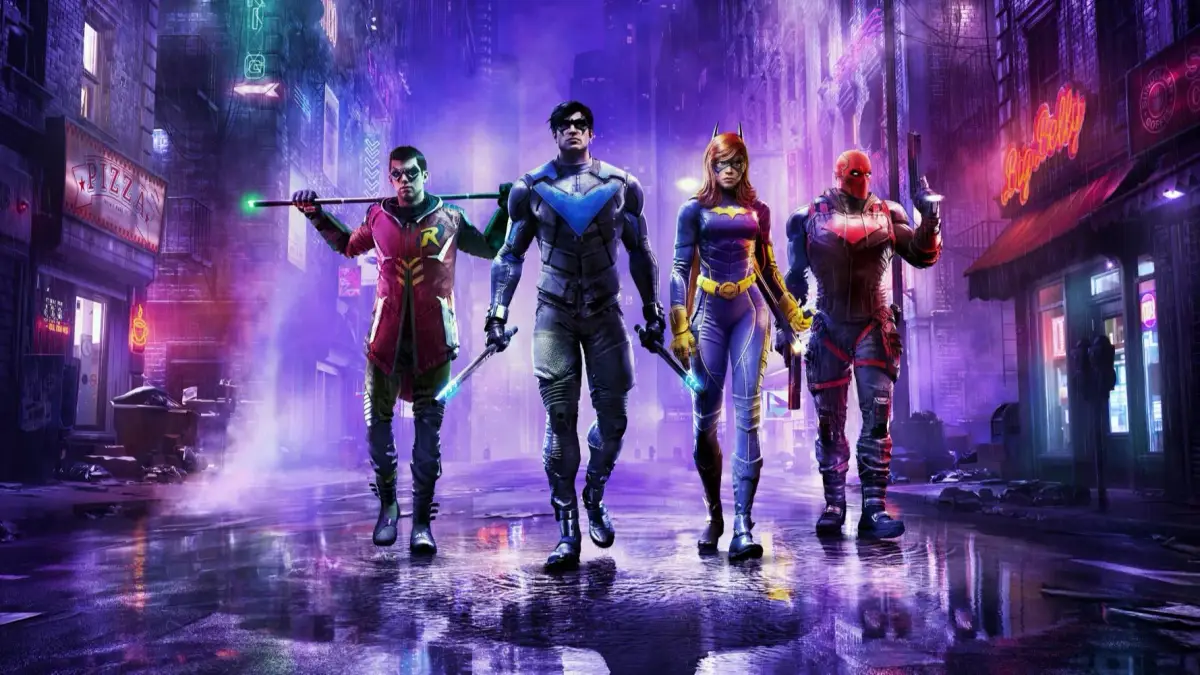
Fix gotham knights PC crashing and stuttering by updating drivers, adding -force-d3d11 launch command, verifying game files, and adjusting graphics settings.
- A PC copy of gotham knights installed via Steam.
- Access to your graphics card manufacturer's website (NVIDIA or AMD) or their desktop programs (e.g., GeForce Experience).
- Access to Windows Update.
Walkthrough
- 1Update Graphics Drivers: The first step for any new AAA game like gotham knights is to update your graphics drivers. Visit the NVIDIA or AMD website for the latest drivers, or use their respective desktop programs to check for updates. These updates often include stability and performance optimizations.
- 2Update Windows and Other Software: Ensure your Windows operating system is up to date, as this includes the latest version of DirectX. Also, check for any other relevant hardware or software driver updates that might impact game performance.
- 3Add Steam Launch Command: To address stuttering and performance issues, especially on PC, add the following command to your Steam launch options:
-force-d3d11. This forces the game to use DirectX11. To do this, go to your Steam library, right-click on gotham knights, select "Properties," and in the "General" tab, find "Launch Options" and paste the command. Relaunch the game afterward. - 4Verify Integrity of Game Files: If issues persist after adding the launch command, verify your game files through Steam. Right-click gotham knights in your library, select "Properties," go to the "Local Files" tab, and choose "Verify integrity of game files."
- 5Adjust In-Game Graphics Settings: If crashes and performance problems continue, adjust your in-game graphics settings.
- 6Disable VSync and Adjust Max FPS Limit: First, disable VSync. Then, set the Max FPS Limit to match your monitor's refresh rate (e.g., 144hz for a 144hz monitor) or slightly lower if issues persist.
- 7Reduce Demanding Settings: Lower settings such as Shadows Quality, Effects Quality, and Post Processing Quality to high or medium. Consider lowering View Distance and Environment Density. Keep Texture Quality at its highest for better visual fidelity. If Ray Tracing is enabled, try turning it off, as it can significantly impact performance.
Tips
- Updating graphics drivers and Windows is crucial for game stability and performance.
- The -force-d3d11 launch command can significantly reduce stuttering and improve FPS for some players.
- Verifying game files can resolve issues caused by corrupted or missing game data.
- Experiment with in-game graphics settings, focusing on reducing the most demanding options first.
- Keeping Texture Quality high while lowering other settings can maintain visual quality.
100% Human-Written. AI Fact-Checked. Community Verified. Learn how AntMag verifies content