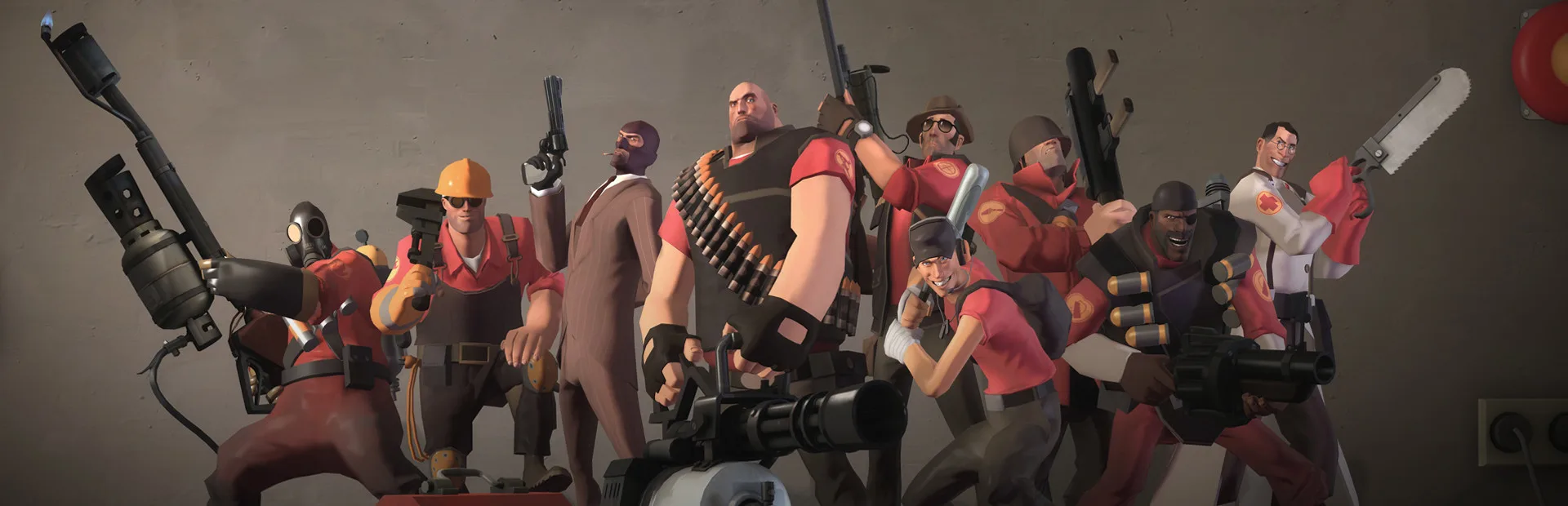
Configure your own Team Fortress 2 server by mastering console commands and essential CVars like hostname and sv_maxplayers.
For those looking to host their own Team Fortress 2 servers, understanding server configuration is key to creating a tailored and enjoyable experience for players. This guide will cover essential console commands and configuration files that allow you to customize game rules, player limits, and server settings.
Hosting a TF2 server gives you immense control over the gameplay. Whether you want to set up a private server for friends, a community server with custom rules, or a competitive practice environment, mastering server configuration is your first step. We'll explore the core commands and files you'll need.
Accessing Server Console and Configuration Files
Server configuration is primarily done through the server's console or by editing configuration files. The main configuration file is typically named server.cfg, located in your server's tf/cfg directory.
You can also execute commands directly in the server console. If you have RCON (Remote Console) access, you can issue commands remotely. For dedicated servers, you'll often use a startup script that loads your configuration files.
Essential Server Variables (CVars)
Here are some of the most important console variables (CVars) you'll want to configure:
| CVar | Description | Example Value |
|---|---|---|
hostname |
Sets the name of your server. | "My Awesome TF2 Server" |
rcon_password |
Sets the RCON password for remote administration. | "supersecretpassword" |
sv_maxplayers |
Maximum number of players allowed on the server. | 16 |
sv_cheats |
Enables or disables cheat commands. Set to 0 for public servers. |
0 |
sv_gravity |
Sets the gravity for the server. | 600 (default) |
mp_timelimit |
Maximum time in minutes for a round. | 20 |
mp_winlimit |
Maximum number of wins for a team before the map changes. | 3 |
tf_grapple_enabled |
Enables or disables the Engineer's grappling hook (if applicable). | 1 |
sv_alltalk |
Enables voice chat between all players, regardless of team. | 1 |
sv_region |
Sets the server region for matchmaking. | 255 (Worldwide) |
Game Mode Specific Settings
Many CVars are specific to the game mode you are running:
- For Payload:
mp_payload_round_time: Time limit for a payload round.mp_payload_max_teams: Number of teams pushing payloads.- For King of the Hill:
mp_koth_round_time: Time limit for holding the control point.- For Mann vs. Machine:
mvm_max_tours: Maximum number of tours a player can complete.mvm_wave_time: Time between waves.
Customizing Maps and Plugins
You can also configure your server to use custom maps and plugins:
- Custom Maps: Place custom map files (
.bsp) in your server'stf/mapsdirectory and add them to yourmapcycle.txtfile. - Plugins (SourceMod/MetaMod): For advanced customization, you can install SourceMod and MetaMod. These allow you to run plugins that add new game modes, commands, and features. Popular plugins include Admin commands, Vote maps, and custom HUDs.
Example server.cfg
Here's a basic example of what your server.cfg might look like:
// Server Name
hostname "My TF2 Server - Casual Fun"

// RCON Password
rcon_password "your_rcon_password_here"

// Player Limits
sv_maxplayers 24

// Game Rules
sv_cheats 0
sv_gravity 600
mp_timelimit 30
mp_winlimit 5
sv_alltalk 1

// Game Mode Specific (Example for Payload)
mp_payload_round_time 15

// Region
sv_region 255
Remember to restart your server after making changes to configuration files or issuing console commands for them to take effect. Experiment with these settings to create the perfect TF2 server experience!
100% Human-Written. AI Fact-Checked. Community Verified. Learn how AntMag verifies content