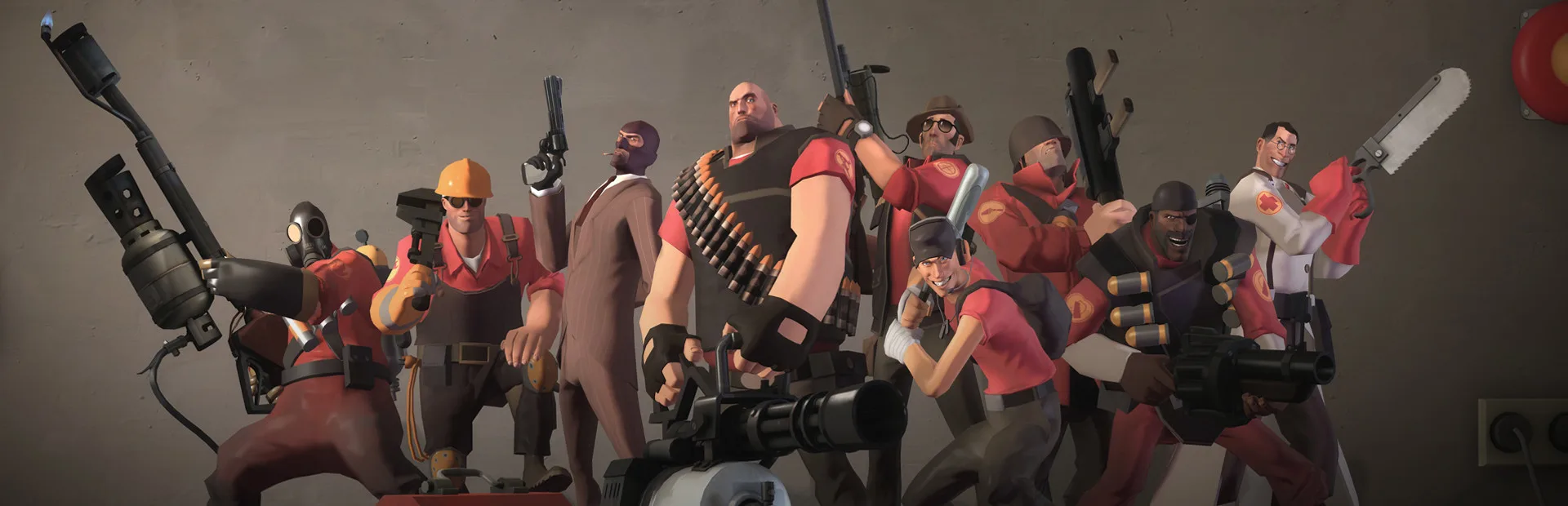

Your essential guide to installing and launching Team Fortress 2. Get your game set up and ready for action with our step-by-step instructions.
This guide will walk you through the process of installing and launching Team Fortress 2. Follow these steps to get started with the game.
Walkthrough
- 1Download and Install Steam: If you don't have Steam installed, download it from the official Steam website and follow the installation prompts.
- 2Create or Log In to Your Steam Account: Open Steam and either create a new account or log in with your existing credentials.
- 3Search for Team Fortress 2: In the Steam client, navigate to the Store tab and search for "Team Fortress 2".
- 4Add to Library: Team Fortress 2 is free-to-play. Click the "Play Game" button to add it to your library.
- 5Download Team Fortress 2: Once added to your library, click the "Install" button to begin the download. Choose your installation location and follow the prompts.
- 6Launch Team Fortress 2: After the download and installation are complete, you can launch the game by finding it in your Steam Library and clicking the "Play" button.
Tips
- Ensure you have a stable internet connection for a smooth download.
- Check the system requirements for Team Fortress 2 to ensure your PC meets the minimum specifications.
- If you encounter any issues, consult the Steam Support pages or the Team Fortress 2 community forums.
100% Human-Written. AI Fact-Checked. Community Verified. Learn how AntMag verifies content