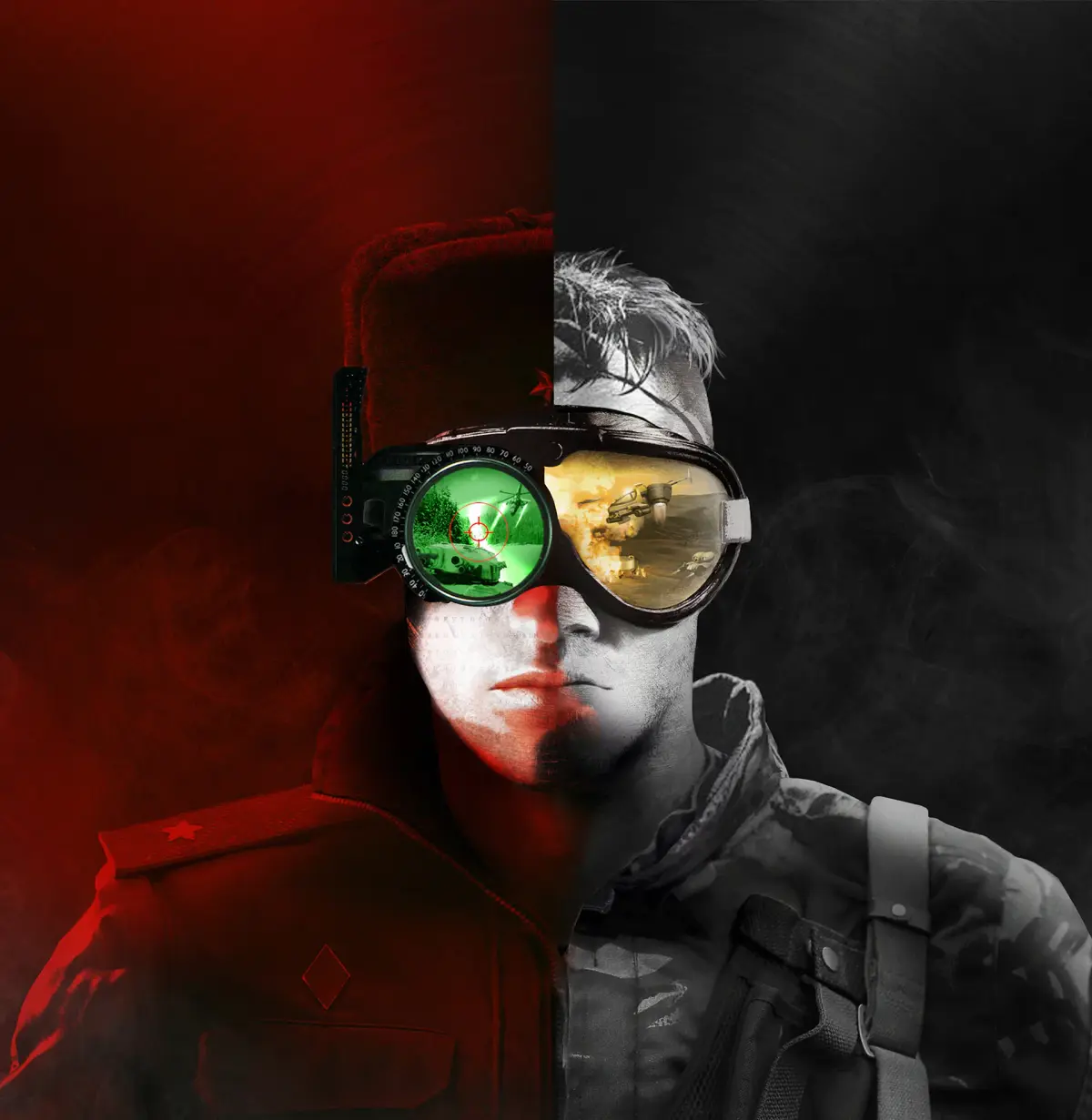
Choose your visual preference in Command & Conquer Remastered Collection with the Classic UI option, reverting to the beloved pixelated interface of the origin.
Classic UI Option in Command & Conquer Remastered Collection
Command & Conquer Remastered Collection offers a faithful recreation of the original games, but it also introduces modern enhancements. One such enhancement is the option to switch between the modern, high-definition user interface and the classic, pixelated UI that fans remember from the 1990s. This guide explores the Classic UI option, its benefits, and how to enable it.
What is the Classic UI Option?
The Classic UI option allows players to revert the game's user interface elements – such as the command bar, unit information panels, and menus – back to their original 1990s appearance. This means you'll see the iconic pixel art and layout that defined the original Command & Conquer and Red Alert experiences. This is a purely cosmetic choice, designed to cater to the nostalgia of long-time fans and provide an authentic retro feel.
Why Choose the Classic UI?
There are several compelling reasons to opt for the Classic UI:
- Nostalgia: For players who grew up with these games, the classic UI evokes powerful memories and a sense of familiarity. It's a direct trip back in time.
- Authenticity: It provides the most authentic retro experience, allowing you to play the game exactly as it was originally presented, but with modern gameplay and graphics.
- Simplicity: Some players find the classic UI less cluttered and more straightforward, preferring its minimalist des.
- Comparison: It's a great way to directly compare the original presentation with the remastered version and appreciate the work that went into the remaster.
How to Enable the Classic UI
Enabling the Classic UI is a simple process:
- Launch the Game: Start Command & Conquer Remastered Collection through your preferred launcher (EA app or Steam).
- Access Settings: Once the game is running, navigate to the game's settings or options menu. This is usually accessible from the main menu or during a mission.
- Find the UI Option: Look for a setting related to the "User Interface" or "Graphics."
- Select "Classic": You should find an option to toggle between "Remastered" or "Modern" UI and "Classic" UI. Select the "Classic" option.
- Apply Changes: Confirm your selection, and the game's UI will immediately switch to its classic appearance.
What to Expect When Using the Classic UI
When you switch to the Classic UI, you'll notice:
- Pixelated Command Bar: The familiar command bar at the bottom of the screen will revert to its original pixel art.
- Original Unit Icons: Unit portraits and icons will be the classic, lower-resolution versions.
- Retro Menus: Menus and in-game displays will adopt the aesthetic of the original games.
- No Impact on Gameplay: Crucially, switching to the Classic UI does not affect the gameplay mechanics, unit balance, or graphical fidelity of the remastered game itself. The underlying engine and assets are still the modern ones; only the visual presentation of the interface changes.
When to Use the Classic UI
The choice between Classic and Remastered UI is entirely personal. Many players will switch back and forth depending on their mood or the specific game they are playing. Some might prefer the modern UI for its clarity and information density during intense multiplayer matches, while others might opt for the Classic UI for a more relaxed, nostalgic single-player experience.
Conclusion
The Classic UI option is a thoughtful addition to Command & Conquer Remastered Collection, demonstrating the developers' commitment to honoring the legacy of these beloved games. It allows players to tailor their experience to their personal preferences, ensuring that both new and old fans can enjoy the games in a way that resonates most with them.
100% Human-Written. AI Fact-Checked. Community Verified. Learn how AntMag verifies content