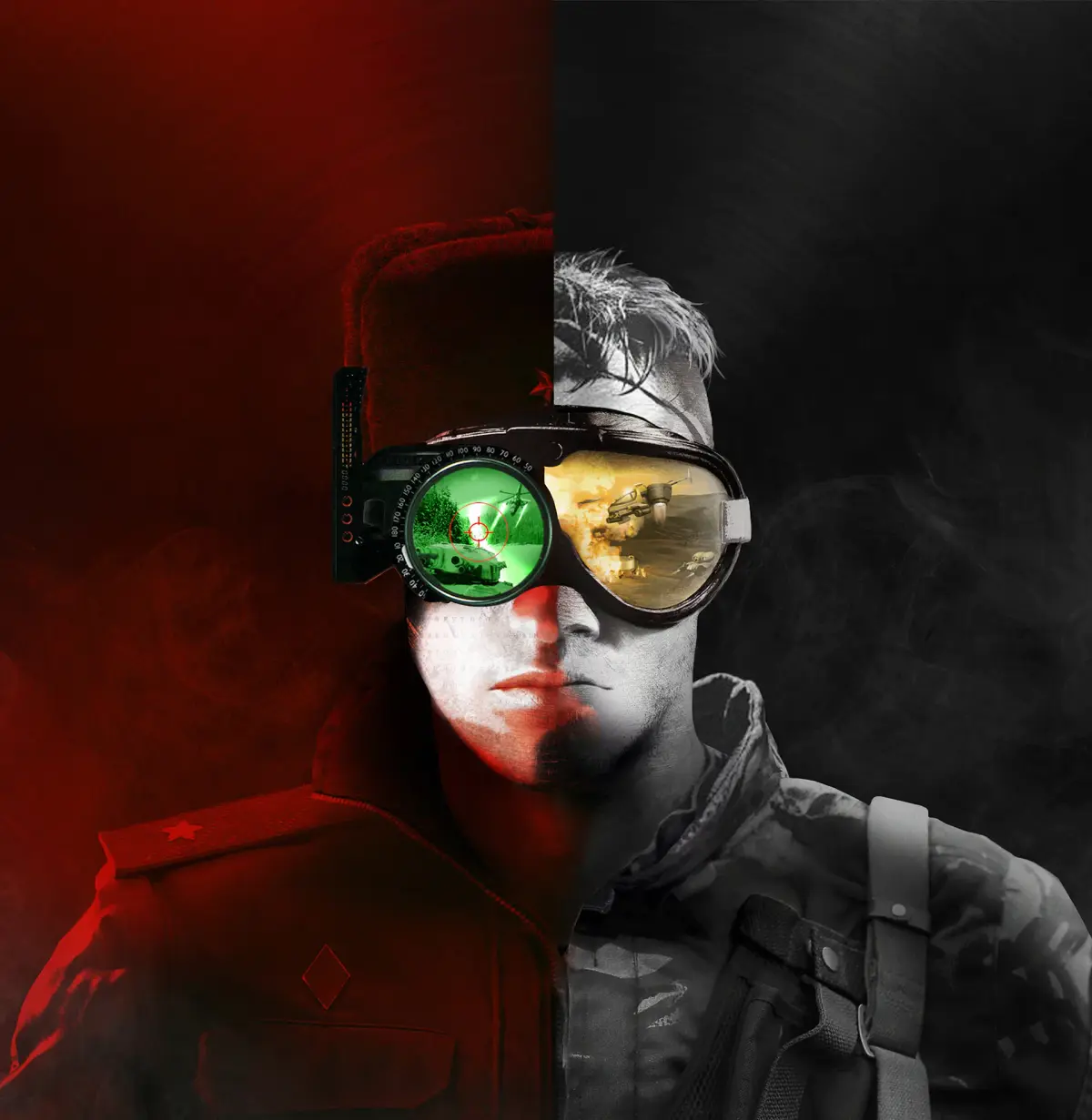
Welcome, Commander! The Command & Conquer Remastered Collection throws you into the boots of either the Global Defense Initiative (GDI) or the enigmatic Brotherhood of Nod. You’ll be gathering resources, building up your forces, and engaging in all-out warfare to crush your enemy. From Tiberian Dawn’s fight against Kane’s cult to Red Alert’s alternate history with Stalin, you’ll experience classic RTS gameplay with iconic units and memorable, often over-the-top, cutscenes.
This guide is your tactical advisor for conquering both campaigns. We’ll help you navigate unique missions like GDI’s espionage-focused Mission 6 in Tiberian Dawn, uncover elusive easter eggs, and master the strategies needed to achieve victory. Whether you’re a returning veteran or a fresh recruit, get ready to relive the glory days of real-time strategy.
Guide
Master Tiberian Dawn and Red Alert with Command & Conquer Remastered Collection guides. Learn base building and combat strategies for iconic battlefields.
Guide
Master Tiberian Dawn and Red Alert with Command & Conquer Remastered Collection guides. Learn base building and combat strategies for iconic battlefields.
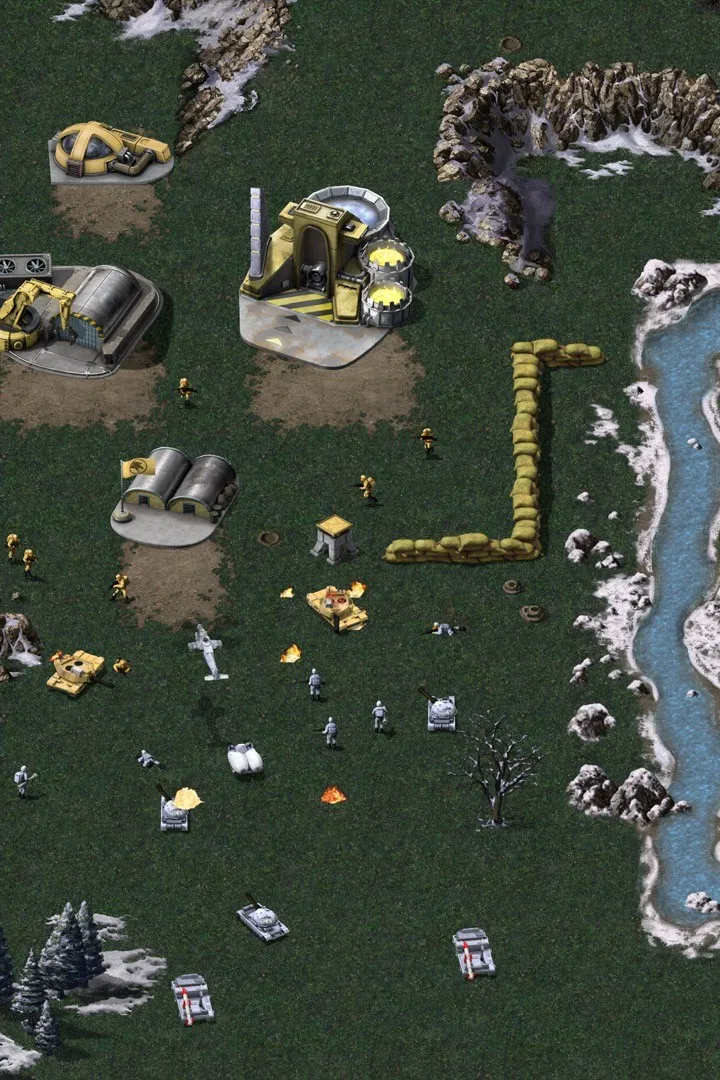
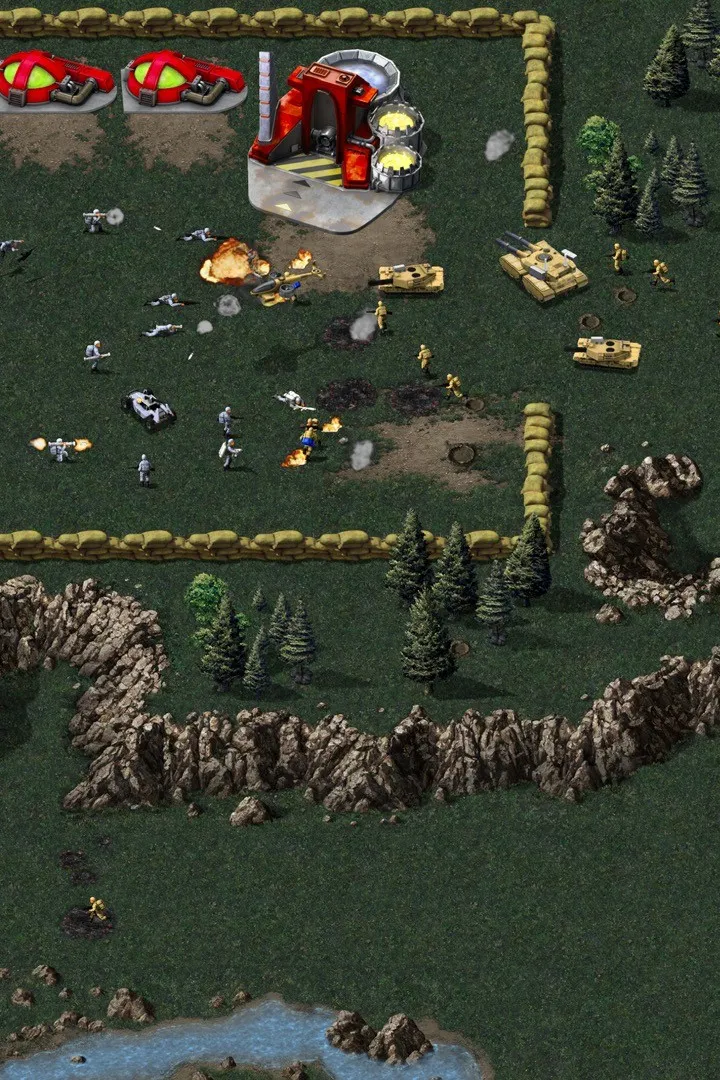
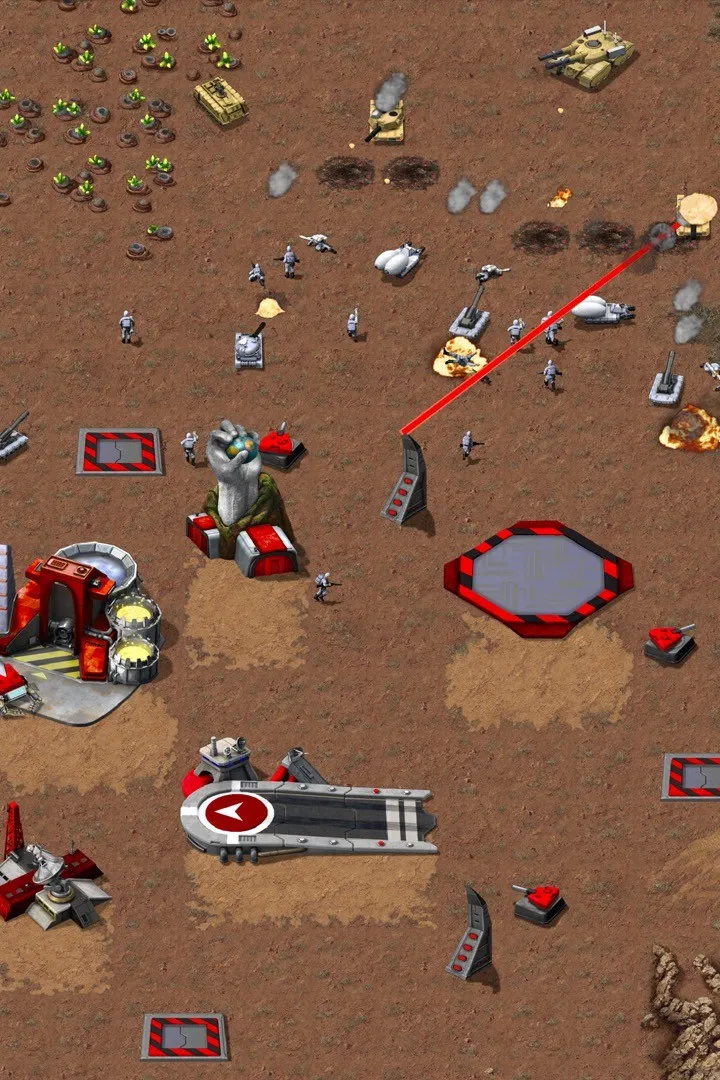
Remastered Graphics and Audio
Experience Command & Conquer Remastered Collection's updated graphics and audio. Enjoy faithfully recreated visuals and sound for a classic experience.
Remastered Graphics and Audio
Experience Command & Conquer Remastered Collection's updated graphics and audio. Enjoy faithfully recreated visuals and sound for a classic experience.
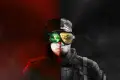
High-Resolution Graphics Options
Master Command & Conquer Remastered graphics. Learn to adjust resolution, textures, and effects for stunning 4K visuals. Optimize your RTS experience.
The Command & Conquer Remastered Collection breathes new life into classic RTS visuals. This section guides you through the enhanced graphics options, allowing you to tailor the visual fidelity to your liking. From crisp 4K resolutions to improved lighting and particle effects, experience Tiberian Dawn and Red Alert like never before. We'll cover how to access these settings and what each option impacts, ensuring you can enjoy the iconic battles with stunning clarity.
The Remastered Collection offers a significant visual upgrade over the original games. You can now enjoy the classic RTS experience in resolutions up to 4K, with significantly improved textures, lighting, and particle effects. The game also features a dynamic zoom function, allowing you to get closer to the action than ever before. To access these graphical enhancements, navigate to the game's main menu and select 'Options,' then 'Graphics.' Here, you'll find a range of settings to customize your visual experience.
Resolution and Display Settings
- Resolution: Choose from a wide array of resolutions, including 1920x1080, 2560x1440, and 3840x2160 (4K). Selecting a higher resolution will provide a sharper and more detailed image, especially on modern displays.
- Aspect Ratio: Options typically include 16:9, 16:10, and 4:3. 16:9 is recommended for most modern widescreen monitors to avoid stretching or black bars.
- Fullscreen/Windowed Mode: Toggle between fullscreen for an immersive experience or windowed mode for easier alt-tabbing.
Visual Enhancements
- Texture Quality: This setting affects the detail of unit and building textures. Higher settings will make units appear more defined.
- Shadow Quality: Controls the detail and softness of shadows cast by units and structures.
- Particle Effects: Enhances visual effects like explosions, muzzle flashes, and smoke. Turning this up can make battles look more dynamic.
- Lighting: Adjusts the overall lighting of the environment, impacting the mood and visibility.
The Remastered Toggle
A key feature of the Remastered Collection is the ability to seamlessly switch between the original and remastered graphics on the fly. Simply press the 'Tab' key during gameplay to toggle between the two visual styles. This is invaluable for appreciating the extent of the remastering or for players who prefer the nostalgic look of the originals. Experiment with these settings to find the perfect balance between performance and visual fidelity for your system.
| Setting | Impact | Recommendation |
|---|---|---|
| Resolution | Image sharpness and detail | Native monitor resolution (e.g., 4K) |
| Texture Quality | Unit and building detail | High |
| Particle Effects | Explosion and combat visuals | High |
Original Graphics Toggle
Learn to use the Original Graphics Toggle in Command & Conquer Remastered Collection, switching between remastered and classic 2D visuals with Scroll Lock.
One of the most celebrated features of the Command & Conquer Remastered Collection is the ability to seamlessly switch between the newly remastered high-definition graphics and the beloved original 2D visuals. This toggle allows players to experience the game in two distinct ways, catering to both nostalgia and modern visual preferences.
The remastered graphics bring a significant visual upgrade to the classic titles. Units, buildings, and environments are rendered with much higher detail, sharper textures, and improved lighting effects. This modern interpretation aims to preserve the spirit of the original art style while enhancing it for contemporary displays. However, for many long-time fans, the charm of the original pixel art and the iconic look of the early 3D models hold a special place in their hearts. The inclusion of the original graphics toggle ensures that this nostalgic experience is readily accessible.
How to Use the Graphics Toggle:
Switching between the remastered and original graphics is incredibly simple and can be done on the fly during gameplay. The default keybind for this function is typically the 'Scroll Lock' key. Pressing 'Scroll Lock' will instantly transition the game's visuals from the high-definition remastered version to the classic 2D graphics, and pressing it again will switch back.
Benefits of the Graphics Toggle:
- Nostalgia Factor: For players who grew up with the original Command & Conquer and Red Alert, the ability to play with the original graphics is a powerful draw. It allows them to relive those classic gaming moments with the familiar visuals they remember.
- Performance Options: While the remastered graphics are stunning, they do require more processing power. For players with older or less powerful hardware, switching to the original graphics can significantly improve performance and frame rates, making the game more playable.
- Visual Comparison: The toggle provides an excellent opportunity to directly compare the advancements made in the remaster. You can see firsthand the level of detail and polish that has been applied to the new graphics by switching back and forth.
- Artistic Appreciation: It allows players to appreciate the artistic vision of both the original development team and the remastering team. You can see the foundational art style and how it has been respectfully evolved.
- Accessibility: For players who may find the higher detail of the remastered graphics overwhelming or distracting, the simpler, classic visuals can be more accessible and easier to parse during intense gameplay.
Where to Find the Toggle:
The primary method for toggling graphics is the 'Scroll Lock' key during gameplay. Additionally, you may find options within the game's settings menu to configure graphical preferences, though the in-game toggle is the most immediate way to switch.
Table of Graphics Options:
| Graphics Mode | Description | Keybind |
|---|---|---|
| Remastered Graphics | High-definition visuals with modern rendering, textures, and lighting. | N/A (Default) |
| Original Graphics | Classic 2D pixel art and early 3D models as originally released. | Scroll Lock |
The inclusion of the original graphics toggle is a testament to the developers' commitment to honoring the legacy of Command & Conquer while delivering a modern gaming experience. It ensures that the Remastered Collection appeals to a broad audience, from those seeking a faithful recreation of their childhood memories to those eager to experience these timeless classics with a fresh coat of paint.
Similar guides you might like

100% Human-Written. AI Fact-Checked. Community Verified. Learn how AntMag verifies content