
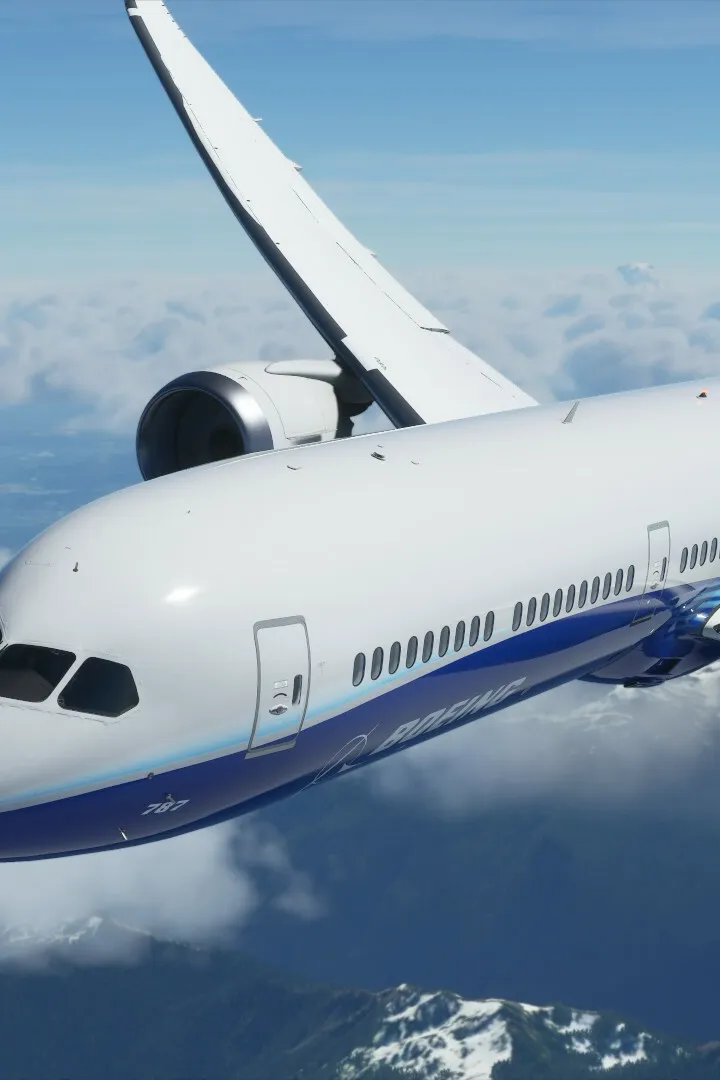
Learn how to troubleshoot common performance issues in Microsoft Flight Simulator. This guide covers essential steps to optimize your experience and ensure smooth gameplay.
This guide provides solutions for common performance problems encountered in Microsoft Flight Simulator. We'll cover essential steps to help you optimize your experience and ensure smooth gameplay.
Troubleshooting Steps:
- Update Graphics Drivers: Ensure your NVIDIA, AMD, or Intel graphics drivers are up to date.
- Adjust In-Game Settings: Lower graphical settings such as resolution, texture quality, and anti-aliasing.
- Check System Requirements: Verify that your PC meets or exceeds the recommended system requirements for Microsoft Flight Simulator.
- Close Background Applications: Shut down unnecessary programs running in the background that consume system resources.
- Manage Add-ons: Disable or remove third-party add-ons that may be causing conflicts or performance degradation.
- Verify Game Files: Use the game launcher to verify the integrity of your Microsoft Flight Simulator game files.
- Monitor Temperatures: Keep an eye on your CPU and GPU temperatures to prevent thermal throttling.
- Clean Installation: As a last resort, consider a clean reinstallation of the simulator.
100% Human-Written. AI Fact-Checked. Community Verified. Learn how AntMag verifies content