
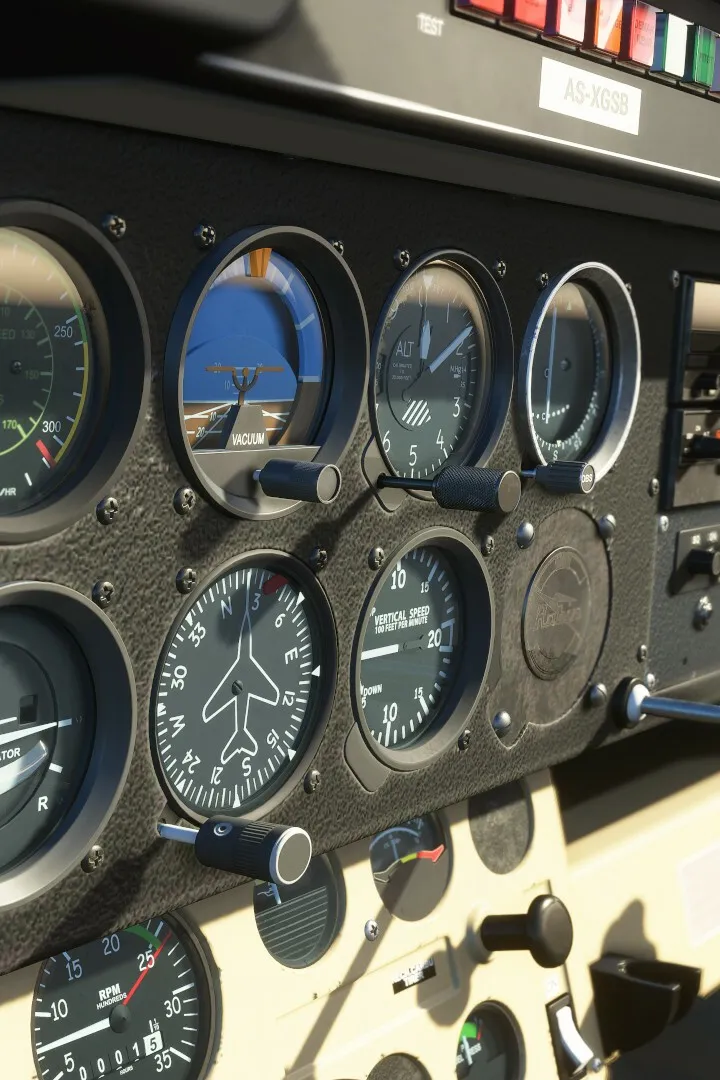
Master dynamic weather systems in Microsoft Flight Simulator. Learn to manage settings, interpret atmospheric conditions, and fly through storms.
Mastering the dynamic weather systems in Microsoft Flight Simulator is crucial for any aspiring pilot. From clear skies to turbulent storms, understanding how to interact with and prepare for various atmospheric conditions will significantly enhance your flight experience and ensure mission success. This section will guide you through managing weather settings, interpreting forecasts, and adapting your flight plan accordingly.
Understanding Weather Presets and Live Weather
Microsoft Flight Simulator offers two primary ways to experience weather: pre-defined presets and real-time live weather. Each has its advantages depending on your flight goals.
Weather Presets
Weather presets allow you to quickly select a specific atmospheric condition for your flight. This is ideal for practicing landings in challenging conditions, testing aircraft performance, or simply enjoying a scenic flight without unexpected changes.
- Accessing Presets: From the World Map, before launching your flight, navigate to the "Flight Conditions" menu (often represented by a cloud icon). Here you'll find a list of available presets.
- Common Presets:
- Clear Skies: Excellent visibility, no wind, perfect for VFR (Visual Flight Rules) training and sightseeing.
- Scattered Clouds: Introduces some cloud cover, providing a more realistic visual experience without significant flight challenges.
- Broken Clouds: More extensive cloud cover, potentially requiring instrument flight rules (IFR) for navigation.
- Overcast: Complete cloud cover, often with reduced visibility and potential for precipitation.
- Rain: Introduces rain, reducing visibility and potentially affecting aircraft performance (e.g., runway braking).
- Snow: Similar to rain but with snow, significantly impacting visibility and requiring careful consideration for icing.
- Storm: Simulates severe weather, including heavy precipitation, strong winds, and turbulence. This is a challenging preset for experienced pilots.
- Customizing Presets: Within the "Flight Conditions" menu, you can further customize a chosen preset. This includes adjusting parameters like:
- Cloud Layers: Add or remove layers, change their altitude, density, and type (e.g., Cumulus, Stratus).
- Wind: Set wind direction, speed, and gusting. Experiment with crosswinds for challenging takeoffs and landings.
- Temperature & Pressure: Adjust these to simulate different atmospheric conditions, affecting aircraft performance.
- Precipitation: Control the intensity and type of rain or snow.
Live Weather
Live Weather dynamically pulls real-world meteorological data, offering an incredibly immersive and unpredictable flight experience. This is the closest you'll get to real-world flying conditions.
- Activating Live Weather: In the "Flight Conditions" menu, select the "Live Weather" option. The simulator will then download and apply current weather data for your chosen location.
- Dynamic Changes: Be aware that live weather is constantly updating. Conditions can change rapidly during a flight, requiring pilots to stay vigilant and adapt.
- Real-World Impact: Live weather can introduce real-world challenges such as:
- Turbulence: Encountered in areas of strong winds, thermals, or near storm systems.
- Icing: A critical hazard in cold, moist conditions, particularly at higher altitudes. Monitor your aircraft's anti-ice systems.
- Reduced Visibility: Fog, haze, and precipitation can severely limit visual references, necessitating IFR procedures.
- Crosswinds & Headwinds/Tailwinds: These will directly impact your aircraft's ground speed and require constant rudder and aileron input.
- Weather Radar: Utilize your aircraft's weather radar (if equipped) to identify areas of precipitation and turbulence, allowing you to plan diversions or altitude changes.
Navigating Challenging Weather
Encountering adverse weather is an inevitable part of flight simulation. Here's how to prepare and react:
Pre-Flight Planning
- Check METARs and TAFs: Before every flight, especially with Live Weather, consult real-world Aviation Weather Reports (METARs) and Terminal Aerodrome Forecasts (TAFs) for your departure, destination, and alternate airports. Many in-game flight planning tools or external websites provide this data.
- Route Selection: If severe weather is forecast along your intended route, consider altering your flight path to avoid the worst conditions.
- Fuel Planning: Account for potential diversions or holding patterns due to weather. Always carry extra fuel.
- Aircraft Capabilities: Understand your aircraft's limitations in adverse weather. Some smaller aircraft are not equipped for significant icing or strong crosswinds.
In-Flight Strategies
- Maintain Situational Awareness: Constantly monitor your instruments, especially your altimeter, airspeed indicator, and vertical speed indicator.
- Use Autopilot Wisely: While autopilot can help maintain heading and altitude, it's crucial to understand its limitations in turbulent conditions. Be prepared to disengage and hand-fly if necessary.
- Icing Management: If flying in freezing conditions with visible moisture, activate your aircraft's anti-ice and de-ice systems (e.g., wing anti-ice, propeller de-ice, pitot heat). Monitor your airframe for ice accumulation. If icing becomes severe, descend to warmer air or climb above the moisture layer if safe.
- Turbulence: Reduce airspeed to the aircraft's maneuvering speed (Va) to prevent structural damage. Maintain a positive attitude and be prepared for sudden altitude changes.
- Reduced Visibility: Transition to Instrument Flight Rules (IFR) procedures. Rely on your navigation instruments (VOR, GPS, ILS) for guidance. If you lose visual contact with the ground or runway, execute a missed approach.
- Crosswind Landings: Practice the crab or wing-low method to counteract crosswinds during approach and landing. Be prepared for go-arounds if the approach is unstable.
Advanced Weather Settings & Tweaks
For users looking to fine-tune their weather experience or optimize performance, consider these advanced options:
- Cloud Quality: Located in the "Graphics Settings," adjusting "Cloud Quality" can significantly impact visual fidelity and performance. Lowering this setting can improve frame rates in dense cloud layers.
- Wind Layering: Some advanced weather add-ons (not natively included but popular in the community) allow for more granular control over wind layers at different altitudes, providing even more realistic wind shear effects.
- Thermal Updrafts: For glider pilots, understanding and utilizing thermal updrafts (often indicated by cumulus clouds) is key to sustained flight. These are dynamically generated based on ground heating and atmospheric conditions.
By diligently preparing for and reacting to the diverse weather conditions in Microsoft Flight Simulator, you'll not only become a more skilled virtual pilot but also gain a deeper appreciation for the complexities of real-world aviation.
100% Human-Written. AI Fact-Checked. Community Verified. Learn how AntMag verifies content