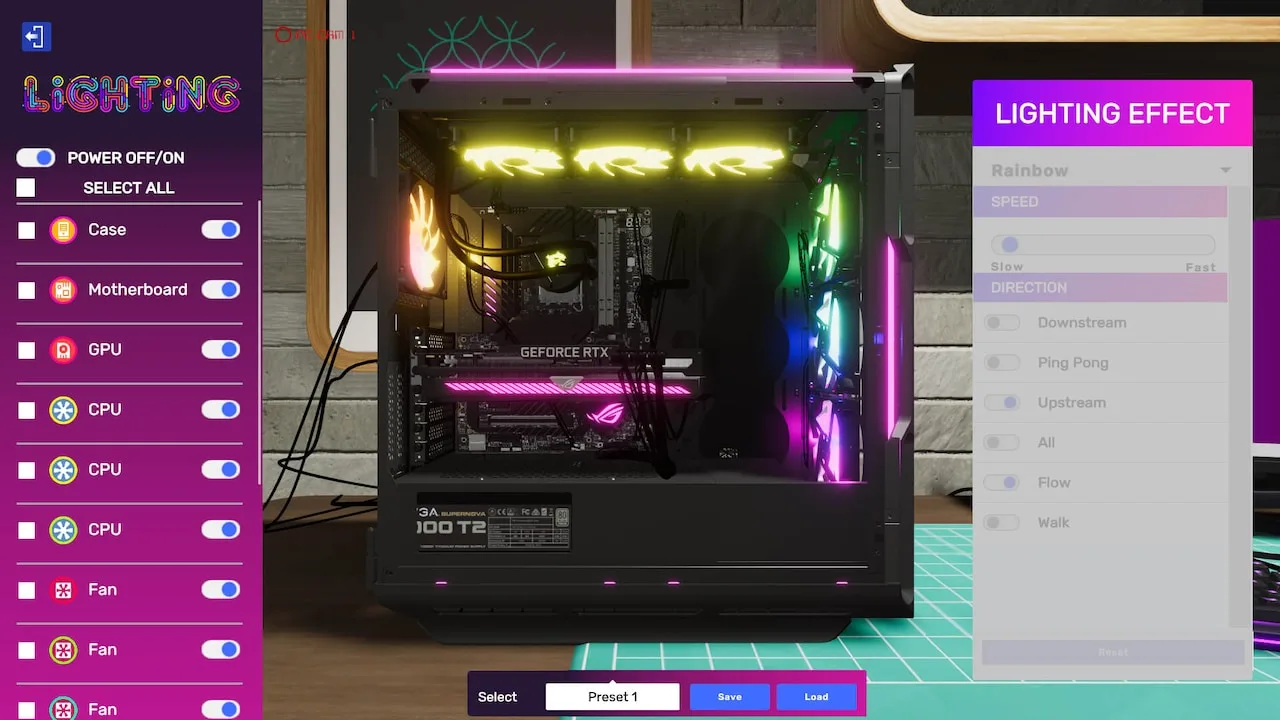
Master the 'Overclocking Challenge' in PC Building Simulator 2. Learn to diagnose overheating, use the Thermal Camera, and optimize cooling for peak performance.
Walkthrough
- 1Accept the 'Overclocking Challenge' job from Jessica.
- 2Use the Thermal Camera tool to scan the PC's interior and identify components that are overheating (indicated by red or orange colors).
- 3Common causes for overheating include:
- Insufficient or dried-out thermal paste on the CPU.
- 4Poor case airflow due to inadequate or poorly placed case fans.
- 5A failing or insufficient CPU cooler.
- 6Based on the Thermal Camera's findings, address the issue:
- If the CPU is too hot, remove the CPU cooler, clean off the old thermal paste with a cloth, apply new thermal paste, and reinstall the cooler.
- 7If case airflow is poor, ensure all installed case fans are oriented correctly for intake and exhaust, and consider installing additional case fans if there are empty slots.
- 8If the CPU cooler appears to be the issue, replace it with a new, more powerful one.
- 9After making adjustments, close the PC case.
- 10Run the OCCT software from the tablet's 'Apps' tab to stress test the CPU and GPU. Monitor the temperatures to ensure they remain within stable limits.
- 11If temperatures are stable, the job is complete.
Tips
- Always check the client's request carefully to understand the specific symptoms of overheating.
- When reapplying thermal paste, use a small, pea-sized amount in the center of the CPU.
- Ensure all fans are spinning correctly and are not obstructed.
- For demanding overclocking challenges, consider upgrading to a high-performance air cooler or an AIO liquid cooler.
- Run OCCT for a sufficient duration (at least 10-15 minutes) to ensure stability under load.
100% Human-Written. AI Fact-Checked. Community Verified. Learn how AntMag verifies content