Install and create custom content in PC Building Simulator 2. Learn to mod the game and use user-generated content for deeper personalization.
Welcome, aspiring PC builders and digital artisans! While PC Building Simulator 2 offers a vast array of components and customization options, the true depth of personalization often lies in the vibrant world of modding and user-generated content (UGC). This section will guide you through the process of discovering, installing, and even creating your own custom content to truly make your workshop and builds unique.
Discovering User-Generated Content
The PC Building Simulator 2 community thrives on sharing creative content. Here's where to look for the latest and greatest:
The Official Modding Hub
- Location: From the Main Menu, navigate to the "Community" section, then select "Modding Hub."
- Features: This in-game portal is your primary source for officially supported mods. You'll find categories for:
- Custom Cases: Unique chassis designs not available in the base game.
- Component Skins: Alternative textures and colors for existing CPUs, GPUs, RAM, etc.
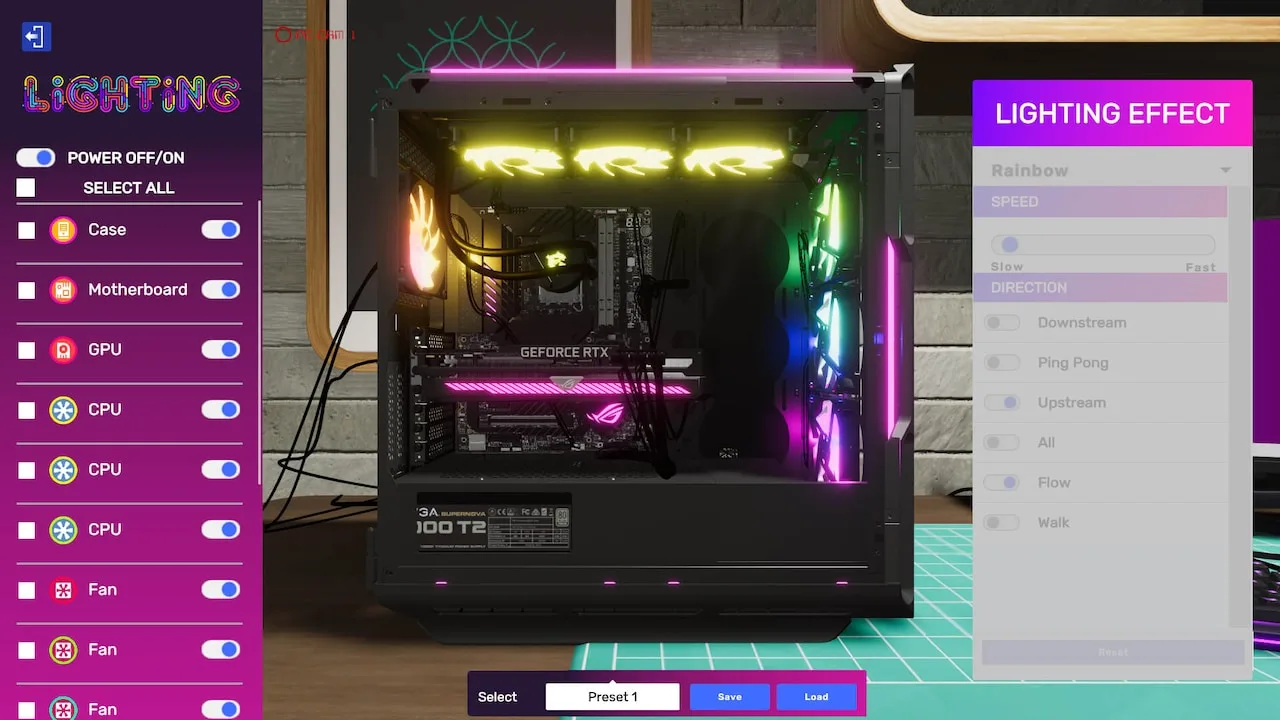
- Workshop Decorations: New posters, furniture, and lighting options to personalize your workspace.
- Challenge Modes: Community-created scenarios with specific build requirements and objectives.
- Strategy: Use the built-in search and filter functions (e.g., "Most Popular," "Newest," "Highest Rated") to quickly find content that interests you. Always check the mod's description for compatibility notes and installation instructions.
External Community Forums & Websites
Beyond the in-game hub, a wealth of UGC can be found on dedicated community platforms:
- GameFAQs Boards: While not a direct mod repository, the PC Building Simulator 2 boards (accessible via the Boards link on GameFAQs) are excellent for discussing mods, finding recommendations, and getting troubleshooting help from experienced players like jimfish or AngelIz831. Look for threads specifically titled "Mod Showcase" or "Custom Content Discussion."
- Dedicated Modding Sites: Many PC games have independent modding communities. A quick web search for "PC Building Simulator 2 mods" will often lead you to fan-run websites that host a broader range of content, including experimental mods or those still in development. Exercise caution and always scan downloaded files with antivirus software.
Installing User-Generated Content
Installing mods is generally straightforward, especially for those downloaded directly from the Official Modding Hub.
In-Game Mod Installation (Official Modding Hub)
- Browse & Select: From the "Modding Hub," click on any mod that catches your eye.
- Review Details: Read the mod's description, check its rating, and look for any specific requirements (e.g., "Requires DLC X").
- Subscribe/Install: Click the "Subscribe" or "Install" button. The game will automatically download and integrate the mod into your installation.
- Activate: Some mods may require activation. Navigate to the "Options" menu from your workshop, then select "Mods." Here, you can toggle individual mods on or off.
- Restart Game: For most significant mods, a game restart is recommended to ensure proper loading and functionality.
Manual Mod Installation (External Sources)
For mods downloaded from external websites, the process is slightly more involved:
- Download the Mod File: Mods are typically distributed as compressed archives (e.g., .zip, .rar). Download these to a temporary location on your PC.
- Extract Files: Use a program like 7-Zip or WinRAR to extract the contents of the archive. You'll usually find a folder containing the mod's assets.
- Locate Game Directory: The default installation path for PC Building Simulator 2 is often something like
C:\Program Files (x86)\Steam\steamapps\common\PC Building Simulator 2. - Find the Mods Folder: Within the game's main directory, there should be a folder named
ModsorUserContent. If it doesn't exist, you may need to create it. - Copy Mod Files: Copy the extracted mod folder (containing the mod's assets) directly into the
ModsorUserContentfolder. Ensure you're copying the *mod's folder*, not just its contents, to maintain proper structure. - Activate & Restart: As with in-game mods, check the "Mods" section in the game's "Options" menu to ensure the manually installed mod is recognized and activated. Always restart the game after manual installation.
Creating Your Own Content
Feeling creative? PC Building Simulator 2 offers tools for players to craft their own custom components and workshop items.
Getting Started with the Modding Tools
- Download the SDK: The official Modding Software Development Kit (SDK) can be found on the "Modding Hub" under the "Tools" tab, or sometimes as a separate download on the game's official website.
- Installation: Follow the SDK's installation instructions. It typically involves extracting files to a specific location on your hard drive.
- Familiarize Yourself: The SDK includes documentation and example files. Start by reviewing these to understand the basic structure of mod files (e.g., 3D model formats like .OBJ or .FBX, texture files like .PNG or .JPG, and configuration files like .JSON or .XML).
Designing Custom Components
- 3D Modeling Software: You'll need external 3D modeling software (e.g., Blender, Autodesk Maya, SketchUp) to create the visual assets for your components. Focus on clean topology and optimized poly counts for in-game performance.
- Texturing: Use image editing software (e.g., Photoshop, GIMP) to create realistic textures (diffuse, normal, metallic, roughness maps) for your models.
- Configuration Files: This is crucial. You'll need to create or modify .JSON/.XML files within the SDK to define your component's in-game properties:
- Component Type: Is it a CPU, GPU, Case, PSU?
- Stats: For performance parts, define clock speeds, core counts, wattage, etc.
- Mounting Points: Crucial for cases and motherboards, defining where other components attach.
- Pricing & Availability: Set the in-game cost and when it appears in the shop.
- Testing: Thoroughly test your custom component in a new game save to ensure it functions correctly, fits within cases, and doesn't cause crashes.
Customizing Your Workshop
- Asset Creation: Similar to components, you'll create 3D models and textures for your custom workshop decorations (e.g., new desks, posters, shelving).
- Placement & Scaling: The SDK allows you to define the default placement, rotation, and scale of your items within the workshop environment.
- Interaction (Optional): For advanced modders, you can even script simple interactions for your items, though this requires a deeper understanding of the SDK's scripting capabilities.
Sharing Your Creations
Once you've created a mod you're proud of, share it with the community!
- Package Your Mod: Use the SDK's tools to package your mod into a single, shareable file (often a .zip or a custom mod package format).
- Upload to Modding Hub: The easiest way to share is directly through the in-game "Modding Hub." Select "Upload Mod," fill in the details (description, screenshots, category), and submit it for review.
- Community Forums: You can also share your mod on the GameFAQs Boards or other dedicated modding sites, providing download links and instructions.
Modding can significantly extend the life and enjoyment of PC Building Simulator 2. Whether you're downloading a new custom case or designing your own unique CPU, the possibilities are endless. Happy building!
100% Human-Written. AI Fact-Checked. Community Verified. Learn how AntMag verifies content