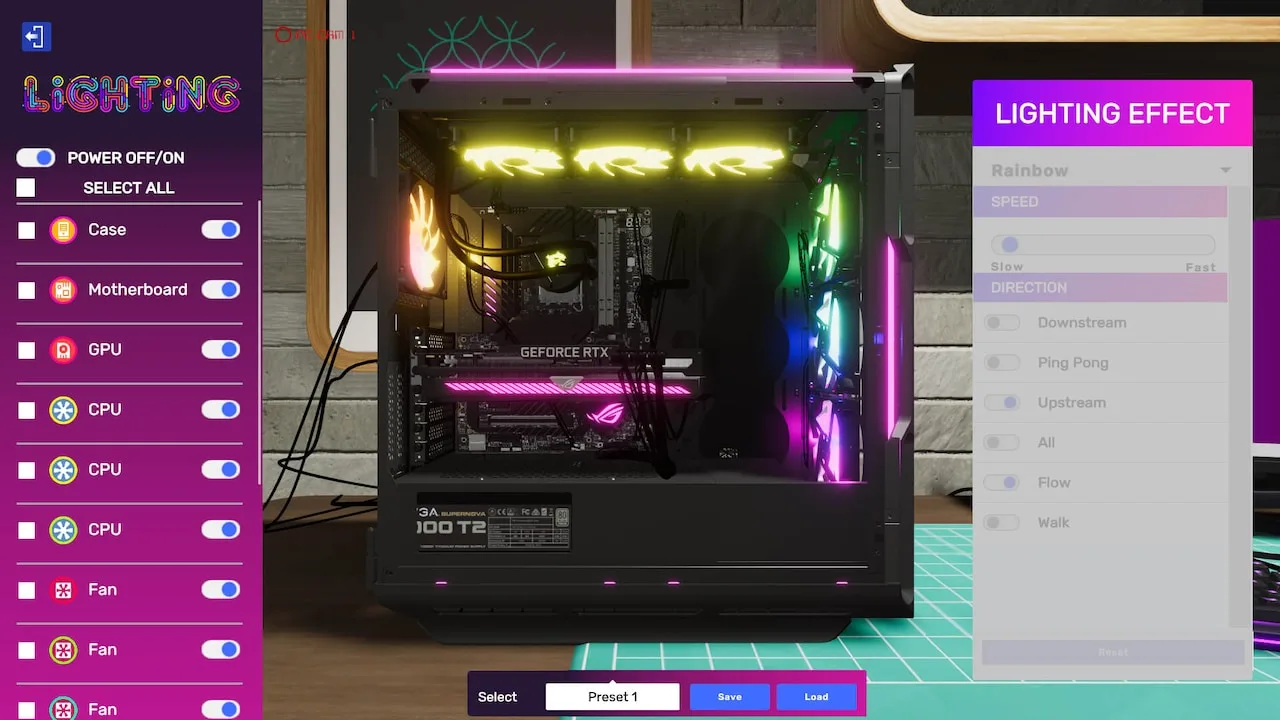
Learn how to diagnose and fix PC overheating issues in PC Building Simulator 2. This guide covers using the Thermal Camera, replacing thermal paste, and upgrading cooling solutions.
Walkthrough
- 1Accept the 'Overheating Issues' job from Jessica.
- 2Use the Thermal Camera tool to identify components or areas experiencing excessive heat.
- 3Common causes include dried-out thermal paste, poor case airflow, or an inadequate CPU cooler.
- 4If thermal paste is the issue, carefully remove the CPU cooler, clean the old paste from both the CPU and cooler, apply new paste, and reattach the cooler.
- 5If airflow is poor, consider adding more case fans or ensuring existing fans are correctly oriented.
- 6If the CPU cooler is insufficient, replace it with a more powerful one (e.g., an AIO liquid cooler).
- 7After making changes, use the OCCT software (accessible via the tablet's 'Apps' tab) to stress test the CPU and GPU.
- 8Monitor temperatures during the stress test to ensure they remain within acceptable limits.
- 9Deliver the PC once stable temperatures are confirmed.
Tips
- Always check the thermal paste condition during CPU cooler removal, even if it's not the primary suspected cause.
- Ensure all case fans are installed and oriented correctly for optimal airflow (intake and exhaust).
- Higher-end CPUs and GPUs generate more heat, requiring more robust cooling solutions.
- Don't forget to reconnect all necessary power cables after removing/replacing components.
100% Human-Written. AI Fact-Checked. Community Verified. Learn how AntMag verifies content